
Lost or Stolen Company Laptop or Phone: What IT Should Do in the UAE and Saudi Arabia
Published · PRO TECHnology Enterprise IT
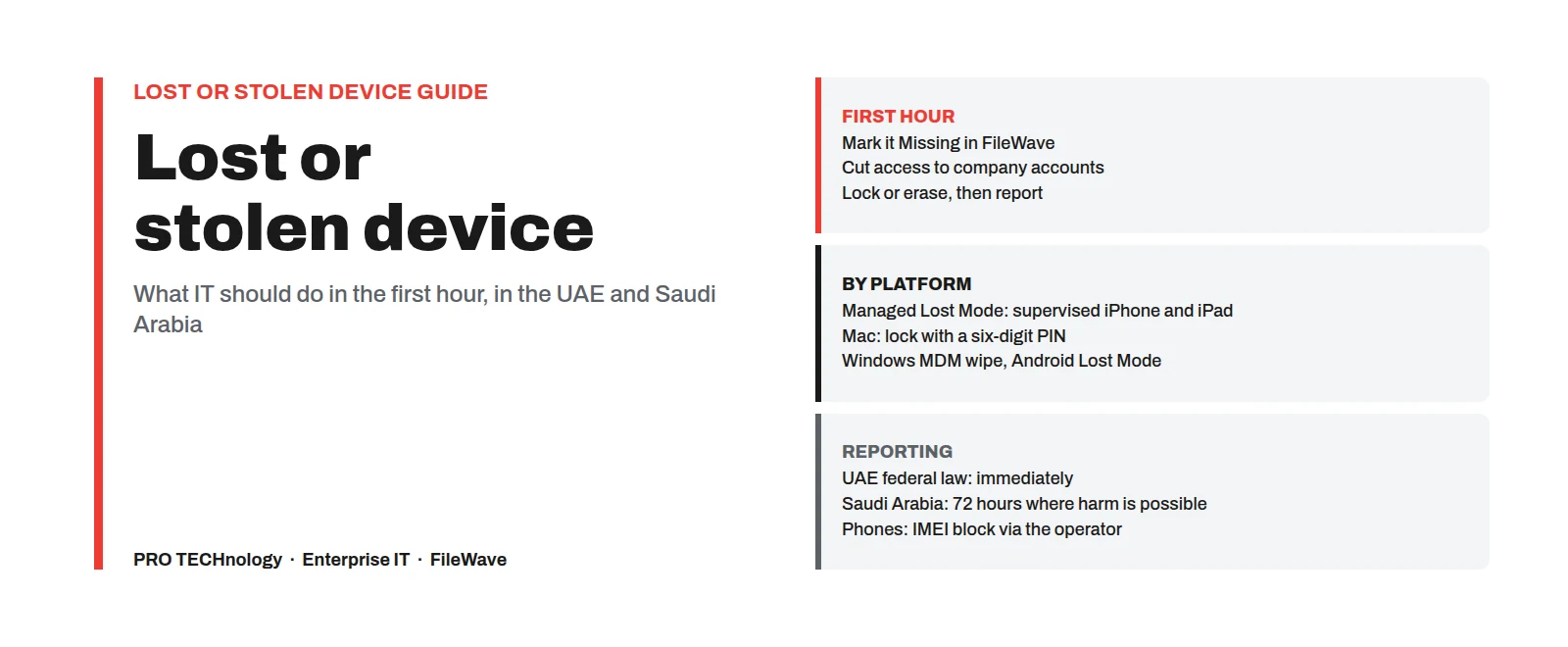
When a company laptop, iPhone, iPad, Android phone or Chromebook is lost or stolen, the first hour matters most. This runbook sets out what IT should do, in order: mark the device missing, cut access to company accounts, lock or erase it, block the phone line and decide whether the loss must be reported under UAE or Saudi data protection law. Each step shows what FileWave can do on each platform, and where Apple, Microsoft or Google set the limits.
- iPhone and iPad
- Managed Lost Mode on supervised devices: locked screen, your message, location on a map
- Mac
- No Managed Lost Mode; lock with a six-digit PIN, erase if the data is at risk
- Windows and Android
- Wipe on Windows MDM-enrolled PCs; Android Lost Mode on company-owned devices
- Reporting
- UAE PDPL: immediately; Saudi Arabia: within 72 hours where harm is possible
Key takeaways
- Act on the accounts as well as the device: mark it missing in FileWave, and at the same time reset the user’s password and sign them out of company services, because company mail and files live in cloud accounts that a device lock does not protect.
- Only a supervised company iPhone or iPad gets Apple’s Managed Lost Mode. A Mac has no Managed Lost Mode: lock it with a six-digit PIN, and erase it if the data is at risk. For Windows, FileWave documents a wipe through Windows MDM but no lock.
- No lock, Lost Mode or erase command acts until the device connects to the internet, and on Android a command can expire before then. Check FileWave’s command history and the device’s state rather than treating a sent command as done.
- Disk encryption protects a laptop that never comes back online: FileVault on Macs and BitLocker on Windows, with the recovery keys held by IT.
- Activation Lock stops a stolen company iPhone, iPad or Mac being set up again, but only if it is on: Apple blocks it on supervised devices until your device management allows it. To clear it later, IT needs the bypass code held in FileWave, Apple Business or a support request to Apple with proof of purchase.
- A lost device holding personal data can be a reportable breach: the UAE PDPL says report immediately, Saudi rules say within 72 hours where harm is possible, and the DIFC and ADGM have their own rules. No rule we found exempts an encrypted device from notice to a regulator.
What IT should do when a company laptop or phone is lost or stolen
Short answer. Mark the device as Missing in FileWave and run a Model Update, reset the user’s password and sign them out of company services, then lock or erase the device depending on whether its disk is encrypted and how sensitive its data is. Ask the mobile operator to block a phone’s IMEI, report a theft to the police, and assess whether personal data was exposed.
Jump to: each platform, Mac, location, lock or wipe, offline devices, Activation Lock, recovery keys, UAE and Saudi reporting, preparation, questions.
- Minute 0: take the report. Ask which device, when and where it was last seen, whether it was locked, whether it was stolen or simply mislaid, and what data was on it. Note the time you were told: the data protection deadlines below run from when you became aware.
- Minutes 5 to 10: look the device up. Find it in FileWave by user or serial number. Note its last check-in, how it is enrolled (supervised, enrolled in MDM, running the FileWave Client only, or a staff-owned phone) and whether its disk is encrypted. These facts decide every step after this one.
- Minutes 10 to 15: mark it missing. Set the Client State to Missing and run a Model Update. On a supervised iPhone or iPad this sends Apple’s Managed Lost Mode; on a company-owned Android device it starts Android Lost Mode; on a Mac or Windows PC, FileWave’s self-service Kiosk shows a missing-device message and stops installs.
- Minutes 10 to 20: cut access that does not depend on the device. Reset the user’s password, sign them out of every session in your identity provider and mail service, and revoke any VPN or Wi-Fi certificate issued to the device. Mail already on the device stays there, and an app can keep working until its current access token expires, usually within about an hour, unless it supports Microsoft’s continuous access evaluation, which cuts it off sooner.
- Minutes 15 to 30: lock or erase. Lost Mode has already locked supervised iPhones and iPads and company Android devices. Lock a Mac with a six-digit PIN and keep the PIN with the incident record, and disable a Chromebook in the Google Admin console. FileWave documents no lock for Windows, so a Windows PC relies on BitLocker until you decide whether to wipe it. Use the lock or wipe rule below to decide whether to erase now.
- Within the hour: report outside IT. For a phone with a company SIM, ask the mobile operator to block the line and the IMEI. Report a theft to the police. Tell whoever handles data protection, so they can decide whether the loss must be reported.
- Same day: keep a record. Log the times, each command sent, what FileWave’s command history shows for it, and who decided to lock or erase. The same record serves the police report, an insurance claim and the breach assessment.
- After 24 hours: decide on the device. Google recommends wiping a company Android device that has not been recovered after at least 24 hours in Lost Mode. The same rule of thumb works for the rest of the fleet unless the police or your insurer ask you to wait.
Treat the timings as an example. What matters is that someone can act at any hour: give staff one number or address for reporting a lost device, and make sure more than one administrator can send these commands.
Remote lock, locate and wipe: what works on each device
From FileWave, a remote wipe works on Macs, iPhones and iPads enrolled in MDM, on company-owned Android devices, on Chromebooks (as a Powerwash) and on Windows PCs enrolled in Windows MDM. It cannot reach a PC that runs only the FileWave Client, and on a staff-owned phone it removes company apps and data only. FileWave calls the erase command Wipe, so this guide uses both words. Apple, Microsoft and Google decide which commands exist on each platform; FileWave sends them.
| Device | Lost Mode or lock | Locate | Erase | Set up beforehand |
|---|---|---|---|---|
| Company iPhone or iPad, supervised | Managed Lost Mode: the device locks and shows your message and phone number, and only your device management service can end it | Requested through Lost Mode and shown on a map in FileWave; FileWave says this needs neither Find My nor Location Services | Wipe Device; for a device that comes back, Return to Service on iOS or iPadOS 17 and later | Supervision through Apple Business; Activation Lock allowed in FileWave, with the bypass code held there |
| Mac | No Managed Lost Mode. Lock Device sets a six-digit PIN: the Mac restarts and will not start macOS until the PIN is entered (Apple silicon needs macOS 11.5 or later) | Only if the FileWave Client was built with location tracking on and the user allowed Location Services | Wipe; on Apple silicon and T2 Macs with macOS 12 or later, Erase All Content and Settings | FileVault, with the personal recovery key held in FileWave |
| Windows PC enrolled in Windows MDM | No documented lock. Missing state: the Kiosk shows a missing-device message (FileWave 16.0 and later) | Only if the FileWave Client was built with location tracking on and Windows location services are on | Complete Wipe or Complete Wipe (protected) | BitLocker, with recovery keys in Microsoft Entra ID or Active Directory |
| Windows PC with the FileWave Client only | Missing state, as above | As above | Not available from FileWave; enrol the PC in Windows MDM before it is needed | BitLocker, which is then the main protection |
| Company-owned Android phone or tablet | Android Lost Mode (FileWave 15.5.0 and later): locks the device, shows your message and can play an alert; anyone who enters the device passcode ends it | Only through FileWave’s location tracking: the FileWave Client app with a location policy and background location permission | Wipe, then wait for Google’s next sync before deleting the record | Fully managed enrolment on Android 11 or later |
| Chromebook | Disable it in the Google Admin console with the lock screen option and your return details | Through Google Admin for a disabled Chromebook that is online, or from FileWave’s Inventory extension if it is deployed | Powerwash from FileWave (15.3 and later), or disable with a factory reset in Google Admin | Forced re-enrolment turned on in Google Admin |
| Staff-owned phone (User Enrollment or a work profile) | No Lost Mode on either platform | Not through Lost Mode | Company apps and data only, by removing the enrolment or the work profile | See our guide to staff-owned phones |
Microsoft warns that Complete Wipe (protected), which keeps going if the PC restarts during the wipe, can leave some PCs unable to start, so use it only when the data must be destroyed and you can do without the PC. On Android, Google allows Lost Mode on fully managed devices from Android 11 and on company-owned devices with a work profile from Android 13; ask us before relying on it for a work profile. Anyone who enters the device’s passcode ends Android Lost Mode, and FileWave says it cannot be started again within 12 hours of that or of a device password reset.
Every command in this table waits until the device next connects; see offline devices. For Chromebooks, act in Google Admin. Do not use FileWave’s Disable Chrome OS option for a lost device: FileWave’s documentation says it removes the Google connection and turns off the ChromeOS integration for the whole environment.
Does a Mac have Lost Mode? Locking and erasing a lost MacBook
Not through MDM. Apple offers Managed Lost Mode only for supervised iPhone and iPad. Find My has its own Lost Mode on a Mac, but it belongs to whoever’s Apple Account is signed in, not to IT. For a lost or stolen company MacBook, IT has three tools: a lock, an erase and, if it was set up in advance, background location.
- Lock Device. FileWave sends a six-digit PIN and a message. The Mac restarts and cannot start macOS until someone enters the PIN. Macs with Apple silicon need macOS 11.5 or later. Use it when you expect the Mac back.
- Wipe. On Apple silicon and T2 Macs with macOS 12 or later, FileWave’s Wipe uses Erase All Content and Settings when Apple’s checks pass; if that erase cannot run, the Mac follows the fallback behaviour chosen in the command.
- The PIN. Write down the six-digit PIN before you send Lock or Wipe (FileWave calls it the Find My Mac PIN), because FileWave does not keep it in its logs. Store it with the incident record, not in an email.
- Location. Only if the FileWave Client was built with location tracking turned on and the user allowed Location Services when macOS asked. Decide this before Macs are issued and tell staff, because it records where they are.
A lock does not protect the data on a Mac whose disk is not encrypted. With FileVault on, a Mac that is switched off cannot be read without the user’s password or the recovery key, which is why the recovery key matters more than the lock. For everyday management of both platforms, see our guide to managing Macs and Windows PCs together.
Can IT locate a lost company iPhone or laptop?
Sometimes, and only on devices prepared for it. A supervised iPhone or iPad can be located through Managed Lost Mode, without Find My. Macs, Windows PCs and Android devices report location only if FileWave’s location tracking was set up before the loss, and Chromebooks through Google Admin or FileWave’s Inventory extension. No tool can locate a device that stays offline.
- Supervised iPhone and iPad: FileWave requests the location through Managed Lost Mode and shows it on a map. Check the time and accuracy of each position before acting on it.
- iPhone and iPad outside Lost Mode: no background tracking. FileWave’s legacy Kiosk app, which once reported location, stopped working on 30 July 2026, and FileWave now points to Lost Mode instead.
- Mac and Windows: background location only if the FileWave Client was built with location tracking on, personal data collection has not been disabled and the device is set to Tracked or Missing. Macs ask the user for permission; Windows needs its own location setting switched on.
- Company-owned Android: Android Lost Mode locks the device and shows your message, but FileWave reports location through its separate location tracking, which needs the FileWave Client app, a location policy and background location permission.
- Chromebooks: Google Admin can show the approximate location of a disabled Chromebook that is online, on a recent ChromeOS version, if you turned on location tracking when you disabled it with the lock screen option; the administrator needs the Locate ChromeOS Devices privilege. The link expires after 24 hours, and the user is told that the device’s location was accessed. FileWave can also show a Chromebook’s last reported location, which can be up to a day old, if its Inventory extension is deployed and Google Admin allows geolocation.
If you find a stolen device on the map, do not go after it yourself. Give the location to the police with your report. Location data about staff is personal data, so decide who may switch tracking on, put it in your device policy and tell staff before devices are issued.
Lock or wipe first? Deciding when to erase
Lock first when the disk is encrypted, the device was probably mislaid rather than stolen, and there is a fair chance of getting it back: a lock keeps the data and the chance of recovery. Erase straight away when the disk is not encrypted, or the device holds data you cannot risk. On a Windows PC, FileWave documents a wipe through Windows MDM but no lock, so BitLocker protects the data until you decide to wipe.
Erasing closes options. Once erased, a device is no longer enrolled, so FileWave can no longer lock or locate it unless it enrols again; on a Chromebook, Google notes that disabling with a factory reset removes location tracking. Any work the user had not synced is gone.
| Situation | Start with | Then |
|---|---|---|
| Mislaid in the office, a taxi or a hotel; disk encrypted | Lost Mode or a lock (on Windows, BitLocker alone) | Erase if it has not come back after 24 hours, or sooner at any sign of theft |
| Stolen; disk encrypted | Lost Mode or a lock, and a police report | Erase once the police no longer need its location |
| Lost or stolen; disk not encrypted | Erase now | Treat the data as exposed and assess the loss for reporting |
| A leaver who does not return the device | A lock | Erase it, and keep Activation Lock and Apple Business in place so it cannot be set up as someone else’s |
| A staff-owned phone with company data | Remove the company data | Nothing more: the phone is not the company’s to lock or erase |
Whatever you decide, write down why. A lock can be undone; an erase cannot.
What happens if the lost device is offline or switched off?
Nothing, until it connects. Lock, Lost Mode and erase commands are delivered when the device next reaches the internet over Wi-Fi or a mobile network, and Apple describes this behaviour for its own device management service. On Android, Google says a command can expire if the device does not run it in time, so check in FileWave that an Android device’s state has actually changed.
- A laptop that is switched off is protected only by its disk encryption until it comes online. That is why FileVault and BitLocker matter more than any remote command.
- An iPhone or iPad needs a connection to enter Lost Mode and to leave it. FileWave advises against restarting a device in Lost Mode: if it cannot rejoin Wi-Fi or a mobile network, it cannot be taken out of Lost Mode remotely.
- A command shown as sent has not necessarily run. Check FileWave’s command history and record when each command completed.
Keep a missing iPhone, iPad or Mac assigned to your device management service in Apple Business rather than releasing it. While it stays assigned, and if your enrolment profile does not let the user skip enrolment, a device that someone erases contacts Apple during setup and is sent back to your service to enrol again.
Activation Lock on company devices: removing it from a former employee’s iPhone or Mac
Activation Lock ties an iPhone, iPad, or a Mac with Apple silicon or the T2 chip, to an Apple Account or to your organisation, so after an erase the device cannot be set up again without that account, the bypass code or Apple’s help. That protects a stolen device. It becomes a problem when an employee leaves with the lock tied to their personal Apple Account, or when IT needs to reuse a returned device. On supervised devices Apple blocks Activation Lock until your device management service allows it, so decide in FileWave whether to allow it.
- The bypass code. For supervised devices, FileWave keeps the Activation Lock bypass code in its Activation Lock Management assistant and can send Clear Activation Lock on its own or as part of a wipe. Activation Lock behaviour can also be set in the Automated Device Enrollment profile.
- Apple Business. Since June 2024, Apple Business (formerly Apple Business Manager) has let organisations turn off Activation Lock on devices they own, including a lock tied to an employee’s personal account, provided the device was added to Apple Business before the lock was turned on. The user doing it needs a role that can manage devices.
- Proof of purchase. For a device that was never in Apple Business, Apple lets you start an Activation Lock support request with proof of purchase. Keep each invoice with the device’s asset record.
- Typing the code by hand. If a wiped device still asks for an Apple Account, FileWave’s known-issue note says to enter the bypass code in the password field, exactly as stored with its hyphens, and leave the account field empty.
For a stolen device, leave Activation Lock on: it stops anyone else setting the device up. Moving devices between MDM services changes the lock and its bypass codes; see what happens to Activation Lock when you switch MDM.
FileVault and BitLocker recovery keys: have them before a laptop goes missing
Disk encryption protects a lost laptop that never connects again. The recovery key lets IT unlock a laptop that comes back, and a record that encryption was on helps when you assess whether the loss must be reported.
- FileVault on Macs. If the FileVault profile has Escrow Personal Recovery Key selected, FileWave stores the Mac’s personal recovery key and shows it in its FDE Recovery Key Management assistant. This works on Macs enrolled in MDM, with the FileVault settings in a profile of their own. A Mac that turned on FileVault before the profile arrived may need a new key before FileWave has one.
- BitLocker on Windows. Keep the recovery keys in Microsoft Entra ID or Active Directory, as Microsoft recommends. FileWave can also report the keys through its BitLocker Compliance Pack or a Custom Field script; if you use either, restrict who can see that field.
- Check monthly. Report on laptops without encryption or without a stored key, and fix them before one goes missing.
Hardware encryption and BitLocker choices for company laptops are compared in our self-encrypting drive vs BitLocker guide.
Is a lost company laptop a data breach? Reporting in the UAE and Saudi Arabia
It can be. If the device held or could reach personal data about customers, patients or staff, its loss may be a personal data breach. The UAE PDPL requires a report to the UAE Data Office immediately; in Saudi Arabia, SDAIA must be told within 72 hours where harm is possible. The DIFC and ADGM have their own rules. This summary is not legal advice; confirm the current position with your legal adviser.
| Where | Report to | When | The people affected |
|---|---|---|---|
| UAE, under federal law (outside free zones with their own data protection law, such as the DIFC and ADGM) | The UAE Data Office, under Article 9 of the UAE PDPL (Federal Decree-Law No. 45 of 2021) | Immediately on becoming aware of a breach that would prejudice the privacy, confidentiality or security of personal data. The detailed period and procedure were left to Executive Regulations that, as far as we could find, had not been published by October 2026 | The controller must also inform them |
| Dubai International Financial Centre (DIFC) | The DIFC Commissioner of Data Protection | As soon as practicable, for a breach that compromises the confidentiality, security or privacy of the people concerned | Where the breach is likely to result in a high risk to them |
| Abu Dhabi Global Market (ADGM) | The ADGM Commissioner of Data Protection | Without undue delay and, where feasible, within 72 hours of becoming aware, unless the breach is unlikely to result in a risk to individuals | Without undue delay where the risk to them is high, unless, for example, encryption made the data unintelligible to anyone not authorised to access it |
| Saudi Arabia | SDAIA, under Article 24 of the Implementing Regulation of the PDPL | Within 72 hours of becoming aware, where the breach may harm the personal data or the people it concerns, or conflict with their rights or interests | Without undue delay where it may harm them |
In the UAE, the government announced in June 2026 a Federal Authority for Artificial Intelligence and Data that takes over the Data Office’s functions, so confirm which body is accepting reports before you file. The federal law also excludes, among others, government data and health or banking data covered by legislation of its own, and regulated sectors may have reporting rules of their own; check with your regulator.
In Saudi Arabia, SDAIA is consulting until 5 November 2026 on draft amendments to the Implementing Regulation that would require notice to SDAIA whether or not harm is likely; they are a draft, and the current rule still applies. For entities under NCA’s Essential Cybersecurity Controls, control 2.6.3.3 of ECC-2:2024 asks for the entity’s data on mobile devices and BYOD to be deleted if a device is lost or the employee leaves. The wider Saudi picture is on our enterprise IT in Saudi Arabia page.
Encryption. No UAE or Saudi rule we found exempts a lost encrypted device from notice to a regulator. ADGM’s rules do excuse telling the people affected where measures such as encryption made the data unintelligible to anyone not authorised to access it; we found no such exception in UAE federal law or Saudi rules, so confirm the position for the DIFC with your adviser. Where the test is likely harm or risk, record whether the device was encrypted and whether its passcode or recovery key could have been exposed, and use that in the assessment.
Lost or stolen phones: blocking the line and the IMEI
In the UAE, report a lost or stolen phone to the telecom operator. According to TDRA’s 2023 announcement, the operator verifies the owner’s identity and the device details and, with their approval, blocks the phone’s IMEI on UAE networks within 24 hours; unblocking a recovered phone also takes 24 hours. In Dubai, a lost phone can also be reported through the Dubai Police app. Report a theft to the police.
In Saudi Arabia, ask the mobile operator (STC, Mobily or Zain) to block a lost or stolen phone by its IMEI, and report a theft to the police. In both countries the report goes faster when each company phone’s number and IMEI are already in your asset register; our device inventory guide covers keeping that register current.
Preparing before a device goes missing: a checklist
- Add company iPhones, iPads and Macs to Apple Business through the reseller or carrier you buy from, and enrol them through Automated Device Enrollment so they are supervised. Setting up Apple Business explains this step.
- Decide whether FileWave allows Activation Lock on supervised devices, and check that it holds the bypass code for each one.
- Turn on FileVault and BitLocker on every laptop, with the recovery keys stored, and report on exceptions every month.
- Enrol Windows PCs in Windows MDM, so that a remote wipe is possible; a PC running the FileWave Client alone cannot be wiped from FileWave.
- For company Android devices, set Google’s enterprise factory reset protection before they are issued, so that a phone someone resets from its recovery menu needs an approved company account to be set up again. Google’s remote wipe removes that protection unless the management service asks to keep it, so ask us how FileWave handles it before you rely on it.
- In the Google Admin console, keep forced re-enrolment on for Chromebooks and write the return instructions shown on a disabled device.
- Decide whether location tracking is used, on which devices and who may switch it on, and tell staff.
- Keep each device’s serial number, IMEI, user and purchase invoice in one record.
- Write a one-page lost-device policy: report straight away, to whom, at any hour; never try to recover a stolen device; what IT will do and when it will erase.
- Run a lost-device drill twice a year: mark a test device missing, find it on the map, lock it, erase it and enrol it again, and time each step.
Schools can run the same drill with a classroom iPad or Chromebook; our school device management guide covers how ownership changes what a school may erase.
If the device comes back, or never does
- It comes back. Move the Client State back from Missing and run a Model Update to end Lost Mode; the device must be online. If it was out of your hands for long, erase it and enrol it again rather than trust it.
- Return to Service. For iPhones and iPads on iOS 17 or iPadOS 17 or later, FileWave 15.1.0 and later can erase the device with Return to Service, which needs a Wi-Fi profile and the Remove Activation Lock option, so the device comes back on the network ready to be set up again.
- It never comes back. Erase it if you have not, keep it assigned in Apple Business, record it as lost in your asset register and replace it. For an Android device, follow FileWave’s order: wipe, wait for Google’s next sync, then delete the record, because a record deleted first can come back.
- The replacement. Once the new device is enrolled, FileWave applies the same settings and software, so the user is working again quickly. Their files come back from cloud storage or your backups, not from FileWave.
When a device reaches the end of its life rather than going missing, see our guide to secure data erasure and drive decommissioning.
Lost-device readiness with PRO TECHnology
PRO TECHnology is FileWave’s distributor and partner for the Middle East, and has been an authorised FileWave reseller in the GCC since 2009. For lost devices, our work with your IT team covers four things: checking how each device is enrolled; setting up Lost Mode, location, recovery key escrow and Activation Lock handling; writing the runbook with you; and running the first drill. Support comes from our team in Dubai, for a FileWave-hosted server or one in your own data centre. Saudi enquiries come to our account team, who visit the Kingdom often, with local work delegated to PRONEXT, our company in Riyadh.
A self-hosted server has to be reachable from the internet before it can send a lock or wipe to a laptop outside the office; see which connections an on-premises FileWave server needs. For the wider picture, read our guide to MDM and unified endpoint management, the FileWave partnership announcement and FileWave licences and quotations.
See FileWave’s lost-device steps on your own devices
Tell us roughly how many devices you run and, under Add details, how they are enrolled today. Our Enterprise IT team in Dubai replies by email, Saudi enquiries included; the team visits the Kingdom often, and local work there is delegated to PRONEXT in Riyadh.
Sources
Checked on 23 October 2026 against FileWave’s knowledge base for version 16.4.x, Apple, Google and Microsoft documentation, official UAE, DIFC, ADGM and Saudi sources where they could be retrieved, and law firm or news summaries elsewhere, including news reports of TDRA’s 2023 announcement. Details change, so confirm each one at the source before acting on it.
- FileWave: Apple MDM Lost Mode
- FileWave: Wipe Device for macOS
- FileWave: Wipe a Windows MDM device from FileWave Anywhere
- FileWave: Missing device message in Kiosk for macOS and Windows (16.0)
- FileWave: Location tracking setup
- FileWave: Legacy FileWave Kiosk IPA location tracking issue
- FileWave: Android Lost Mode
- FileWave: Removing Android devices
- FileWave: Removing ChromeOS (Chromebook) devices
- FileWave: Powerwash and Wipe Users on ChromeOS (15.3)
- FileWave: ChromeOS FileWave Inventory extension capabilities
- FileWave: Clear Activation Lock
- FileWave: Apple ID prompt after a wipe with the Activation Lock bypass code
- FileWave: Return to Service for iOS and iPadOS
- FileWave: Getting started with FileVault in FileWave
- FileWave: BitLocker management for Windows 10 and 11
- FileWave: Store BitLocker recovery keys in a FileWave Custom Field
- Apple Platform Security: Managed Lost Mode and remote wipe
- Apple: Lock and locate Apple devices
- Apple: Erase Apple devices
- Apple: Activation Lock on Apple devices (deployment guide)
- Apple Business: Turn off Activation Lock on organisation-owned devices
- Apple: How to remove Activation Lock
- Apple Business: Locate, lock and erase devices
- Google: Lost mode (Android Management API)
- Google: Deprovision a device (Android Management API)
- Google: Factory reset protection on managed Android devices
- Google: Repair, repurpose or retire ChromeOS devices
- Google: Locate a managed ChromeOS device
- Microsoft: BitLocker recovery process
- Microsoft: Revoke user access in Microsoft Entra ID
- UAE Legislation: Federal Decree-Law No. 45 of 2021 on the Protection of Personal Data
- Morgan Lewis: UAE establishes a Federal Authority for Artificial Intelligence and Data (June 2026)
- DIFC: Security and personal data breach reporting guidance
- ADGM Office of Data Protection: Data breach notifications
- ADGM Office of Data Protection: Data Protection Regulations 2021 guidance, Part 5
- SDAIA: PDPL Implementing Regulation (PDF)
- Clyde & Co: SDAIA publishes draft amendments to the Implementing Regulations of the PDPL (October 2026)
- National Cybersecurity Authority: ECC-2:2024 Essential Cybersecurity Controls (PDF)
- Gulf News: How TDRA and your service provider can help with lost or stolen mobile devices (November 2023)
Frequently asked questions
What should an employee do if their company laptop is stolen?
Tell IT straight away, at any hour, with the time and place it went missing and whether it was locked. Report the theft to the police and keep the report number. Do not try to recover the laptop yourself. IT can then mark it missing, cut access to company accounts and lock or erase it.
What should IT do first when a company phone is lost?
Mark it as Missing in FileWave and run a Model Update, which turns on Managed Lost Mode on a supervised iPhone and Android Lost Mode on a company-owned Android phone. Then reset the user’s password and sign them out of company services, ask the mobile operator to block the line and the IMEI, and decide whether to erase.
Does a Mac have Lost Mode?
Not through MDM. Apple offers Managed Lost Mode only for supervised iPhones and iPads; Find My’s Lost Mode on a Mac is controlled by the Apple Account signed in on it, not by IT. For a company Mac, FileWave can send Lock Device with a six-digit PIN, so the Mac will not start macOS until the PIN is entered, or erase it.
What is Managed Lost Mode on a company iPhone?
Managed Lost Mode is Apple’s MDM lock for supervised iPhones and iPads. It locks the device, shows your message and phone number, and lets FileWave request the device’s location without Find My. Only your device management service can end it. In FileWave, set the Client State to Missing and run a Model Update; the device must be online.
Can IT track the location of a lost company iPhone?
Yes, if the iPhone is supervised: Managed Lost Mode lets FileWave request its location and show it on a map, and FileWave says this works without Find My. IT cannot locate a staff-owned iPhone enrolled through User Enrollment, and FileWave offers no background location for iPhones outside Lost Mode.
Should you lock or wipe a stolen laptop first?
Lock first if the disk is encrypted and there is a chance of getting the laptop back, because an erased laptop can no longer be locked or located. On a Windows PC, where FileWave documents a wipe but no lock, BitLocker protects the data until you decide. Erase straight away if the disk is not encrypted or the data is too sensitive to risk. Either way, the command runs only when the laptop next connects.
Does a remote wipe work if the device is offline or switched off?
Not until it connects. The wipe runs when the device next reaches the internet; on Android, Google says a command can expire first, so check the device’s state in FileWave. Until then only disk encryption protects the data, which is why FileVault and BitLocker, with recovery keys held by IT, matter more than the wipe command.
How do you remove Activation Lock from a former employee’s company iPhone or Mac?
If the device was supervised and FileWave allowed Activation Lock, FileWave can send Clear Activation Lock using the bypass code it stored. If the device was added to Apple Business before the lock was turned on, Apple Business can turn Activation Lock off, including a lock tied to the employee’s personal Apple Account. Otherwise, Apple lets you start an Activation Lock support request with proof of purchase.
Where is the FileVault recovery key for a company Mac?
If FileWave manages FileVault with Escrow Personal Recovery Key selected, the key is stored in FileWave and shown in its FDE Recovery Key Management assistant. If the key was never escrowed, IT has no copy, so check every Mac’s key status before one goes missing.
Can FileWave wipe a lost Windows laptop?
Yes, if the PC is enrolled in Windows MDM: FileWave sends Complete Wipe or Complete Wipe (protected). A PC that runs only the FileWave Client cannot be wiped from FileWave, so BitLocker, with recovery keys in Microsoft Entra ID or Active Directory, is its main protection.
Is a lost company laptop a reportable data breach in the UAE?
It can be. Under Article 9 of the UAE PDPL (Federal Decree-Law No. 45 of 2021), a controller must report a breach that would prejudice the privacy, confidentiality or security of personal data to the UAE Data Office immediately on becoming aware of it, and inform the people affected. A federal authority announced in June 2026 takes over the Data Office’s functions, so confirm which body accepts reports. The DIFC and ADGM have their own rules. No rule we found exempts an encrypted device from notice to a regulator. This is a summary, not legal advice.
Does a lost device have to be reported to SDAIA in Saudi Arabia?
Yes, if the loss may harm the personal data or the people it concerns, or conflict with their rights or interests: Article 24 of the Implementing Regulation of the PDPL requires notice to SDAIA within 72 hours of becoming aware, and the people affected must be told without undue delay where it may harm them. SDAIA opened a consultation in October 2026 on draft amendments that are not yet in force. This is a summary, not legal advice.
How do you block a lost or stolen phone in the UAE?
Report it to the telecom operator. According to TDRA, the operator verifies the owner’s identity and the device details and, with their approval, blocks the phone’s IMEI on UAE networks within 24 hours. Report a theft to the police as well.
What should a lost or stolen device policy include?
Who staff report to and how fast, at any hour; that staff must never try to recover a stolen device; what IT will do and when it will erase; how location data is used; and who decides whether the loss must be reported under data protection law. Test it with a drill twice a year.
ماذا تفعل عند ضياع أو سرقة لابتوب أو جوال الشركة في الإمارات والسعودية؟
عند ضياع أو سرقة لابتوب أو جوال أو iPad تابع للشركة، تكون الساعة الأولى هي الأهم. والخطوات بالترتيب: تحديد حالة الجهاز على أنه مفقود (Missing) في FileWave ثم تشغيل Model Update، وتغيير كلمة مرور الموظف وإنهاء جلسات دخوله إلى خدمات الشركة، ثم قفل الجهاز أو مسح بياناته عن بُعد، وطلب حظر الخط ورقم IMEI من شركة الاتصالات، وإبلاغ الشرطة في حالة السرقة، وتقييم ما إذا كان الضياع يستوجب الإبلاغ وفق قوانين حماية البيانات.
يتوفر نمط الفقدان المُدار (Managed Lost Mode) من Apple على أجهزة iPhone وiPad المملوكة للشركة والخاضعة للإشراف (Supervised) فقط، فيُقفل الجهاز ويعرض رسالتكم ورقم التواصل، ويستطيع FileWave طلب موقعه وعرضه على الخريطة. أما جهاز Mac فلا يدعم نمط الفقدان المُدار، لكن يمكن قفله برمز PIN من ستة أرقام أو مسح بياناته. وعلى أجهزة Android المملوكة للشركة يتوفر نمط الفقدان منذ FileWave 15.5.0، ولا يمكن مسح حاسوب Windows عن بُعد إلا إذا كان مسجّلاً في Windows MDM، ولا يوثّق FileWave أمر قفل لأجهزة Windows، وتُعطَّل أجهزة Chromebook المفقودة من Google Admin.
لا يصل أي أمر قفل أو مسح إلى الجهاز إلا عند اتصاله بالإنترنت، لذلك فإن تشفير القرص عبر FileVault على Mac وBitLocker على Windows، مع احتفاظ فريق تقنية المعلومات بمفتاح الاسترداد، هو ما يحمي بيانات جهاز لا يعود إلى الاتصال. ويمنع قفل التنشيط (Activation Lock)، إذا كان مفعّلاً، إعادة تهيئة جهاز iPhone أو Mac مسروق، علماً بأن Apple تمنعه افتراضياً على الأجهزة الخاضعة للإشراف ما لم تسمح به منصة الإدارة. ويمكن إزالته من جهاز موظف سابق برمز التجاوز الذي يحفظه FileWave، أو عبر Apple Business إذا أُضيف الجهاز إليها قبل تفعيل القفل.
في الإمارات، يُلزم المرسوم بقانون اتحادي رقم 45 لسنة 2021 بشأن حماية البيانات الشخصية (المادة 9) المتحكم بإبلاغ مكتب الإمارات للبيانات فور علمه بأي خرق من شأنه المساس بخصوصية البيانات الشخصية أو سريتها أو أمنها، وبإبلاغ أصحاب البيانات المتأثرين، ولمركز دبي المالي العالمي (DIFC) وسوق أبوظبي العالمي (ADGM) قواعدهما الخاصة. ولم تُنشر اللائحة التنفيذية حتى أكتوبر 2026 بحسب ما وجدنا، وفي يونيو 2026 أُعلن عن إنشاء هيئة اتحادية للذكاء الاصطناعي والبيانات تتولى اختصاصات المكتب، لذا تحققوا من الجهة التي تستقبل البلاغات. وفي السعودية، توجب المادة 24 من اللائحة التنفيذية لنظام حماية البيانات الشخصية إشعار الهيئة السعودية للبيانات والذكاء الاصطناعي (سدايا) خلال 72 ساعة من العلم بالتسرب إذا كان قد يُلحق ضرراً بالبيانات أو بأصحابها. ولم نجد قاعدة في الإمارات أو السعودية تستثني الجهاز المشفّر من إبلاغ الجهة الرقابية، غير أن قواعد سوق أبوظبي العالمي تُعفي من إبلاغ أصحاب البيانات إذا جعل التشفير البيانات غير مفهومة لغير المصرّح لهم بالوصول إليها. هذا ملخص وليس استشارة قانونية.
في الإمارات، تحظر شركة الاتصالات رقم IMEI للجوال المفقود أو المسروق على شبكات الدولة خلال 24 ساعة من البلاغ بعد التحقق من هوية المالك وبيانات الجهاز، وفق ما أعلنته هيئة تنظيم الاتصالات والحكومة الرقمية (TDRA). وفي السعودية، اطلبوا من شركة الاتصالات (STC أو موبايلي أو زين) حظر الجهاز برقم IMEI، وأبلغوا الشرطة في حالة السرقة.
شركة PRO TECHnology هي موزّع FileWave وشريكها في منطقة الشرق الأوسط، وبائع معتمد لـ FileWave في دول الخليج منذ عام 2009. نراجع مع فريقكم طريقة تسجيل كل جهاز، ونُعدّ نمط الفقدان وتحديد الموقع وحفظ مفاتيح الاسترداد وقفل التنشيط، ونكتب معكم خطة التعامل مع الأجهزة المفقودة وننفّذ أول تمرين. ويتولى فريق إدارة حسابات العملاء لدينا الاستفسارات الواردة من المملكة العربية السعودية ويزور المملكة كثيرًا، وتُسند الأعمال المحلية فيها إلى PRONEXT، شركتنا في الرياض. للتواصل، استخدموا نموذج الاستفسار في هذه الصفحة، وسيرد عليكم فريقنا بالبريد الإلكتروني.
Be ready before a device goes missing
Tell us which Macs, Windows PCs, iPhones, iPads and Android devices you run and how they are enrolled today. We will show you the Lost Mode, lock, erase and recovery key steps in FileWave, at our Business Bay showroom or at your offices, and propose a pilot.