
Enrolling Staff-Owned Phones: Apple User Enrollment, Android Work Profile and What IT Sees
Published · PRO TECHnology Enterprise IT
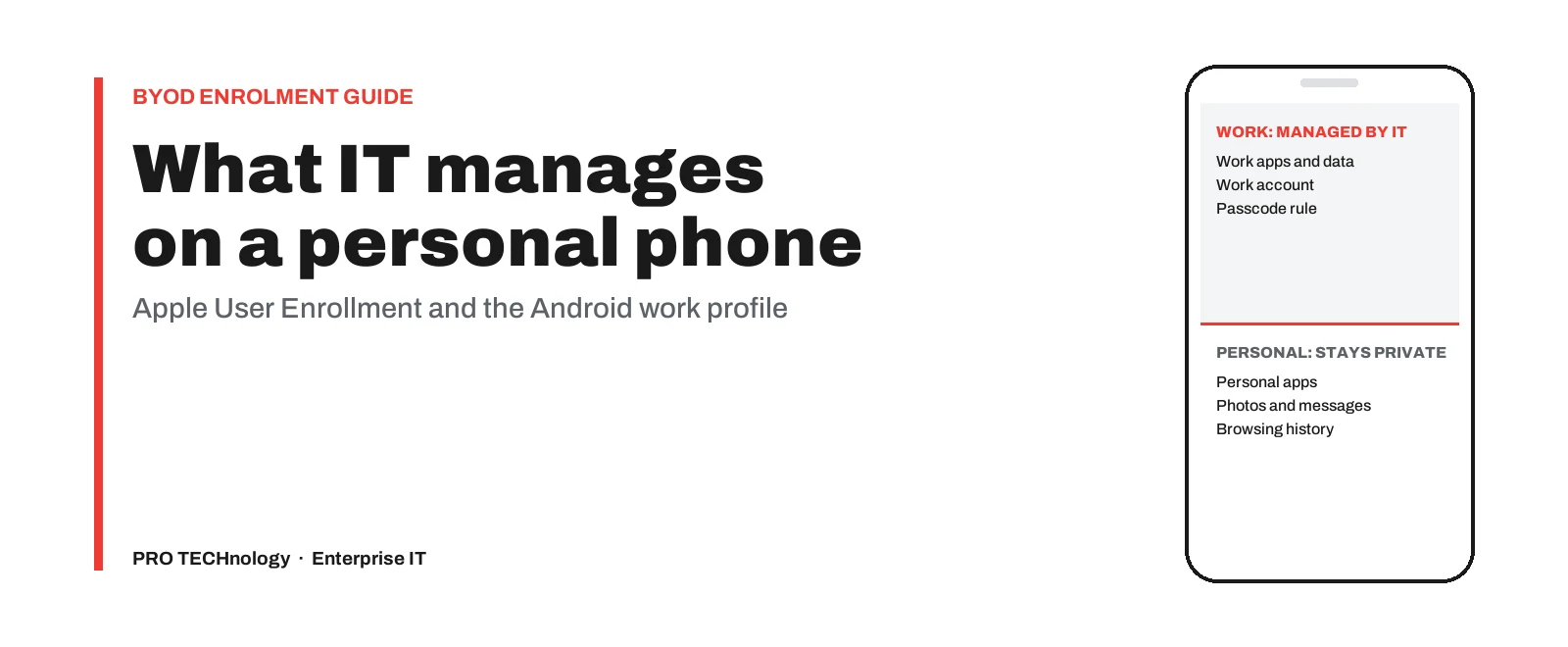
An employee’s own iPhone or iPad is enrolled through Apple’s Account-driven User Enrollment, and an Android phone through an Android Enterprise work profile. Either way IT manages the work account, the work apps and their data, while personal apps, messages and photos stay out of its view. Apple does not allow a full erase of a user-enrolled iPhone, and in Google’s design a wipe of a personal phone removes the work profile, not the owner’s own content.
- iPhone and iPad
- Account-driven User Enrollment: iOS 15 or later, FileWave 15.5 or later
- Android phones
- Android Enterprise work profile, with no factory reset
- Full-phone erase
- Not on a user-enrolled iPhone; on Android, Google’s design wipes only the work profile
- Apple set-up
- Managed Apple Accounts, plus a small file on the website of your sign-in domain, normally your email domain
Key takeaways
- Staff-owned iPhones and iPads enrol through Apple’s Account-driven User Enrollment and Android phones through an Android Enterprise work profile, and FileWave supports both, with Account-driven User Enrollment from FileWave 15.5.
- On a personal phone IT sees the work side: managed apps, the work account and the operating system version, plus, on Android, network and location data from work apps and some device details such as the model, phone number and carrier, according to Google’s help page; personal apps, messages, photos and browsing history stay out of view.
- There is no full-phone erase on a personal enrolment: Apple does not allow one on a user-enrolled iPhone, and in Google’s design a wipe of a personal phone removes only the work profile, so the company’s apps and data go and the employee’s own content stays.
- Apple’s method needs Managed Apple Accounts and a small file on the website of your sign-in domain, normally your email domain. Federating Apple Business with Microsoft Entra ID or Google Workspace, so staff use their existing work sign-in, also needs Domain Capture, which gives anyone using that domain for a personal Apple Account 30 days to change it or transfer it to the organisation.
- If the aim is only to protect Microsoft 365 data in apps such as Outlook and OneDrive, Microsoft Intune app protection works without enrolling the phone, but it does not provision Wi-Fi, VPN or certificate settings.
- Pilot on one phone per platform and per Android brand and version your staff carry, confirm what FileWave’s inventory shows, and test its wipe only on a spare phone with no personal data, before you publish the staff notice.
Personal or company-owned: ownership sets the limits
Apple and Google decide how much an employer can control from one question: who owns the phone. Apple describes Account-driven User Enrollment as designed for bring-your-own-device deployments, where the user owns the device, and says IT can manage only the organisation’s accounts, settings and information, never the user’s personal account. Android’s work profile applies the same idea, keeping work apps and data apart from personal ones.
| Who owns the phone | Apple route | Android route | What IT controls |
|---|---|---|---|
| The employee | Account-driven User Enrollment, the subject of this article | A work profile on the phone the employee already uses, with no factory reset | The work account, the work apps and their data, plus a device passcode requirement |
| The organisation | Automated Device Enrollment through Apple Business or Apple School Manager, which puts the device under supervision, Apple’s mode for organisation-owned devices that gives more control over settings and restrictions | Fully managed mode, set up on a new or factory-reset phone | Device-wide settings, apps and restrictions, including a full erase (Apple still does not let IT read messages, call logs or browsing history) |
Sources: Apple’s Platform Deployment guide and FileWave’s Android enrolment guide.
Our mobile device management (MDM) guide sets out what the UAE Information Assurance Standard v2.1 asks of personal devices and which entities it applies to. Whether a given set-up meets that requirement is for your compliance owner and auditor to decide.
Enrol the phone, or protect only the work apps?
Many organisations already run Microsoft 365, so the first BYOD decision is often whether to enrol the phone at all. Microsoft says Intune app protection policies can be used independently of any mobile device management solution, and describes unenrolled phones as typically employee owned. The policy sits inside supported apps such as Outlook and OneDrive: it can require a PIN, stop work data moving to personal apps or storage, and selectively wipe company data from those apps.
| Question | App protection only (Microsoft Intune) | Enrolment (User Enrollment or work profile) |
|---|---|---|
| How work apps reach the phone | The employee installs them from the public app store. | The organisation installs and configures them as managed apps. |
| Wi-Fi, VPN and certificate settings | Not provisioned, according to Microsoft. | On iPhone and iPad, Apple lists Wi-Fi, certificate (including SCEP and ACME) and per-app VPN payloads for User Enrollment. On Android, Google lists certificates in the work profile among what the organisation can manage; confirm the Wi-Fi and VPN settings you need in the pilot. |
| Removing company data | Selective wipe of company data from the protected apps. | Removing the enrolment or the work profile removes the managed apps and work data. |
| What each user needs | A Microsoft Entra account and a Microsoft Intune licence. On Android the Company Portal app is still required. | A Managed Apple Account for iPhone. On Android, nothing per user beyond the work profile, once the organisation has bound FileWave to Android Enterprise. Both need an MDM such as FileWave. |
Microsoft’s overview was checked in October 2026. App protection covers apps built with the Intune SDK or wrapped with Microsoft’s App Wrapping Tool.
Microsoft advises pairing app protection with Conditional Access, the Microsoft Entra ID policies that decide whether a sign-in is allowed, and supports app protection on devices enrolled in a non-Microsoft MDM, so the two can be combined. Enrolment fits better when you must deliver apps without Intune support, push Wi-Fi or VPN settings, or meet a policy that requires enrolled devices.
What IT can and cannot see on a personal phone
Use this table as the starting point for the staff notice; where a cell says to check the pilot, give staff what your own pilot phone shows.
| What IT might want to see | iPhone or iPad (User Enrollment) | Android phone (work profile) |
|---|---|---|
| Work apps (managed apps) | Yes. The organisation installs and configures managed apps. | Yes. Google lists all apps that access data in the work profile. |
| The full list of apps on the phone | No. Apple does not allow a query of all apps, and FileWave cannot inventory personal apps. | No. Google says apps and data in the personal profile are not visible to the employer. |
| Serial number, IMEI and other hardware identifiers | No. Apple blocks unique device identifiers, and FileWave lists no serial number, UDID, IMEI or MAC address. | On Android 12 and later, Google removed IMEI, MEID and serial number for personal phones with a work profile, using an enrolment-specific ID instead. Google’s end-user help page still lists serial number and MAC address, so check FileWave’s inventory in the pilot. |
| Phone number and carrier | No for the phone number: Apple does not allow a query of the phone number or roaming status. Apple’s capability table does not address the carrier, so check FileWave’s inventory in the pilot. | Google’s end-user help page lists both as visible. Confirm in the pilot. |
| Operating system version | Yes. | Yes. |
| Location | No. Apple does not allow a query of the device location. | Only location information from work-profile apps. |
| Network traffic | Only what managed apps send through a per-app VPN; the organisation cannot route the rest of the phone’s traffic through its network. | Network activity from work-profile apps. Network logging cannot monitor the personal profile. |
| Personal email, messages, call logs, browsing history and photos | No. Apple lists personal mail, messages, call logs and Safari history as off limits, and FileWave has no access to personal data. | No. The personal profile is not visible, and on Android 11 and later work apps cannot read personal SMS or MMS. |
Sources: Apple, FileWave and Google documentation, checked in October 2026. Where Google’s pages disagree, give staff the result from a pilot phone on your own FileWave instance, in the cloud or on premises.
For how FileWave collects and refreshes device data in general, see our IT asset inventory guide.
What IT can enforce on a phone it does not own
iPhone and iPad under User Enrollment
- Passcode. IT can require a passcode, and setting one automatically turns on Data Protection, Apple’s file encryption, according to Apple Platform Security. IT cannot require a complex passcode or password.
- VPN. A per-app VPN for managed apps is allowed. A device-wide VPN, Always On VPN and a global HTTP proxy are not.
- Apps. Managed apps can be installed and configured, but IT cannot take over an app the employee installed personally.
- Restrictions. Only Apple’s curated list applies, and FileWave notes that supervision-only commands and profiles are unavailable.
- Updates and loss. IT cannot enforce software updates, turn on Managed Lost Mode or manage Activation Lock.
- Erase. Apple allows erasing managed data but not all content and settings; the leavers section below covers what FileWave does.
Android work profile
- Passwords. From Android 12, Google lets IT set device-wide password complexity in predefined levels (High, Medium, Low and None), or place stricter requirements on the work profile security challenge, a separate lock for the work apps.
- App permissions. From Android 12 the employee decides whether each work app may use location, camera, microphone, body sensors and physical activity, unless IT has denied that permission.
Whether these platform limits satisfy your policy is for your compliance owner to judge.
When a company-owned phone is the better choice
Issue a company phone instead when a role needs a full-device erase, supervision-only restrictions, a complex iPhone passcode, enforced OS updates, Managed Lost Mode, a shared or single-app phone, or data that must never sit on a personal device. Our MDM guide explains how zero-touch enrolment works for company-owned devices.
Personal Macs and Windows laptops are outside this article: Apple supports Account-driven User Enrollment on macOS 14 and later, but FileWave documents BYOD enrolment for iPhone, iPad and Android only. For company laptops, see our guide to deploying software to company laptops.
Leavers and lost phones: removing company data, not the phone
iPhone and iPad
FileWave cannot send a full remote wipe to a user-enrolled iPhone or iPad; instead, it removes the organisation’s managed data when management is removed. Apple describes the effect: the enrolment profile’s configurations and settings go, managed apps are always removed, and restoring the phone from a backup does not bring the enrolment back.
Apple’s account-driven enrolment guide notes that either the employee or the device management service can end the enrolment, and that the operating system then destroys the separate encryption keys that protected the managed data. Because an employee can remove management without asking IT, control access to email and company apps in your identity or email platform, not through the enrolment alone.
Android
Google says deleting the work profile deletes all local data inside it. In Google’s Android Management API, removing a personal device wipes its work profile, though Google warns the wipe may not succeed if the phone stays offline for an extended period. FileWave’s Android pages do not state that its wipe removes only the work profile, and its Android enrolment guide says to agree the removal procedure in advance and not to use a full-device wipe to clean up a personal work profile. Test removal on a spare phone that holds no personal data, never on an employee’s own phone.
A leaver sequence for personal phones
- Disable the person’s work account in the identity platform.
- Remove management in FileWave: managed apps and data come off an iPhone or iPad. On Android, Google’s design removes the work profile from a personal phone; test FileWave’s removal on a spare phone that holds no personal data before you rely on it.
- If the phone has been offline, ask the employee to sign out of the work account or delete the work profile in front of IT.
- Confirm the device has actually left management; our guide on reconciling devices when an employee leaves covers the record checks.
A lost personal phone follows the same logic: IT cannot locate a user-enrolled iPhone or turn on Managed Lost Mode, so it blocks the work account and removes the company data.
iPhone and iPad: Account-driven User Enrollment step by step
Account-driven User Enrollment starts on the phone, not by downloading an enrolment profile from a web page. The employee signs in with a work identity, and the iPhone finds the organisation’s device management service from the domain of that identity.
- The employee opens Settings > General > VPN & Device Management and taps Sign In to Work or School Account.
- They enter their Managed Apple Account, normally their work email address. The iPhone then asks the website of that account’s domain where the organisation’s management server is.
- The device then shows the device management service’s sign-in page, which in FileWave can be its own authentication page or your identity provider’s login, and the employee signs in with their work credentials.
- When prompted, the employee signs in to iCloud with the Managed Apple Account, using their usual work user name and password if Apple Business is federated with your identity provider, and taps Allow Remote Management. The iPhone or iPad then appears in FileWave’s New Mobile Client list for an administrator to add, unless Auto-Enrollment is turned on.
Versions that matter
- Apple lists iOS 15 and iPadOS 15 as the minimum for Account-driven User Enrollment; signing in through a federated identity provider needs iOS 15.5 or iPadOS 15.5 or later.
- FileWave added Account-driven User Enrollment in FileWave 15.5, so the server must run 15.5 or later.
- The older profile-based User Enrollment was deprecated in iOS 17 and is no longer supported from iOS 18 and iPadOS 18, so instructions telling staff to download an enrolment profile are out of date.
Apple Business (formerly Apple Business Manager) has its own built-in device management, which also offers Account-driven User Enrollment for personally owned devices; our MDM guide covers when Apple Business alone may be enough.
Set-up outside FileWave before the first iPhone enrols
Up to three pieces of set-up sit outside the MDM, often with different owners; the second applies only if you federate sign-in. Assign them early.
1. Managed Apple Accounts for every enrolling employee
User Enrollment needs a Managed Apple Account (formerly Managed Apple ID) from Apple Business or Apple School Manager. Create the accounts in Apple Business, or federate Apple Business with Google Workspace, Microsoft Entra ID or another identity provider that uses OpenID Connect or SCIM; Apple allows one link at a time. With federation on, Apple creates the accounts automatically and staff sign in with their usual work user name and password. For Microsoft Entra ID, Apple requires each user’s userPrincipalName to match their email address, without aliases or Alternate IDs, and does not currently support national clouds.
2. Domain lock and Domain Capture (if you federate)
To use federated authentication, Apple says you first lock the domain and then begin Domain Capture, and that step affects people. Anyone whose personal Apple Account uses the company email domain is notified and has 30 days to change it to a personal email address or transfer it to the organisation; otherwise it stays personal with an automatically assigned account name. Apple sends the notice by email and, on iOS 18, iPadOS 18 or macOS 15.1 or later, on the device too, and warns that turning on Domain Capture can’t be undone.
Hypothetical example. A Dubai trading company federates Apple Business with Microsoft Entra ID. A sales manager whose personal Apple Account, holding her photos and purchases, uses her work address receives Apple’s notice with no word from her employer.
An HR message a week earlier, explaining the notice and her two choices, would have made it routine. The choice itself is hers, not IT’s.
3. The well-known file on your domain’s website
When an employee types their work address, the iPhone requests a small file at /.well-known/com.apple.remotemanagement on the website of the domain in the Managed Apple Account, normally your email domain, and Apple requires the reply to be served as JSON. FileWave offers two answers: copy the JSON from its Well-known content button and serve it from your own web server, or have your web server redirect the request to its Well-known URL.
FileWave warns that this can be an issue where the website is completely outsourced, so if an agency runs your domain, ask early whether it can publish the file or the redirect at that exact path.
Apple documents a fallback for iOS 18.2 and later through Apple Business or Apple School Manager, but FileWave’s User Enrollment page does not mention it, so plan on hosting the file on your own domain.
Android phones: setting up the work profile
On Android the route for a personal phone is the work profile, a separate, badged space for work apps and their data on the employee’s existing phone. FileWave’s guide says no factory reset is needed for personal work-profile enrolment, unlike the fully managed mode used for company phones.
What IT sets up first
- Android Enterprise is configured in FileWave first, using an organisation-owned administrator account for the managed Google domain or managed Google Play enterprise, never an employee’s personal account.
- FileWave states that Android Enterprise management needs an activation JSON file from FileWave.
- An enrolment token and its QR code are prepared in FileWave Central. FileWave asks administrators to treat both as secrets.
What the employee does
- Install and open Google’s Android Device Policy app from the Play Store.
- Scan the FileWave enrolment QR code from inside the app.
- Confirm the organisation name and follow the prompts to create the work profile. There is no factory reset.
Work apps then carry a briefcase icon and sit under a Work tab in the app list. Google’s help adds that the employee can pause the work profile, and the work app icons turn grey while it is paused.
FileWave says a phone that already carries another organisation’s work profile or management must be sorted out with that owner first. Google lists the United Arab Emirates among the countries where Android Enterprise is available. Separately, FileWave asks administrators to check its platform support for the Android version on the test device, so pilot one phone of each brand and Android version your staff carry.
Before rollout: staff notice, app list and pilot
A BYOD scheme succeeds or stalls on trust. This list is good practice, not legal advice; ask HR and your legal adviser to review the wording staff will see.
- Write the scope in plain language. Reuse the visibility table: what IT can see, what it cannot, and what happens when someone leaves. Apple notes that once staff sign in, the device shows them what is being managed.
- List the managed apps and accounts that will appear on the phone.
- Warn staff before Domain Capture. Send the notice before Apple’s 30-day period starts, with the two choices Apple gives.
- Book the website change. Confirm who will publish the well-known file or the redirect on your domain’s website, and when.
- Pilot on real phones. Use one iPhone and one phone for each Android brand and Android version your staff carry. FileWave advises verifying installation, managed-data removal and user-facing prompts on a pilot device; also record which identifiers FileWave shows for an Android 12 or later work-profile phone. Test what FileWave’s wipe removes only on a spare phone that holds no personal data, as FileWave’s Android guide warns against using a full-device wipe to clean up a personal work profile.
- Label personal devices in the console. FileWave records an Enrollment Type for each device, with User Enrollment among its values, and an Is User-Owned field that reads True for an Android work-profile phone. Both help keep personal phones in their own groups.
- Give staff a support route for failed enrolments and phone changes.
- Roll out in phases. Start with one department, fix what the first week shows, then widen.
Setting up BYOD enrolment with FileWave and PRO TECHnology
PRO TECHnology is FileWave’s distributor and partner for the Middle East. For a BYOD project, our Enterprise IT division can configure FileWave for Account-driven User Enrollment and Android work profiles, run the pilot with phones from a few volunteer staff and train your administrators, with FileWave in the cloud or on your own server and support from our team in Dubai.
The Apple Business account, the identity provider and your website remain your own systems, so agree early who will make those changes.
FileWave fits best where the same IT team also manages Macs, Windows PCs or company Android devices, so personal phones sit in the same console. For licences, quotations and demonstrations, see FileWave licences, demos and deployment in the UAE, or book a FileWave demo.
Saudi entities will find the NCA and SAMA BYOD controls in Saudi Arabia on a separate page, and enquiries in the Kingdom go through PRONEXT in Riyadh.
Sources
Apple, Google, Microsoft and FileWave documentation was checked on 8 October 2026, including Apple’s User Enrollment page (published 17 September 2026), the Apple Business guides of 14 April 2026 and Microsoft’s Intune app protection overview. Behaviour the vendors do not document, such as what FileWave’s Android wipe removes from a work-profile phone, is marked as something to test before rollout, and hypothetical examples are illustrations only.
- Apple Platform Deployment: Enrollment methods for Apple devices
- Apple Platform Deployment: User Enrollment and device management
- Apple Platform Deployment: Account-driven enrollment methods with Apple devices
- Apple Business: Intro to federated authentication
- Apple Platform Deployment: Device management service User Enrollment information
- Apple Business: Capture a domain
- Apple Business: Enrollment methods for built-in device management
- FileWave KB: Account-Driven User Enrollment for iOS/iPadOS BYOD devices
- FileWave KB: Manage BYOD with Apple User Enrollment
- FileWave KB: Android enrollment
- FileWave KB: Configure Android Enterprise in FileWave
- Google Android Enterprise Help: What policies is my organisation enforcing on my device?
- Google Android Enterprise Help: What is an Android Work Profile?
- Android Developers: What’s new for enterprise in Android 12
- Microsoft Learn: App protection policies overview (Intune)
Frequently asked questions
Can the IT team see photos, messages or browsing history on an enrolled personal phone?
No. On an iPhone or iPad enrolled through Account-driven User Enrollment, Apple does not let the organisation view personal mail, messages, call logs or Safari history, and FileWave states it has no access to personal accounts, messages, browsing history or other personal data. On an Android phone with a work profile, Google says apps and data in the personal profile are not visible to the employer. IT does see the work side: managed apps, the work account and the operating system version. On Android, Google’s help page adds network and location data from work apps and device details such as the model, phone number and carrier.
Can IT erase a staff member’s whole phone under BYOD enrolment?
Not on an iPhone or iPad. Apple does not allow erasing all content and settings on a user-enrolled device, and FileWave cannot send a full remote wipe to one; removing management takes off the organisation’s managed apps and data instead. On Android, Google’s design for personally owned phones wipes the work profile rather than the personal side, and deleting the work profile deletes the data inside it. FileWave’s Android guide warns against using a full-device wipe to clean up a personal work profile, so test FileWave’s removal on a spare phone with no personal data before you describe it to staff.
Can IT see the serial number or IMEI of a personally owned phone?
Not on an iPhone or iPad enrolled through User Enrollment. Apple blocks queries for unique device identifiers such as the serial number, and FileWave inventories no serial number, UDID, IMEI or MAC address. On Android 12 and later, Google removed IMEI, MEID and serial number for personal phones with a work profile and uses an enrolment-specific ID instead. Google’s end-user help page still lists the serial number as visible, so check what FileWave’s inventory shows on a pilot phone.
Do we need to enrol the phone, or is app-level protection enough?
It depends on what has to reach the phone. Microsoft Intune app protection guards work data inside supported apps such as Outlook and OneDrive without enrolling the device, and can selectively wipe that data. Microsoft notes its limits: the employee installs the apps from the public store, and Wi-Fi, VPN and certificate settings are not provisioned. Enrolment through User Enrollment or a work profile suits organisations that need managed apps and settings delivered, or whose policy requires enrolled devices.
What happens if staff already use their work email for a personal Apple Account?
When you turn on Domain Capture in Apple Business, which federated sign-in requires, each person whose personal Apple Account uses the company domain is notified and given 30 days to act. They can change the account to a personal email address or transfer it to the organisation. If they do nothing, it stays a personal account with an automatically assigned account name. Apple warns that Domain Capture cannot be undone, so tell staff before you switch it on.
Our website is run by an agency. Can we still use Account-driven User Enrollment?
Yes, if the agency can publish one small file. The iPhone looks for /.well-known/com.apple.remotemanagement on the website of the domain in the employee’s Managed Apple Account, normally the email domain. FileWave provides the JSON content to host there, or a URL your web server can redirect to, and warns that fully outsourced websites can make this difficult. Apple documents an alternate lookup through Apple Business for iOS 18.2 and later, but FileWave’s guide does not cover it, so confirm before relying on it.
Does an Android work profile need a factory reset?
No. FileWave’s Android guide states that no factory reset is needed for personal work-profile enrolment. The employee installs Google’s Android Device Policy app, scans the FileWave enrolment QR code and follows the prompts to create the work profile on their existing phone. A factory reset applies to fully managed mode, which is meant for company-owned phones. If the phone already has another organisation’s work profile, FileWave says to resolve that with its owner first.
Can we require a complex passcode on a personally owned iPhone?
No. Apple’s table for Account-driven User Enrollment lets the organisation require a passcode, but not a complex passcode or password. Setting any passcode turns on Data Protection, Apple’s file encryption on iPhone and iPad. If a role needs a complex passcode, enforced software updates or a full-device erase, issue a company-owned iPhone through Automated Device Enrollment instead. On Android 12 and later, Google lets the organisation place stricter password rules on the work profile security challenge.
Do older User Enrollment instructions still work on iOS 18?
Not if they rely on downloading an enrolment profile. Profile-based User Enrollment was deprecated in iOS 17 and, as FileWave documents, is no longer supported from iOS 18 and iPadOS 18. New enrolments of personal iPhones and iPads use Account-driven User Enrollment, which the employee starts in Settings by signing in to a work or school account. FileWave supports it from version 15.5, so check your server version before you update staff instructions.
What happens to work apps and email when an employee removes the enrolment?
They come off the phone. Apple says that when the enrolment profile is removed, its configurations and settings are removed and managed apps are always removed, and that the operating system destroys the separate encryption keys that protected the managed data. On Android, Google says deleting the work profile deletes all local data inside it. Because employees can end the enrolment themselves, also control access to email and company apps in your identity or email platform, so access does not depend on the enrolment alone.
تسجيل الأجهزة الشخصية للموظفين: تسجيل المستخدم من Apple وملف العمل في Android
تُسجَّل أجهزة iPhone وiPad المملوكة للموظفين عبر ميزة Account-driven User Enrollment من Apple، وتُسجَّل هواتف Android عبر ملف العمل (Work Profile) في Android Enterprise دون إعادة ضبط المصنع. وفي الحالتين تدير إدارة تقنية المعلومات حساب العمل وتطبيقات العمل وبياناتها، ويمكنها أن تشترط رمز قفل للجهاز، أما التطبيقات والرسائل والصور الشخصية فتبقى خارج اطلاعها. وفي هواتف Android تظهر للمؤسسة أيضًا بعض بيانات الجهاز، مثل الطراز ورقم الهاتف وشركة الاتصالات، بحسب صفحة المساعدة من Google. ولا تسمح Apple بمسح جهاز iPhone بالكامل في هذا النوع من التسجيل، وفي تصميم Google يقتصر المسح في الهاتف الشخصي على ملف العمل، ويُستحسن التأكد من نتيجة المسح عبر FileWave على هاتف تجريبي لا يحمل بيانات شخصية، لا على هاتف الموظف نفسه. وعند إزالة التسجيل أو حذف ملف العمل تُزال تطبيقات الشركة وبياناتها ويبقى محتوى الموظف كما هو.
يتطلب التسجيل على أجهزة Apple حسابات Apple مُدارة (Managed Apple Accounts) في Apple Business، وملفًا صغيرًا على موقع النطاق المستخدم في هذه الحسابات، وهو عادةً نطاق البريد الإلكتروني للشركة. وعند ربط Apple Business بمزوّد الهوية مثل Microsoft Entra ID أو Google Workspace يلزم تفعيل Domain Capture، فيُمنح كل من يستخدم نطاق بريد الشركة لحساب Apple شخصي مهلة 30 يومًا لتغيير البريد المرتبط بالحساب إلى عنوان شخصي أو نقل الحساب إلى المؤسسة، ولا يمكن التراجع عن تفعيل Domain Capture. وإذا كان الهدف حماية بيانات Microsoft 365 فقط، فإن سياسات حماية التطبيقات في Microsoft Intune تعمل دون تسجيل الهاتف، لكنها لا توفّر إعدادات Wi-Fi أو VPN أو الشهادات.
يدعم FileWave الطريقتين، ويدعم ميزة Account-driven User Enrollment ابتداءً من الإصدار 15.5. وننصح بتجربة أولية على هاتف واحد لكل منصة ولكل علامة تجارية وإصدار من هواتف Android يستخدمها الموظفون قبل نشر إشعار الموظفين. بروتكنولوجي (PRO TECHnology) هي الموزّع والشريك لـ FileWave في الشرق الأوسط، ويستطيع فريقنا في دبي إعداد FileWave لهذا التسجيل وتنفيذ التجربة الأولية وتدريب المسؤولين، وتُخدم الاستفسارات في المملكة العربية السعودية عبر PRONEXT في الرياض.
Plan BYOD enrolment for your staff phones
Tell us which phones your staff carry, which work apps they need and which identity platform you use. We will explain how each enrolment method would work in your environment and propose a pilot.