School Device Management in the UAE: Running iPads, Macs and Chromebooks Through the School Year
Published · PRO TECHnology Enterprise IT
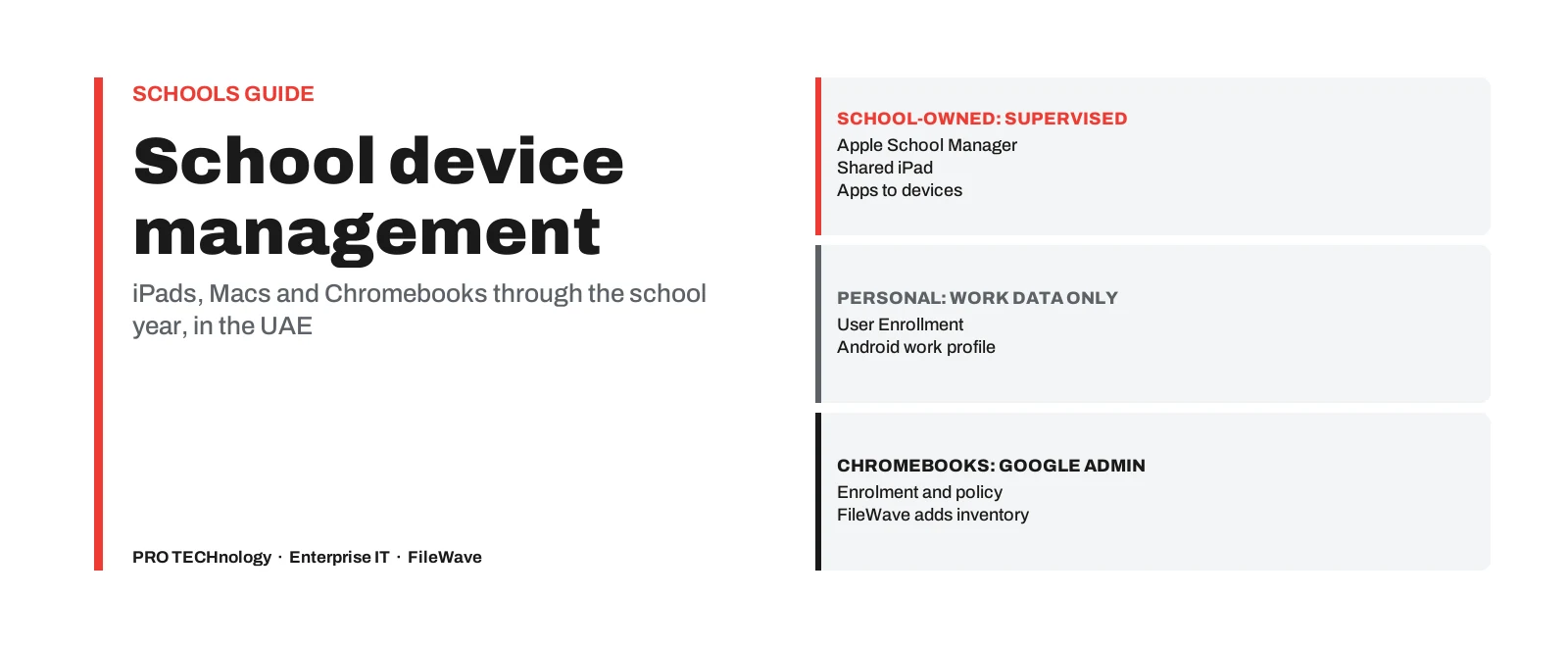
A practical guide for school IT teams in the UAE: where school-owned devices end and personal devices begin, how iPads, Macs, Windows PCs and Chromebooks are enrolled, how apps reach them, what Shared iPad needs, and how to prepare devices before each term. It covers how FileWave fits, and what device management does not do. PRO TECHnology is FileWave’s distributor and partner for the Middle East, and runs pilots and administrator training for schools.
- School-owned iPads and Macs
- Apple School Manager and Automated Device Enrollment; supervised automatically
- Personal devices
- Account-driven User Enrollment on iPhone and iPad, a work profile on Android
- Shared iPad
- At least 32 GB, supervised, with school-owned Managed Apple Accounts
- Chromebooks
- Enrolled and governed in Google Admin; FileWave adds inventory and reporting
Key takeaways
- Decide the ownership boundary first. School-owned iPads and Macs enrolled through Apple School Manager are supervised and fully managed; personal devices enrolled with User Enrollment or an Android work profile only give the school control of its own apps and data.
- Automated Device Enrollment only works for devices the school bought through Apple, an authorised reseller or carrier, or added with Apple Configurator, and assigned to its FileWave server in Apple School Manager.
- Shared iPad needs supervised iPads with at least 32 GB and Managed Apple Accounts the school issues; in FileWave it is set in the enrolment profile before the iPad activates, and apps install only when nobody is signed in.
- Chromebooks stay enrolled and governed in Google Admin with a Chrome Education Upgrade; FileWave syncs them for inventory and reporting but does not replace Google Admin.
- FileWave is device management, not a classroom teaching tool, a web filter or antivirus. It can deploy and configure Apple’s Classroom app for MDM-created classes, and it does not make a school compliant with ADEK or KHDA rules on its own.
- Treat each term as a small project: reconcile inventory, set operating-system update policy, refresh app assignments, test with a pilot class, then roll out.
School-owned or personal: set the boundary first
Every later decision, from which apps can be installed silently to whether a lost device can be erased, follows from who owns the device and how it was enrolled. Write the boundary down before choosing settings, and share it with staff and parents.
| Device group | How it enrols | What the school can do | What the school cannot do |
|---|---|---|---|
| School-owned iPads and Macs | Apple School Manager and Automated Device Enrollment into FileWave | Supervise, install apps silently, apply restrictions and Apple’s web content filter payload, lock and erase | Act on a device that has not checked in; a sent command is not proof it ran |
| School-owned Windows PCs | FileWave Client, with or without Windows MDM through Microsoft Entra ID | Deploy software, collect inventory, apply update policy; wipe only when MDM-enrolled | Use Windows MDM on Windows Home editions |
| Personal iPhones and iPads (staff or older students) | Account-driven User Enrollment with a Managed Apple Account | Manage the school’s apps, accounts and data in a separate volume | Erase the whole device, use supervision-only commands, or see personal apps and data |
| Personal Android phones | Android Enterprise work profile | Manage apps and data inside the work profile | Manage the personal side of the phone |
| Chromebooks | Google Admin, with a Chrome Education Upgrade | Policy and enrolment in Google Admin; inventory and reporting in FileWave | Move enrolment or policy out of Google Admin into FileWave |
Apple supervises iPads enrolled through Automated Device Enrollment on iPadOS 13.1 or later, and Macs on macOS 10.14.4 or later. Supervising an iPad by hand erases it.
Personal-device enrolment has its own set-up, including a domain the school controls for account-driven enrolment; our guide to enrolling staff-owned phones walks through it. What Abu Dhabi’s regulator expects of school-issued and personal devices is covered in our guide to the ADEK School Digital Policy.
iPads and Macs: Apple School Manager and Automated Device Enrollment
Apple School Manager connects a school’s Automated Device Enrollment, Apps and Books purchases, student information system and Managed Apple Accounts. Linked to FileWave, it lets new iPads and Macs enrol during setup, so nobody has to configure each device by hand.
- Where the devices come from. Automated Device Enrollment works for devices added to the school’s account at purchase, from Apple, an Apple Authorised Reseller or an authorised carrier, or added later with Apple Configurator. Devices bought elsewhere, or second-hand, need to be added before they can enrol this way.
- Assign them to FileWave. Each device is assigned to the school’s FileWave server in Apple School Manager; until then it will not find FileWave during setup.
- Set a minimum version if you need one. FileWave can require a minimum operating-system version at enrolment, which Apple supports on iPadOS 17, macOS 14 and later.
- Macs get the FileWave Client too. A Mac enrolled this way can receive the FileWave Client automatically, which adds Filesets, inventory and the self-service Kiosk to what Apple’s MDM provides.
If the school already uses another device-management service, eligible iPads and Macs on iPadOS 26 or macOS 26 or later can move to FileWave without being erased, but Shared iPads are excluded and apps and settings are rebuilt in FileWave first. Our MDM migration guide sets out the conditions.
Getting apps and books onto devices
- Assign apps to devices, not students, where you can. Apple lets an app bought through Apps and Books be assigned to a device, which the device-management service then installs with no Apple Account on the iPad.
- Supervised devices install silently. On supervised devices apps install without prompting; on unsupervised devices the user is asked to accept each installation.
- Books go to users. Books from Apple Books must be assigned to users, not devices, so they follow the student’s Managed Apple Account.
- Software on Macs and Windows PCs goes out as FileWave Filesets, piloted on a few lab computers first; our software deployment guide covers testing and staged rollouts.
- Self-service on computers. On Macs and Windows PCs the FileWave Kiosk lets staff install approved software without local administrator rights.
Lab and staff computers: Macs and Windows PCs
Computer labs and staff rooms are where file-level control matters most. FileWave’s Self Healing setting checks the files a Fileset delivered, by default every 24 hours after the client starts and whenever an administrator asks, and puts back any that are missing or changed. Download if Missing replaces only deleted files, and Ignore At Verify leaves a file alone after it is delivered, for files students or staff are meant to change. It restores what FileWave delivered; it does not repair every application fault or recover user work.
Windows PCs can be managed with the FileWave Client alone, or enrolled in Windows MDM through Microsoft Entra ID, which needs Entra ID P1 or P2 or an education or Microsoft 365 bundle that includes it; Microsoft Intune is not required. Campuses with slow links can use FileWave Boosters to cache software for Macs and Windows PCs close to them. A mixed fleet of staff laptops is covered in more depth in our guide to managing Mac and Windows devices together.
Chromebooks stay in Google Admin
Google Admin owns Chromebook enrolment and policy, and enrolling school Chromebooks needs a Chrome Education Upgrade licence. FileWave syncs the full Chromebook list from Google Admin and adds inventory, reporting, custom fields and location tools, so Chromebooks appear alongside the school’s iPads and computers. It does not replace Google Admin, and Google enrolment licensing is separate from FileWave’s.
By default, a wiped Chromebook re-enrols into the school’s Google account automatically, which is what makes a lost or reset Chromebook recoverable. Zero-touch enrolment for new Chromebooks is a Google programme run through a pre-provisioning partner, not something FileWave does.
Classroom tools, filtering and safeguarding: what device management is not
- Not a classroom teaching tool. FileWave describes itself as no traditional classroom management tool. It can deploy Apple’s Classroom app to teachers’ devices and deliver the education configuration for classes created through device management, with rosters imported from a supported student information system. Apple requires the students’ devices in those classes to be supervised.
- Not a web filter. FileWave can push Apple’s basic web content filter to supervised iPads and Macs, but a school that needs category filtering and reporting needs a dedicated filtering service.
- Not antivirus or EDR. FileWave has no built-in antivirus or endpoint detection; it can deploy the school’s chosen security software to Macs and Windows PCs.
- Not compliance on its own. Device settings and reports can be evidence for a regulator’s requirements, but policies, agreements and records make a school compliant. Our ADEK guide separates the IT clauses from the rest.
Preparing devices for a new term
- Reconcile the inventory. Check which devices last reported recently and which have gone quiet; older inventory stays visible while a device is offline. Our inventory guide explains how to read it.
- Set update policy. Decide the operating-system versions for the term. FileWave manages Apple updates through declarative device management, which needs iPadOS 17 or macOS 14 or later.
- Refresh app and book assignments. Release licences from leavers and assign them to new devices and students.
- Reset what needs resetting. Erase and re-enrol devices changing hands, and confirm Shared iPad user limits for the new timetable.
- Check Classroom rosters against the student information system before the first lesson.
- Pilot with one class. Run the new set-up on one class’s devices for a few days, fix what breaks, then roll out year group by year group.
Running a pilot and training administrators
A pilot answers the questions a demonstration cannot: whether enrolment works on the school’s network, whether apps arrive before lessons start, and how teachers and students cope with the first day. Agree what success looks like before starting, for example every pilot iPad enrolled and ready on the first morning, the class’s apps installed, Classroom showing the right roster and a lost-device drill completed.
PRO TECHnology sets up FileWave in FileWave’s cloud or on the school’s own server, links Apple School Manager and Google Admin, builds the first profiles and app assignments with the school’s IT team, runs the pilot and trains the school’s FileWave administrators, with support from Dubai afterwards and FileWave behind us when an issue needs the manufacturer. Self-hosting still depends on Apple, Google and FileWave services, as our on-premises guide explains. Licences are quoted by device count, hosting and term on the FileWave page.
Plan FileWave for your school
Tell us how many iPads, Macs, Windows PCs and Chromebooks the school runs. We will show FileWave against your set-up and propose a pilot. Our Enterprise IT team in Dubai replies by email.
Sources
Checked on 9 October 2026 against FileWave’s knowledge base (version 16.4.1), Apple’s Platform Deployment and education guides and Google’s ChromeOS help. FileWave behaviour can change between versions; check the version you will run.
- Apple: Shared iPad overview
- Apple: About device supervision
- Apple: Content distribution methods
- Apple: Requirements for classes created with an MDM solution
- FileWave: Configure Shared iPad with FileWave
- FileWave: Use Apple Classroom with FileWave
- FileWave: Automated Device Enrollment overview
- FileWave: Chromebook management
- FileWave: Fileset verification (Self Healing)
- FileWave: K-12 schools
- Google: Enroll ChromeOS devices
Frequently asked questions
Can FileWave manage iPads in UAE schools?
Yes. FileWave manages iPads enrolled through Apple School Manager and Automated Device Enrollment, including Shared iPad and apps assigned to devices, and it can configure Apple’s Classroom app. PRO TECHnology supplies FileWave in the UAE and runs pilots and administrator training for schools.
Do we need Apple School Manager?
For school-owned iPads and Macs, yes in practice. Apple School Manager links Automated Device Enrollment, Apps and Books and Managed Apple Accounts to FileWave, and Shared iPad needs Managed Apple Accounts the school issues.
Can students or staff use their own devices?
Yes, with limits. Personal iPhones and iPads use account-driven User Enrollment and personal Android phones use a work profile, so the school manages only its own apps and data. It cannot erase the whole device or see personal content.
What does Shared iPad need?
Supervised iPads with at least 32 GB of storage, Managed Apple Accounts owned by the school, and Shared iPad enabled in FileWave’s enrolment profile before the iPad activates. Apps install only when no student is signed in.
Does FileWave replace Google Admin for Chromebooks?
No. Chromebooks stay enrolled and governed in Google Admin with a Chrome Education Upgrade. FileWave syncs them for inventory, reporting and location so they appear with the rest of the school’s devices.
Is FileWave a classroom management or web filtering tool?
No. FileWave is device management. It can deploy and configure Apple’s Classroom app and push Apple’s basic web content filter to supervised devices, but teaching tools and full web filtering are separate products.
Does FileWave make our school compliant with ADEK or KHDA requirements?
Not on its own. Device settings and reports can support the IT parts of a regulator’s requirements, but compliance depends on the school’s policies, agreements and records as well.
Can we evaluate FileWave before buying?
Yes. Ask us to discuss a FileWave evaluation: we will agree a pilot group of devices, what it needs to prove and how it will run before any purchase decision.
إدارة أجهزة المدارس في الإمارات: أجهزة iPad وMac وChromebook
تبدأ إدارة أجهزة المدرسة بتحديد الحد بين الأجهزة المملوكة للمدرسة والأجهزة الشخصية. تُسجَّل أجهزة iPad وMac المملوكة للمدرسة عبر Apple School Manager والتسجيل التلقائي للأجهزة فتصبح خاضعة للإشراف بالكامل، بينما تقتصر إدارة الأجهزة الشخصية على تطبيقات المدرسة وبياناتها عبر تسجيل المستخدم في iPhone وiPad وملف العمل في Android.
يتطلب iPad المشترك جهازًا خاضعًا للإشراف بسعة 32 غيغابايت على الأقل وحسابات Apple مُدارة تملكها المدرسة، ويُفعَّل في FileWave ضمن ملف التسجيل قبل تشغيل الجهاز. وتبقى أجهزة Chromebook مسجّلة ومُدارة في Google Admin، ويضيف FileWave الجرد والتقارير. ولا يُعد FileWave أداة لإدارة الصف أو تصفية المحتوى أو مكافحة الفيروسات، ولا يحقق امتثال المدرسة وحده.
توفّر بروتكنولوجي، الموزّع والشريك لـ FileWave في الشرق الأوسط، الإعداد والتجربة على فصل واحد وتدريب مسؤولي تقنية المعلومات في المدرسة، مع الدعم من دبي.
Pilot FileWave with one class first
Start with a demonstration against your school’s devices, then a pilot class, then the rollout.