Managing Company Encrypted USB Drives After They Are Issued: Kanguru KRMC Explained
Published · Updated · PRO TECHnology Enterprise IT
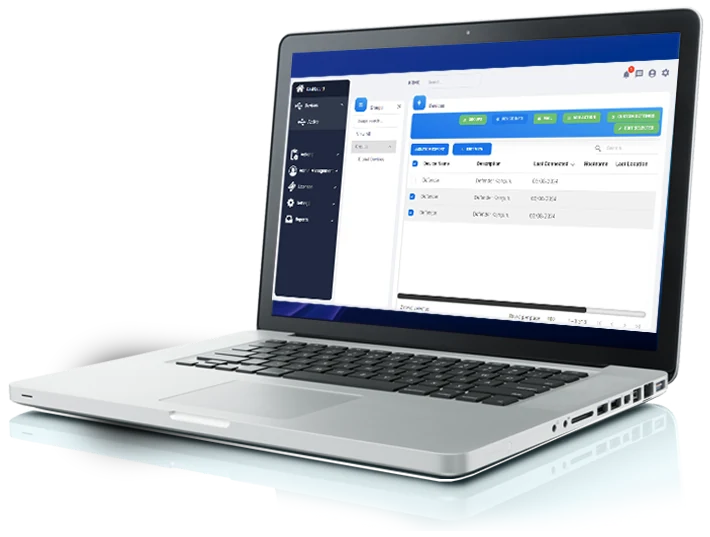
Kanguru Remote Management Console (KRMC) is Kanguru’s software for managing its Defender hardware-encrypted USB drives after they have been issued to employees. From one console, IT can enforce password and access policies, disable or erase a lost drive, reset a forgotten password, take back control when someone leaves and review activity records. KRMC runs on Kanguru’s servers or on your own, and it works only with supported Kanguru Defender models. PRO TECHnology supplies Kanguru drives and KRMC licences in the UAE and across the GCC.
- Manages
- Supported Kanguru Defender flash drives and external drives, not other brands
- Runs on
- Kanguru’s servers (KRMC-Hosted) or your own (KRMC On-Premise)
- Reaches a drive
- When the drive next connects to a computer that can reach KRMC
- Sold as
- A separate licence per drive, for one, two or three years
Key takeaways
- KRMC manages Kanguru Defender encrypted drives after they are issued: policies, passwords, lost drives, leavers and records. It cannot manage other brands of USB drive.
- The drive encrypts its data in hardware whether or not it is managed. KRMC adds control over the drive and a record of what happened to it.
- A remote action waits until the drive next connects to a computer that can reach KRMC. Whether the drive can be opened offline in the meantime is a setting you choose.
- Disabling keeps the data, deleting erases it, and a password reset keeps the files. Each is a separate action.
- Features depend on the package. Groups, event logs and SIEM export start at Advanced; file auditing and Active Directory-linked disable are Premium only.
Encryption on the drive and management from the console are different jobs
A Kanguru Defender drive protects its data by itself. It encrypts the stored data with AES 256-bit hardware encryption, asks for a password, and limits password guessing on the device. Why that matters is covered in hardware versus software encryption on our Kanguru page.
What the drive cannot do alone is take new instructions after it leaves the IT department. That is the job of encrypted USB management, and KRMC is Kanguru’s tool for it. It lets an administrator change a drive’s policy, act on a lost drive, reset a password and see where a drive was last used, without having the drive in hand.
The difference shows on the day something goes wrong. Kanguru warns that an unmanaged Defender drive that is lost, stolen or locked by a forgotten password may never be recovered; for forgotten passwords only, it sells a separate reset service (Kanguru: managed and unmanaged drives). A managed drive can be disabled, erased or given a new password from the console, and the change takes effect when the drive next connects.
At a glance: problem, KRMC capability and condition
| Problem | KRMC capability | Requirement or limitation |
|---|---|---|
| New drives leave IT with different settings | Global device settings as the default for registered drives; stricter group profiles for departments | Drives must be registered before KRMC can reach them, so register before issue; groups need Advanced or Premium |
| Weak or reused passwords | Rules for length, complexity, expiry and reuse; a failed-attempt limit that locks, disables or formats the drive | Changes apply to each drive the next time it connects |
| A drive is lost or stolen | Disable Device, or Delete All Data and Disable Device | Runs only when the drive next reaches KRMC; KRMC shows the last connection, not a GPS position |
| A lost drive stays offline | Offline logins blocked or capped; automatic disable of drives that stop checking in; Panic Mode | Offline limits and Panic Mode must reach the drive before the loss; automatic disable (Advanced, Premium) acts only when the drive next connects |
| A user forgets the password | Self-service reset by email code; administrator Change User Password action | Files are kept; the user must have registered an email, or an administrative password must be set |
| An employee leaves | Disable Device; Reset for New User; Active Directory-linked disable | Active Directory integration is Premium only and needs Kanguru’s AD service on your domain |
| Proving what happened | Action history with completion times; events; SIEM export; file auditing | Events and SIEM need Advanced; file auditing needs Premium and excludes HDD and SSD models; offline logins are not logged |
| Staff plug in other USB drives | None: KRMC manages Kanguru Defender drives only | Use endpoint device control or DLP for other USB storage |
Package names refer to KRMC-Hosted, which has Standard, Advanced and Premium packages. KRMC On-Premise is sold as Advanced or Premium.
Which remotely manageable USB drives can KRMC control?
Only Kanguru Defender drives, which Kanguru sells as remote management ready. Kanguru’s current list of models that KRMC can manage is the Defender 3000, Defender Elite300, Defender Elite30, Defender Bio-Elite30, Defender LifePlanner, Defender HDD350, Defender SSD350, Defender HDD 35 and Defender SSD 35 (Kanguru Remote Management Suite). The KRMC-Hosted manual also lists older Defender models that existing fleets may still use.

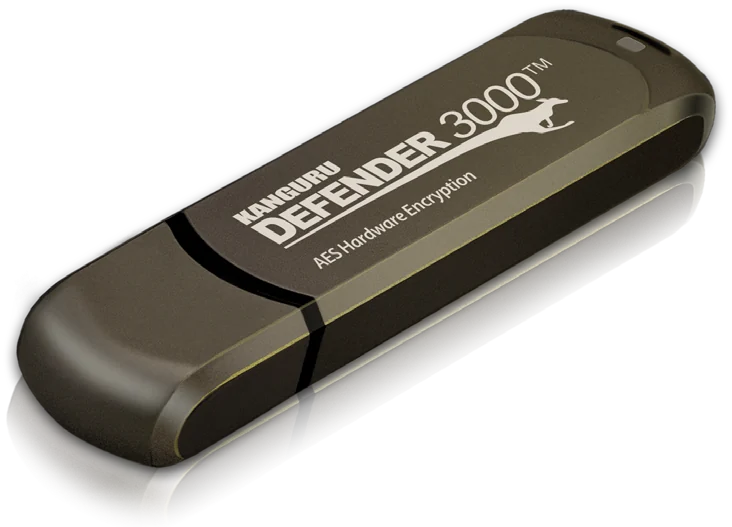
Defender 3000
Hardware-encrypted USB flash drive. Kanguru describes it as optimised for deployment and management in an enterprise environment. Part numbers, its FIPS 140-3 certificate and what to check on delivery are in our Defender 3000 buying guide.
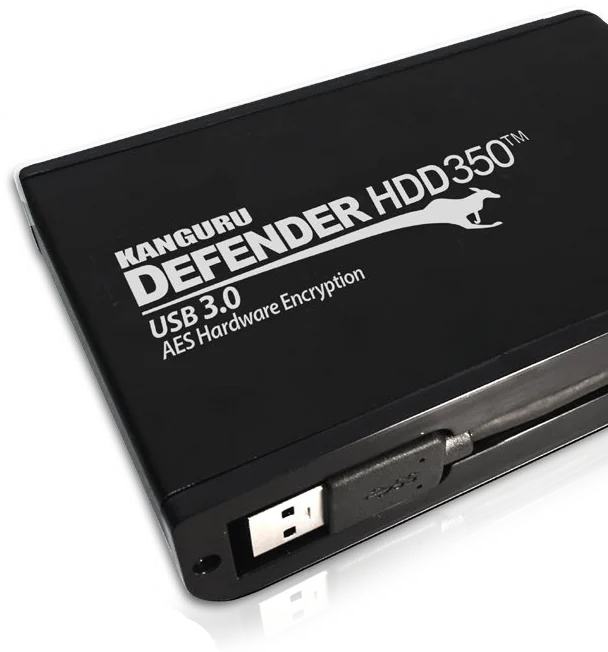
Defender HDD350
Hardware-encrypted portable hard drive, sold as remote management ready. KRMC is licensed separately.
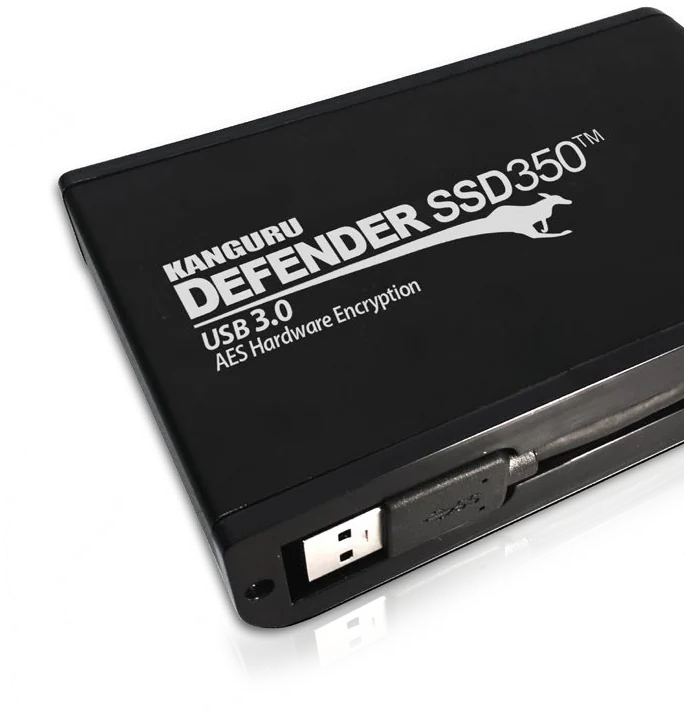
Defender SSD350
Hardware-encrypted portable solid-state drive, sold as remote management ready. KRMC is licensed separately.
Check two things before you standardise. Kanguru notes that its Defender HDD and SSD models do not support file auditing, even on a Premium account. And some actions need a minimum version of the drive’s Kanguru Defender Manager (KDM) software, which the manual gives for Reset for New User, file auditing and Panic Mode. Kanguru’s self-service password reset page also lists only flash drives, so confirm it for the HDD and SSD models.
Issuing approved encrypted drives to employees
Management starts before the drive is handed over. Kanguru’s manual is explicit: each Defender drive must be configured and registered to your KRMC account before it can communicate with it. A drive that goes missing before it is registered cannot be reached later.

For KRMC-Hosted, Kanguru gives three ways to register drives: its hosted provisioning tool, the Kanguru Local Administrator (KLA) application, or the setup wizard in the drive’s Kanguru Defender Manager. The computer used must have a clear connection to KRMC, and Kanguru warns that firewalls and proxies can cause errors (KRMC-Hosted user manual).
Registered drives join the account’s default group and take its global settings automatically, so every new drive gets the same password rules. KLA adds batch set-up on an administrator’s workstation: settings can be saved to a file for the next batch, and files can be pre-loaded before the drives go out (Kanguru Local Administrator).
As each drive is issued, record its serial number against the person and their email address. KRMC’s device list has columns for both, and they are what you search for when a loss is reported.
Conditions. Registration needs a network connection to KRMC. A drive registered to a KRMC-Hosted account stays bound to that account: resetting the drive does not unbind it, and only Kanguru technical support can. Plan spares and reissues with that in mind.
Applying password and access policies
The Super Administrator sets the Global Device Settings: the default profile for drives and the minimum that any group or per-drive profile must meet. The KRMC-Hosted manual lists these controls:
- Password rules. A minimum length of 8 to 15 characters; minimum numbers of upper-case letters, lower-case letters, symbols and digits; expiry every 30, 60, 90, 180 or 360 days, or never; and a history of up to 10 old passwords that cannot be reused.
- Failed attempts. An allowance of 3 to 15 wrong passwords. After that, the drive formats itself back to factory settings, locks for a set time, or disables itself until an administrator sends an Enable Device action, depending on the setting you choose.
- Idle timeout. The drive unmounts itself after 30 minutes, or 1, 2 or 4 hours without use, or never. The default is one hour.
- Offline use. Whether the drive can be opened on a computer with no internet access. This is covered in the next section.
- Which networks drives may reach KRMC from. Allow or block lists of IP ranges, domains or MAC addresses, and proxy settings for corporate networks.
Advanced and Premium accounts can add groups with their own profile, for example a stricter one for a finance team. A group’s settings can be tighter than the global profile, never looser (Kanguru: what’s changing in KRMC).
Changes are not instant. When settings are saved, KRMC queues actions for the affected drives, and each drive applies them the next time KRMC sees it. The manual adds a caveat: drives in groups other than the default group do not receive global changes, so group profiles must be updated by hand when the global minimum rises. The benefit is one enforced policy for every office, in every country, without recalling drives.
How does a command reach a drive, and what happens when it is offline?
The drive has to connect first
KRMC cannot reach a drive that is not connected. When a managed drive is plugged into a computer with a network or internet connection, it contacts the KRMC server and checks for pending actions, messages and updates, even before the user logs in (Kanguru: how remote management works). Kanguru says drives communicate with KRMC-Hosted through a secure, encrypted tunnel.
Until then, an action waits in the Pending list. Actions can be scheduled for a later date, but Kanguru notes that a scheduled action runs the next time the drive communicates after that date, not at the exact minute.
What an unplugged or offline drive can and cannot do
- Unplugged: nothing reaches it and nothing is reported. KRMC shows when it last connected.
- On a computer with no internet access: the drive cannot collect actions. Whether the user can open it depends on the offline access setting: not allowed, allowed for 1 to 100 logins, or unlimited.
- Password guessing: the failed-attempt limit is enforced by the drive itself, not by the console.
- Offline logins are not logged: the login log in KRMC only covers sessions where the drive could reach KRMC.
This makes the offline setting one of the most important decisions in a deployment. If offline access is unlimited, someone who has the password, a former employee for example, can keep using a lost or unreturned drive offline, and your disable command waits for as long as the drive stays offline. If offline access is blocked, or capped at a few logins, the drive must connect before it can be used again, and the pending action runs when it does.
A setting and an action deal with drives that go quiet. Kanguru’s tier chart lists automatic disabling of drives that have not communicated for a set period on Advanced and Premium accounts, although the manual places it under Premium settings, so confirm it for your package (KRMC-Hosted tier chart). KRMC creates the disable action from the drive’s last check-in, emails the user 10 days and 1 day beforehand, and the action runs at the next connection (user manual). The manual also describes Panic Mode: a drive not seen by the server within a chosen period is treated as lost, and the next time it is accessed it is disabled, disabled and erased, or erased and returned to setup. It needs KDM 5.6.8.3 or later, and the manual does not say which packages include it, so ask. Unlike the automatic disable, Panic Mode has to reach the drive before it goes missing.
How an administrator confirms an action completed
An action moves from Pending to Successful, with the date and time the drive reported completion, or to Failed, with the date it failed. Kanguru gives an expired licence, and a wrong administrative password on a password change, as common causes of failure. The same history appears for each drive under Device Info. Pending actions can be deleted before they run, except some that Kanguru treats as critical.
What KRMC can tell you about location
KRMC shows the host computer’s name and IP address from the drive’s most recent connection, and an approximate location based on it, which Kanguru notes may differ from the real location. That is useful evidence after a loss. It is not GPS tracking, and a drive that is not connected reports nothing.
Disabling, deleting and resetting are different actions
These remote actions sound alike but have very different effects on the data. From the action list in Kanguru’s KRMC-Hosted manual:
- Disable Device. The user can no longer log in or open the drive’s secure partition. The data stays on the drive, and an Enable Device action restores access.
- Delete All Data and Disable Device. Deletes all the data stored on the drive, then disables it.
- Change User Password. Sets a new user password, and can force the user to change it at next login. The files are kept. The account’s administrative password must be set first.
- Self-Service Password Management (SSPM). The user resets their own password with a code sent to a registered email address. The files are kept.
- Reset for New User. Deletes the previous user’s data and contact details but keeps the management settings, so the drive can be reissued. It needs KDM 4.0.9.4 or later.
The failed-attempt setting is different again: it decides what the drive does to itself after too many wrong passwords. If it is set to Format Device, the drive erases all data and settings and returns to factory defaults.
For a lost drive, disable it if it may turn up and holds the only copy of someone’s work. Delete it if the files exist elsewhere, or if exposing them would be worse than losing them.
Responding to a lost or stolen drive
- The employee reports the loss, with the date and the last place they used the drive.
- IT finds the drive in KRMC by serial number or owner and notes when and where it last connected.
- IT sends Disable Device or Delete All Data and Disable Device, with a note for the record.
- The action waits in Pending until the drive next connects to a computer that can reach KRMC.
- When it connects, the drive carries out the action and KRMC records the completion time.
- IT issues a replacement and closes the incident with the action history attached.
Until step 5, the data is protected by the drive’s hardware encryption, its password, its failed-attempt limit and your offline access setting. That is why the settings chosen at issue matter more than speed on the day.
Hypothetical example. An engineer from a Dubai-based consultancy leaves a Defender 3000 in a taxi after a client meeting in Riyadh. The company caps offline access at five logins and keeps project files on its own servers.
The administrator sends Delete All Data and Disable Device the same afternoon, and the action shows as Pending. Nobody can open the drive without the password, and repeated guesses would trigger the failed-attempt setting. When the drive is next plugged into a computer with internet access, it receives the command: it deletes its data, disables itself, and KRMC records the completion time. The device list shows the name and IP address of the computer it connected from.
Handling forgotten passwords without losing files
Forgotten passwords are routine, and they are where a wrong move costs data. KRMC offers two routes that keep the files:
- The user resets it. With SSPM on, the user clicks Forgot Password on the drive’s login window and enters a code sent to their registered email address. SSPM works only once that address is registered, so Kanguru offers an Enable and Force setting that makes users register it the next time they use the drive. If the email does not arrive, an administrator can see the latest reset code in KRMC.
- IT resets it. An administrator sends a Change User Password action, which runs when the drive next connects. It needs the account’s administrative password, and an account setting can require administrators to enter it for every password change; confirm which package includes that setting.
Tell users not to keep guessing. Wrong attempts count toward the failed-attempt limit, and a drive set to Format Device will erase itself. Set up both routes in advance: SSPM only helps users who registered an email address before they forgot.
Taking back control when an employee leaves
Unmanaged drives often leave with the employee, because nobody asks for them back. With KRMC, IT can act on the drive remotely, and with the Premium Active Directory link, disabling the leaver’s account queues the action automatically.
If the drive is returned
Check which company files it holds before anything is erased. If the employee has not handed over the password, an administrator can set a new one with Change User Password, which keeps the files. Then send Reset for New User: it deletes the previous user’s data and contact details, keeps the management settings, and leaves the drive ready to reissue.
If it is not returned
Send Disable Device, or Delete All Data and Disable Device. Remember that the former employee knows the password. With unlimited offline access they can keep opening the drive on computers with no internet connection while your action waits. With offline access blocked or capped, the drive must connect before it can be used again, and the action runs when it does.
Linking drives to Active Directory (Premium)
Premium accounts can connect KRMC to Active Directory. When a user’s AD account is disabled, KRMC automatically creates Disable Device, or Disable Device plus Reset for New User, for every drive assigned to that user’s email address. Each AD user needs an email address, and Kanguru’s AD service (KADService) must run on an always-on system in your domain (KRMC-Hosted user manual).
Hypothetical example. A group with offices in Abu Dhabi, Doha and Muscat disables leavers in Active Directory as part of its HR exit checklist. With the Premium integration, that one step also queues a disable action for each drive assigned to the leaver’s email address, so a drive that nobody collected is still dealt with the next time it connects.
Reviewing activity records across several offices
KRMC is also the record of what happened. What it shows depends on the package:
- In every package, as far as Kanguru’s documents show: the drive list, with serial number, model, owner, email address, last connection, host computer name, IP address and approximate location, which can be exported for audits; and the history of actions sent to each drive, with completion and failure dates.
- Advanced and Premium: an Events page covering logins, actions and setting changes; event export to a SIEM server; device groups; secondary administrators and auditor accounts; and SAML single sign-on.
- Premium: file auditing. Supported drives report each file’s name and full path, size and activity (created, read, written or deleted), which KRMC shows per drive and exports as CSV. It needs KDM 5.6.7.5 or later and is not available on the Defender HDD and SSD models.
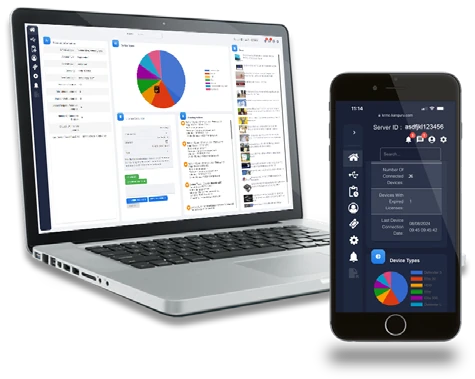
Groups make a multi-country structure workable. One Super Administrator owns the global policy; regular administrators manage the drives in their own group, such as one country office; auditor accounts review the records (Kanguru: the KRMC permissions hierarchy).
Know the gaps before an auditor asks. Records exist only for what a drive reports while connected, offline logins are not logged, and location is approximate. File auditing records what users do with files; it does not stop an authorised user copying files they are allowed to open.
What does the console hold, and what stays on the drive?
The files stay on the drive. Kanguru states that KRMC does not have access to the data on Defender drives, which is held within the devices themselves.
The console still holds management records, and much of that is personal data. Depending on the package and settings, it keeps:
- drive serial numbers, models and the owner’s email address;
- host computer names, IP addresses and approximate locations from drive connections;
- a history of administrator actions, logins made while connected, and account events;
- with file auditing, file names, full paths, sizes and file activity.
File names alone can reveal a great deal, and the rest is personal data about your employees. Treat KRMC like any system that holds employee data: decide who can see it, and include it in your data protection review. With KRMC-Hosted the records sit on Kanguru’s servers; with KRMC On-Premise they stay on yours.
Does KRMC replace USB port control or endpoint security?
No. Kanguru documents KRMC only for Defender drives and describes no control over USB ports, so it cannot see or block an ordinary USB stick plugged into a company laptop.
Deciding which USB devices a computer accepts is the job of endpoint security, device control or data loss prevention (DLP) tools on the computers. Endpoint management platforms such as FileWave manage the computers, their software and their settings. KRMC does neither.
The two approaches work together: restrict unapproved removable storage on company computers, and issue managed Defender drives as the approved way to carry data. BadUSB, insider risk and the wider removable-media programme are covered in our guide to secure USB for government, defence and critical infrastructure, and when cloud transfer is the better choice in encrypted USB versus cloud.
Premium adds onboard endpoint protection powered by Bitdefender, which Kanguru’s datasheets describe as anti-virus for Windows; the manual requires KDM 5.6.6.2 or later. It runs from the drive and does not replace the security software on your computers.
Where does the console run: Kanguru’s servers or yours?
Kanguru says both editions offer the same remote management options and the same interface. The difference is who runs the server.
- KRMC-Hosted runs on Kanguru’s servers and is reached through kanguru.com. It comes in Standard, Advanced and Premium packages, and Kanguru describes it as sufficient for most organisations.
- KRMC On-Premise is a virtual appliance on your own servers, in Advanced and Premium packages. Kanguru lists a minimum of 100 device licences, the Kanguru Local Administrator tool and a one-time installation service with Kanguru engineering support, and recommends KRMC-Hosted below 100 drives (KRMC On-Premise).
If management records must stay inside your own infrastructure, On-Premise is built for that. If not, KRMC-Hosted avoids running a server. The Kanguru pages we reviewed do not say where KRMC-Hosted data is held, so ask if data residency is a condition of your procurement.
KRMC connection requirements and current software versions
KRMC works only when the drive, the computer it is plugged into and the console can reach each other. Check these points before a pilot:
- Registration. Kanguru’s knowledge base (February 2026) says each drive is registered with one of three tools, the Hosted Provisioning Tool, the Universal Kanguru Local Administrator (UKLA) or the setup wizard in Kanguru Defender Manager (KDM), and that all three need a network connection from the provisioning computer to krmc.kanguru.com. Firewalls and proxies can cause errors, and the account ID used for registration is case-sensitive.
- Day to day. A registered drive contacts the console when it is plugged into a computer with a network or internet connection, and collects pending actions before the user logs in. Allow or deny lists of IP ranges, domains or MAC addresses can restrict where drives may reach KRMC from.
- Linux. On Ubuntu, a managed drive is opened through the KDM application on the drive; Kanguru says command-line access is for unmanaged drives only.
- On-Premise host. Kanguru lists a single-core processor or better, 250GB of storage, 4GB of RAM and a virtual machine platform such as VirtualBox or VMware Workstation Player, with the Kanguru Local Administrator tool and its one-time installation service.
Minimum KDM versions for individual features are given in the sections above. Kanguru lists these as current (current versions, 27 February 2026):
| Software | Current version |
|---|---|
| Defender 3000 client for KRMC-Hosted | 5.7.0.2 |
| Defender Elite300, Elite30 and Bio-Elite30 clients for KRMC-Hosted | 5.7.0.0 |
| Defender HDD350 and SSD350 client | 5.6.7.0 |
| Defender 3000 client for KRMC On-Premise | 5.6.8.3 |
| KRMC On-Premise | 9.0.3 |
| Universal Kanguru Local Administrator (UKLA) | 3.3.0.6 |
| Hosted and On-Premise Provisioning Tools | 2.0.0.0 |
What exactly are you licensing?
Kanguru sells KRMC in two editions and five packages. The comparison below is built from Kanguru’s comparison chart page and its KRMC-Hosted pricing chart (November 2024), read on 17 October 2026.
| Feature | Hosted Standard | Hosted Advanced | Hosted Premium | On-Premise Advanced | On-Premise Premium |
|---|---|---|---|---|---|
| Part number | KRMC-HOST-ST | KRMC-HOST-AD | KRMC-HOST-PM | KRMC-ONPREM-AD | KRMC-ONPREM-PM |
| Runs on | Kanguru’s servers | Kanguru’s servers | Kanguru’s servers | Your virtual appliance | Your virtual appliance |
| Licence | Per drive, 1, 2 or 3 years | Per drive, 1, 2 or 3 years | Per drive, 1, 2 or 3 years | Per drive, 1, 2 or 3 years; at least 100 | Per drive, 1, 2 or 3 years; at least 100 |
| Remote enable and disable, password rules, access restrictions, self-service password reset | Yes | Yes | Yes | Yes | Yes |
| Secondary administrators, auditor accounts, device groups, SAML single sign-on | No | Yes | Yes | Yes | Yes |
| Event export to a SIEM server | No | Yes, per the charts | Yes | Yes | Yes |
| Automatic disable of silent drives; forced two-factor sign-in for every account | No | Yes, per the chart | Yes | Not listed | Not listed |
| File auditing | No | No | Yes | No | Yes |
| Active Directory disable | No | No | Yes | No | Yes |
| Onboard endpoint protection (Bitdefender) | No | No | Yes | No | Yes |
Kanguru’s knowledge base settings articles (February 2026) describe SIEM export, Active Directory disable and file auditing as Premium features, and its manual places automatic disable and forced two-factor sign-in under Premium as well, while the charts put SIEM export and those two settings at Advanced. Confirm each feature you need against the package on your quotation. File auditing is not available on the Defender HDD and SSD models.
- KRMC is separate from the drive. Defender drives are sold as remote management ready. Managing them needs a KRMC licence for each drive, for one, two or three years.
- Standard covers remote enable and disable actions, strong password management, access control restrictions, Self-Service Password Management, actions for one drive or all drives, and two-factor sign-in for the account.
- Advanced adds secondary administrator and auditor accounts, device groups, SAML single sign-on, event viewing and SIEM export, automatic disabling of drives that stop checking in, and the option to force two-factor sign-in on every account. Kanguru’s manual lists the last two under Premium, so confirm them on your quotation.
- Premium adds file auditing, Active Directory-linked disable and on-drive endpoint protection powered by Bitdefender.
- Trial with new drives. Kanguru’s KRMC-Hosted Advanced page says every new Defender drive includes a 30-day trial of KRMC-Hosted Advanced and of endpoint protection, and that both must then be licensed. A November 2024 Kanguru chart also mentions a free Basic account, which the current comparison does not list.
- On-Premise licences. At least 100. Kanguru says unused licences roll over into the next year, up to three years, and offers parking tokens for drives that are not in use.
- Renewals matter. Kanguru lists an expired licence as a common reason actions fail.
- Drive software matters. Some actions need a minimum KDM version on the drive.
Package contents are taken from Kanguru’s KRMC-Hosted and KRMC On-Premise comparison charts. Check them against your quotation, because packages change.
Why Kanguru fits this particular job
Kanguru is not the only way to encrypt removable media, and it does not suit every organisation. It fits when the requirement is hardware-encrypted drives, issued to named people and managed centrally, because:
- The drive and the console come from one manufacturer, and KRMC was built for the Defender range.
- Protection does not depend on the console: the drive’s hardware encryption and failed-attempt limit are on the drive itself.
- You choose where the console runs, and the packages scale from Standard to Premium.
- Kanguru lists a regional partner for every GCC state.
If the real need is to block USB storage altogether, or to control devices from many manufacturers, start with device control or DLP instead.
Checklist for a managed encrypted USB fleet
- Models. Confirm each model is on Kanguru’s current KRMC list. HDD and SSD models do not support file auditing; confirm self-service password reset for them too.
- Edition. KRMC-Hosted, or On-Premise with at least 100 device licences. Ask where hosted records are held if residency matters.
- Package. Map your must-haves to Standard, Advanced or Premium: groups, auditors, single sign-on and SIEM start at Advanced; file auditing and AD-linked disable need Premium.
- Licences. One per drive, for one, two or three years, including spares. Put renewal dates in the calendar.
- Registration. Decide who registers drives and with which tool, and check that your firewall and proxy let drives reach KRMC.
- Policy. Password rules, failed-attempt response, idle timeout, network restrictions and, above all, offline access.
- Lost drives. Who reports, who acts, when to disable and when to delete, and whether to use Panic Mode.
- Passwords. Turn SSPM on, force email registration, and set the administrative password.
- Leavers. Collect drives at exit, use Reset for New User, and consider AD-linked disable.
- Records. Who reviews them and how often, whether events go to your SIEM, and how the console’s personal data is protected.
- Other USB storage. How endpoint controls restrict the drives KRMC cannot see.
- End of life. How retired drives are sanitised, covered in our guide to secure data erasure and drive decommissioning.
- Compliance. Map the set-up to your own regulatory obligations. Buying KRMC does not make an organisation compliant by itself; certificate checks for tenders are covered in our FIPS 140-3 compliance guide.
What a KRMC test drive should show you
The quickest way to judge KRMC is to watch one drive go through the whole cycle against a real console. Ask for these five steps in a demonstration, with the people who will run the console watching, before you choose a package:
- Registration. A new Defender drive is registered to the account with the provisioning tool, UKLA or the KDM wizard, and appears in the device list with its serial number and owner.
- Policy. A password rule and the failed-attempt setting are changed in the console; the change is queued for the drive and applied the next time it connects.
- Queued disable. With the drive unplugged, a Disable Device action is sent. It waits under Pending Actions, because nothing can reach a drive that is not connected.
- Reconnection. The drive is plugged into a computer with internet access. It contacts the console before the user logs in and receives the action.
- Completed action. The action moves to Successful Actions with its date and time of completion, the user can no longer log in, and an Enable Device action restores access with the data still on the drive.
Ask to see the same cycle for a drive that stays offline, so you can judge your offline access setting, and to see what the Events page and an export show an auditor.
We demonstrate KRMC with Defender drives at our showroom in Business Bay, Dubai; book a demonstration and tell us which models and package you are considering.
Buying Kanguru drives and KRMC in the UAE and GCC
Kanguru announced its partnership with PRO TECHnology on 1 September 2021 (Kanguru announcement). Kanguru’s partner directory for Europe, the Middle East and Africa lists PRO TECHnology for the UAE, Saudi Arabia, Qatar, Kuwait, Oman and Bahrain, and for Jordan (Kanguru: where to buy). PRO TECHnology is Kanguru’s exclusive distributor and partner for the Middle East. Our own account of the 2021 appointment explains the local support and technical team behind the drives and the console.
Contact us about compatible Defender models, KRMC-Hosted or On-Premise licensing, and the package that matches your policy. It helps to tell us how many drives you plan to issue, which models, where they will be used, and whether the console must stay on your own servers. The full range is on our Kanguru page, part of our Enterprise IT division.
Sources
Product behaviour and package contents in this guide come from Kanguru’s own pages and manual, checked on 21 September 2026; packages, connection requirements and software versions were re-checked on 17 October 2026. Examples marked hypothetical are illustrations, not customer cases.
- Kanguru: Remote Management Suite (editions, supported drives)
- Kanguru: KRMC-Hosted and KRMC On-Premise comparison chart
- Kanguru: KRMC-Hosted Advanced package (30-day trial with new drives)
- Kanguru knowledge base: provisioning drives to KRMC-Hosted (February 2026)
- Kanguru knowledge base: pending, failed and successful actions (February 2026)
- Kanguru knowledge base: current client and firmware versions (27 February 2026)
- Kanguru: About Remote Management (how drives connect)
- Kanguru: New to KRMC? (managed and unmanaged drives, permissions)
- Kanguru: Added features to KRMC-Hosted (Active Directory disable, file auditing)
- Kanguru: What’s changing in KRMC (groups and global settings)
- Kanguru: KRMC-Hosted tier chart
- Kanguru: KRMC On-Premise edition
- Kanguru: KRMC On-Premise tier chart
- Kanguru: KRMC-Hosted user manual, v1.0.8, May 2025
- Kanguru: Kanguru Local Administrator
- Kanguru: Self-Service Password Management
- Kanguru: Where to buy in Europe, the Middle East and Africa
- Kanguru: Partnership with PRO TECHnology, 1 September 2021
- Kanguru: KRMC-Hosted overview datasheet, November 2024 (PDF)
- Kanguru: Defender 3000 datasheet, February 2025 (PDF)
- Kanguru: Defender HDD350 datasheet (PDF)
- Kanguru: Defender SSD350 datasheet (PDF)
Frequently asked questions
Can IT disable a lost Kanguru encrypted USB drive?
Yes, if the drive was registered to your KRMC account before it was lost and its licence is current. An administrator sends Disable Device, which keeps the data, or Delete All Data and Disable Device, which erases it. The drive carries out the action the next time it connects to a computer that can reach KRMC, and the console records the completion time.
What happens if the drive is offline or unplugged?
It receives nothing until it next connects; the action waits as pending. Whether the user can open it offline depends on your offline access setting: not allowed, 1 to 100 logins, or unlimited. The failed-attempt limit still applies. Automatic disabling of drives that stop checking in, listed for Advanced and Premium, still needs the drive to connect, and Panic Mode must reach the drive before it goes missing.
Can an administrator reset a forgotten password without losing files?
Yes, on a managed drive. The administrator sends a Change User Password action, which needs the account’s administrative password to be set, or, on models that support it, the user resets it through Self-Service Password Management with a code sent to their registered email. Both keep the files. Repeated wrong guesses can trigger the failed-attempt setting, which may format the drive.
Does KRMC upload or store the files on the USB drive?
No. Kanguru states that KRMC does not have access to the data on Defender drives. The console does hold management information, such as serial numbers, owners’ email addresses, host computer names, IP addresses, approximate locations and action history. With Premium file auditing it also records file names, full paths, sizes and file activity.
Can KRMC manage ordinary USB drives from other brands?
No. KRMC manages only Kanguru Defender drives: currently the Defender 3000, Elite300, Elite30, Bio-Elite30, LifePlanner, HDD350, SSD350, HDD 35 and SSD 35, and the manual also covers older Defender models. Controlling other USB storage on company computers needs endpoint device control or DLP tools.
Is remote management included when buying a Kanguru drive?
No. Defender drives are remote management ready, but KRMC is a separate licence for each drive, for one, two or three years. KRMC-Hosted comes in Standard, Advanced and Premium packages; KRMC On-Premise in Advanced and Premium. Actions can fail once a drive’s licence has expired.
Can the management system run on our own servers?
Yes. KRMC On-Premise is a virtual appliance you host yourself, with the same interface and management options as KRMC-Hosted. Kanguru lists a minimum of 100 device licences, the Kanguru Local Administrator tool and a one-time installation service with Kanguru engineering support, and suggests KRMC-Hosted for fewer drives.
Who supplies Kanguru drives and KRMC in the UAE and GCC?
PRO TECHnology, based in Dubai. Kanguru’s partner directory lists PRO TECHnology for the UAE, Saudi Arabia, Qatar, Kuwait, Oman and Bahrain, and Kanguru announced the partnership in September 2021. PRO TECHnology is Kanguru’s exclusive distributor and partner for the Middle East. Call +971 4 343 5501 or email sales@protech.ae about drives and KRMC licensing.
Can we run remotely manageable USB drives for offices in Saudi Arabia and across the GCC?
Yes. KRMC-Hosted runs on Kanguru’s servers, so a drive can receive policy changes and disable commands wherever it next connects to a computer that can reach the console. Organisations that must keep management records on their own servers can run KRMC On-Premise, which needs at least 100 device licences. PRO TECHnology quotes drives and KRMC licences for all six GCC states, and Saudi enquiries come to our account team, who visit the Kingdom often, with local work delegated to the group’s PRONEXT team in Riyadh.
إدارة أقراص USB المشفّرة في الشركات بعد تسليمها للموظفين: شرح Kanguru KRMC
وحدة التحكم في الإدارة عن بُعد من Kanguru (KRMC) برنامج لإدارة أقراص Kanguru Defender المشفّرة بالعتاد بعد تسليمها للموظفين: فرض سياسات كلمات المرور والوصول، وتعطيل القرص المفقود أو حذف بياناته، وإعادة تعيين كلمة المرور المنسية مع الاحتفاظ بالملفات، واستعادة السيطرة على الأقراص عند مغادرة الموظف، ومراجعة سجلات النشاط. لا يصل أي أمر إلى القرص إلا عند اتصاله التالي بحاسوب يمكنه الوصول إلى KRMC، ولذلك فإن ضبط الاستخدام دون اتصال بالإنترنت قرار أساسي يُتخذ قبل تسليم القرص. تعمل KRMC على خوادم Kanguru (KRMC-Hosted) أو على خوادمكم (KRMC On-Premise)، وتُرخَّص لكل قرص على حدة لمدة سنة أو سنتين أو ثلاث سنوات، وتدير طرازات Defender المدعومة فقط ولا تدير أقراص USB من علامات تجارية أخرى. ولا تحتفظ KRMC بالملفات نفسها، لكنها تحتفظ ببيانات إدارية مثل الأرقام التسلسلية وأسماء الحواسيب وعناوين IP. ويُدرج دليل شركاء Kanguru شركة PRO TECHnology شريكًا لها في الإمارات والسعودية وقطر والكويت وعُمان والبحرين، وPRO TECHnology هي الموزع والشريك الحصري لـ Kanguru في الشرق الأوسط.
Plan the drives and the console together
Tell us how many drives you will issue, who will manage them and where the console must run. We will match Defender models to a KRMC edition, package and licence term.