Kanguru Defender SSD350: An Encrypted External SSD for Large Confidential Files
Published · PRO TECHnology Enterprise IT
The Kanguru Defender SSD350 is a portable external SSD that encrypts everything stored on it in its own hardware, using AES 256-bit encryption, and opens only with a password. It is built for professionals and project teams who carry large confidential files between approved computers or sites and need those files to stay unreadable if the drive is lost. It comes in capacities up to 8TB and works with Windows and Mac computers without installing Kanguru software on them. PRO TECHnology supplies Kanguru products across the UAE and the GCC.
- Capacities
- 1TB, 2TB, 4TB and 8TB
- Encryption
- AES 256-bit hardware, XTS mode
- Connection
- USB 3.2 Gen 1; not USB 2.0
- Rated speed
- 120MB/s read, 100MB/s write (Kanguru)
Key takeaways
- The SSD350 suits people who carry large confidential files between approved computers and need them unreadable if the drive is lost. It is not a backup and not a fast NVMe drive.
- The drive encrypts the data and checks the password itself, and it needs no software installation or administrator rights on Windows 11. Macs with Apple silicon need Apple’s Rosetta, Kanguru no longer guarantees Windows 10, and Linux is not supported.
- Kanguru rates it at 120MB/s read and 100MB/s write, without test conditions. At that rate, writing 100GB takes about 17 minutes.
- Seven wrong passwords erase an unmanaged drive. Kanguru documents a password reset that keeps the files only for drives enrolled in its KRMC console, with an administrator password set, before the password is lost.
- Its encryption module holds FIPS 140-2 Level 2 certificate #4228, which moved to NIST’s historical list on 21 September 2026. Check what your tender or policy asks for.
Is the SSD350 suitable for carrying large confidential files?
Yes, for moving and working on large files between approved computers, provided it is never the only copy, a rated 100MB/s write speed is fast enough for your files, and password recovery is planned before the drives are issued. The rest of this guide explains each condition.
Most files can move over secure networks and cloud services. The SSD350 is for the cases where files have to travel physically: too large to send, needed on a computer without a suitable connection, or kept off shared systems by policy. Our guide to encrypted USB versus cloud transfer covers when a drive is the right choice at all.
Hypothetical example. A design and engineering team in Dubai prepares tender drawings, 3D models and site photos for a client in Riyadh, about 300GB in total. The client’s network does not accept uploads that large, and the team’s policy says confidential project files may leave the office only on encrypted, company-issued media.
The project lead copies the files to a 1TB Defender SSD350 on an approved office laptop, logs out and carries the drive. At the client site, the project lead unlocks the drive on their own approved laptop and hands over the files as the client’s procedure allows, then logs out before unplugging the drive. If the drive is lost on the way, the files on it stay encrypted. The originals remain on the office server, so losing the drive costs the device, not the work.
At Kanguru’s rated 100MB/s write speed, copying 300GB takes roughly 50 minutes. That is arithmetic on Kanguru’s figure, not a measurement, and many small files take longer than a few large ones.
What the Defender SSD350 is
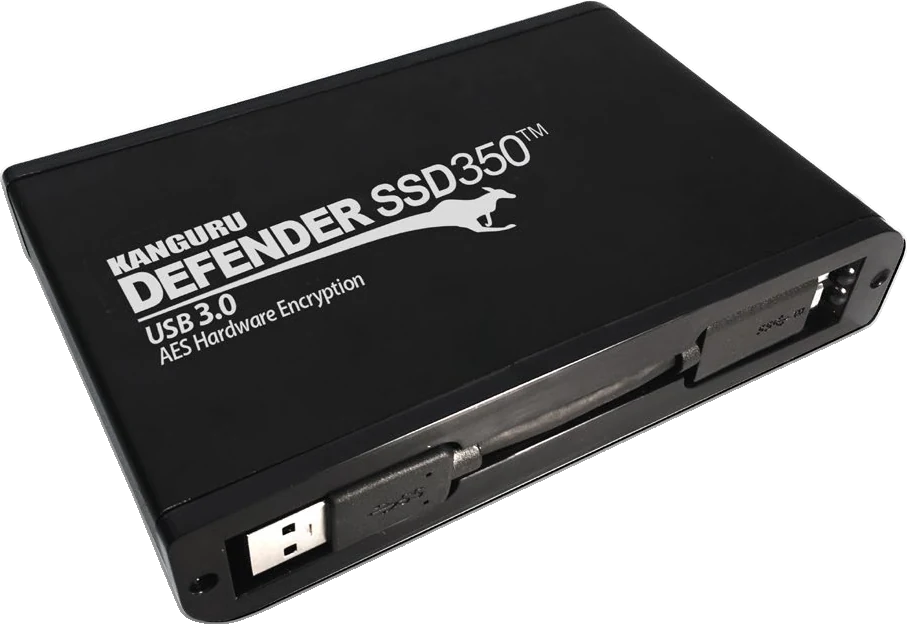
The Defender SSD350 is Kanguru’s hardware-encrypted external solid-state drive. Kanguru launched it in July 2022 and still lists it: its store shows all four capacities as available. Inside an aluminium housing, Kanguru’s encryption module sits between a 2.5-inch SSD and the USB connection (Kanguru product page; June 2024 datasheet).
| Specification | Kanguru Defender SSD350 |
|---|---|
| Part numbers | KDH3B-350F-1TSSD, -2TSSD, -4TSSD and -8TSSD, as listed in Kanguru’s store (the product page’s spec table omits the F) |
| Capacities | 1TB, 2TB, 4TB and 8TB. Kanguru counts 1GB as one billion bytes, and usable space is lower |
| Encryption | AES 256-bit hardware encryption, XTS mode (FIPS 197 certified AES) |
| Certification | FIPS 140-2 Level 2 for the embedded encryption module, NIST certificate #4228 (module name “Defender HDD 350”). On NIST’s historical list since 21 September 2026 |
| Interface | SuperSpeed USB 3.0 (USB 3.2 Gen 1x1, 5Gbps). Not compatible with USB 2.0 |
| Connector and cables | USB 3 Micro-B on the drive. Kanguru lists a Micro-B to USB-A cable and a Micro-B to USB-C plus USB-A combo cable |
| Power | Powered by USB; no external power supply |
| Rated speed | 120MB/s read, 100MB/s write, with no test conditions given. Internal link SATA II, 3Gbps |
| Operating systems | Windows 11, Windows Server 2016 or newer, macOS 11 or newer (Rosetta required on Apple silicon). Kanguru still lists Windows 10 but no longer guarantees normal operation on it. No Linux |
| Software | Kanguru Defender Manager runs from a read-only partition on the drive. No installation or administrator rights on desktop Windows; Apple-silicon Macs need Apple’s Rosetta installed first; Windows Server may need administrator rights |
| Wrong passwords | Unmanaged drive: 7 attempts, then a factory reset that deletes all data. Managed through KRMC: the administrator sets 3 to 15 attempts; by default the drive is then disabled, not erased |
| Options | KRMC remote management, and Bitdefender antivirus for Windows, each licensed separately |
| Housing and size | Aluminium housing, 14 x 8.6 x 2cm. Product weight 260g, per Kanguru’s June 2024 datasheet (the product page’s 522g matches the shipping weight) |
| Environmental ratings | None published: Kanguru gives no water, dust, drop or operating-temperature rating for this model |
| Warranty | 3 years (Kanguru) |
| TAA compliant | Yes |
Sources: Kanguru product page, June 2024 datasheet, user manual v1.0, knowledge base (February 2026) and NIST CMVP, checked 21 September 2026. Kanguru’s spec table lists capacities up to 4TB while its store sells 8TB, and its datasheets still say six wrong-password attempts; we follow the store and the current knowledge base.
How the encryption protects the files, and where it stops
Everything written to the drive is encrypted by Kanguru’s module inside it, with AES 256-bit keys that stay in the drive. There is no setting to store files unencrypted, and the drive, not the computer, checks the password; wrong attempts are limited, to seven by default on an unmanaged drive. Our Kanguru page compares hardware and software encryption in more detail.
That protection applies while the drive is locked. Once a user logs in, the drive behaves like any removable drive:
- The authorised user, and any software running on that computer, can read, copy, change or delete the files.
- Malware on the computer can reach the unlocked drive. The drive does not make an infected computer safe.
- The password is typed on the computer. Kanguru recommends its on-screen virtual keyboard for setting and entering the password, to reduce the risk from keyloggers (quick-start guide).
The drive locks itself when it loses power: NIST’s security policy for the module says a power cycle means the user must authenticate again (security policy). Kanguru’s comparison chart also lists digitally signed firmware for this model, its defence against the firmware tampering described in our guide to secure USB for government and defence.
On regulation, the UAE Information Assurance Regulation (v1.1, March 2020) advises cryptographic protection for removable media where confidentiality matters, and asks the entities it covers to protect physical media in transit and plan for its loss. An encrypted drive supports those controls. It does not make an organisation compliant on its own.
Certification, briefly. The FIPS 140-2 certificate belongs to the encryption module inside the drive, which Kanguru calls “FIPS 140-2 Inside”; the finished SSD is not a separate NIST entry. #4228 moved to NIST’s historical list on 21 September 2026, the date NIST set for moving all remaining FIPS 140-2 validations. NIST says historical modules can still be bought and used for existing systems, while its certificate pages tell US federal agencies not to include them in new procurements. A tender that requires FIPS 140-3 is not met by this drive. Our FIPS guide explains the difference.
Unlocking and using the drive day to day
The drive has two parts: a small read-only partition holding the Kanguru Defender Manager (KDM) software, and the encrypted partition for your files. Nothing is installed on the computer.
- Connect the drive to a USB 3 port with the supplied cable.
- Open KDM from the drive’s read-only partition. On first use it asks for a name, phone number and email address and sends an activation code by email, so set drives up on a computer with internet access, where the user can receive email.
- Create a password that meets the drive’s password policy.
- Log in, ideally with the virtual keyboard. The encrypted partition then opens like a normal removable drive.
- Work with the files, or copy them to the approved computer if your procedure allows.
- Click Logout and eject before unplugging. Kanguru warns that unplugging without unmounting can damage files.
Two further rules come from Kanguru’s quick-start guide: do not leave a logged-in drive unattended, and switch off sleep mode on computers that use it, because a computer that sleeps while the drive is logged in can, in the worst case, corrupt data.
Ports, computers and operating systems
The SSD350 needs a USB 3 port. It uses USB 3.2 Gen 1 (5Gbps, also sold as SuperSpeed USB 3.0); in faster USB 3 ports it still runs at 5Gbps, and Kanguru states that it is not compatible with USB 2.0. The socket on the drive is USB 3 Micro-B. Kanguru’s product page lists two cables, one ending in USB-A and a combo cable with USB-C and USB-A ends, so it connects to laptops with either port. Its manual and package list describe the cables differently, so confirm the box contents when ordering.
Kanguru lists Windows 11, Windows Server 2016 or newer and macOS 11 or newer. It still lists Windows 10, but marks it as a system it no longer supports, on which it cannot guarantee normal operation. On Macs with Apple silicon, Kanguru’s software needs Apple’s Rosetta, which needs an internet connection and the user’s macOS credentials to install, so have IT install it on managed Macs first. Apple has said Rosetta remains available for general apps up to macOS 27, so ask about later versions before standardising Macs on this drive. Kanguru’s comparison chart shows no Linux support.
No software installation or administrator rights are needed on desktop Windows, which matters on locked-down company laptops; Windows Server may need administrator rights. Security tools that block unknown USB devices, or application control that blocks programs run from removable media, may need an exception, because KDM runs from the drive. Test on your standard build first.
The current KDM version for the SSD350 is 5.6.7.0, according to a Kanguru knowledge-base page updated in February 2026, and Kanguru recommends backing up the drive before updating it.
What speed to expect
Kanguru rates the SSD350 at 120MB/s read and 100MB/s write and gives no test conditions. Inside, the SSD connects over SATA II at 3Gbps; the 5Gbps USB figure is the connection’s ceiling, not the drive’s speed.
That makes it steady rather than fast. Kanguru’s own Defender 3000 flash drive is rated at up to 300MB/s read at larger capacities. Buy the SSD350 for protected capacity, not speed, and do not compare it with NVMe portable SSDs.
| Data to copy | Writing at 100MB/s | Reading at 120MB/s |
|---|---|---|
| 50GB | about 8 minutes | about 7 minutes |
| 300GB | about 50 minutes | about 42 minutes |
| 1TB | about 2¾ hours | about 2⅓ hours |
Arithmetic on Kanguru’s rated speeds, not measurements. Many small files, a busy computer or a slower port take longer. Time a copy of your own files before planning a deadline around it.
If the drive is lost, or the password is forgotten
A lost or stolen drive
If the drive was logged out or unplugged, the files are encrypted and cannot be read without the password. Guessing is limited: an unmanaged drive allows seven wrong passwords, then resets itself to factory settings and deletes everything on it (Kanguru knowledge base, February 2026). On a drive managed through KRMC, the administrator sets the limit between 3 and 15 attempts and chooses what happens next; the default is to disable the drive.
What encryption cannot do is bring the files back. A lost, failed or damaged drive is gone, so the SSD350 should never hold the only copy of anything. Keep the originals on a backed-up system; our backup and disaster recovery guide covers the rest.
If the drive is managed through KRMC, an administrator can also disable it remotely, but the command waits until the drive next connects to a computer that can reach the console. Record which drive went missing, when, and what was on it, as your incident procedure requires.
A forgotten password
Whether the files survive depends on how the drive was set up before the password was lost:
- Unmanaged drive. The only way back is the Reset function, which deletes all passwords and data. Seven wrong guesses do the same, so tell users to stop guessing and call IT.
- Drive managed through KRMC. If the drive was enrolled with an administrator password set, an administrator can set a new user password remotely, keeping the files; the change runs when the drive next connects to a computer that can reach the console (KRMC manual). Users cannot factory-reset a managed drive themselves. Kanguru’s datasheet also lists an optional administrator password among features that may require KRMC. Our KRMC guide explains the options.
- Self-service reset. Kanguru’s SSD350 page mentions its self-service password management (SSPM), but the SSPM page does not list the SSD350 as supported, so confirm with Kanguru before relying on it.
So decide before issuing drives: if losing access to the files would matter, put the drives under KRMC from the start.
When remote management and antivirus are worth adding
The Kanguru Remote Management Console (KRMC) is optional and licensed separately. It is worth adding when an organisation issues several drives and needs to set password rules centrally, reset forgotten passwords without losing files, see which computers and networks managed drives connect from when they are online, and disable a lost one. Kanguru’s product page says new Defender purchases include a 30-day trial of KRMC Advanced; confirm this applies to units ordered through PRO TECHnology.
If drives are managed, set KRMC’s offline-login allowance before issuing them. Unless offline use is allowed, either unlimited or for a set number of logins, a managed drive will not unlock on a computer without internet access, such as an isolated machine at a client site. Logins made offline are not recorded in the console.
One limit for this model: KRMC does not offer file auditing on Kanguru’s Defender HDD and SSD models, even on a Premium account (Kanguru). Day-to-day administration is covered in our guide to managing encrypted USB drives with KRMC.
Antivirus is optional too. The drive can run Bitdefender scanning on Windows only, with a 30-day trial and then a one, two or three year licence sold separately.
Requirements, capabilities and limits
The table matches common buyer requirements to what the SSD350 provides and the condition attached to each.
| Buyer requirement | Relevant capability | Condition or limitation |
|---|---|---|
| Files unreadable if the drive is lost | AES 256-bit hardware encryption; the drive checks the password | Only while locked. Log out before unplugging; the drive also re-locks when it loses power |
| Protection against password guessing | Wrong-password limit: seven by default, 3 to 15 on managed drives | On an unmanaged drive, the limit also erases your files: never let it hold the only copy |
| Use on locked-down company laptops | No installation or administrator rights on Windows 11 | Kanguru no longer guarantees Windows 10; Apple-silicon Macs need Rosetta installed first; Windows Server may need administrator rights; no Linux |
| Large project files | Up to 8TB | Rated 120MB/s read and 100MB/s write, without test conditions |
| Laptops with only USB-C ports | Combo cable with USB-C and USB-A ends, per Kanguru’s product page | Needs a USB 3 port; not compatible with USB 2.0. Confirm box contents |
| Recover a forgotten password without losing files | Administrator password reset through KRMC | Only on drives enrolled in KRMC, with an administrator password set, before the password is lost |
| Act on a lost drive centrally | KRMC can disable a managed drive | Licensed separately; the command runs when the drive next connects to a computer that can reach the console |
| Scan files for malware | Optional onboard Bitdefender | Windows only; paid licence after a 30-day trial |
| Certified encryption for a tender | FIPS 140-2 Level 2 module, certificate #4228 | On NIST’s historical list since 21 September 2026; does not meet a FIPS 140-3 requirement |
| Rough handling or site use | Aluminium housing | No water, dust, drop or temperature ratings published |
When the SSD350 is not the right choice
- Linux computers or USB 2.0-only equipment. Neither is supported.
- Speed-critical work. Editing large video or models directly on the drive at a rated 100MB/s write may be too slow. Copy to an approved local disk if policy allows, or choose a faster product.
- The only copy of the data. It is a transport and working drive, not a backup. For rotating backup copies, see our Defender HDD350 backup-drive guide.
- Small amounts of data. For a few gigabytes, a hardware-encrypted flash drive is smaller and simpler to carry; see the Defender range on our Kanguru page.
- Harsh site conditions. Kanguru publishes no water, dust, drop or temperature ratings for this model. For small files on site, use the Defender 3000 flash drive instead: Kanguru builds it in a rugged alloy housing with a published IP68 rating.
SSD350 or HDD350?
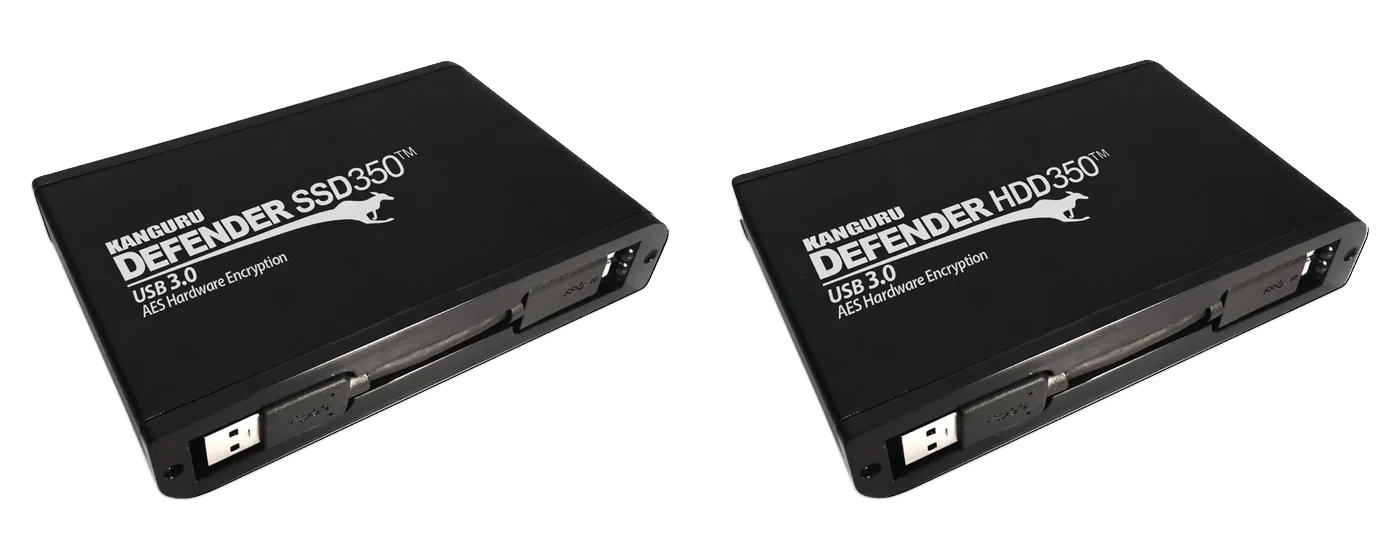
The two drives share the encryption module, the software and a similar aluminium housing. The SSD350 has no moving parts, comes in 1TB to 8TB, and Kanguru rates it at 120MB/s read and 100MB/s write. The HDD350 is a hard drive in 2TB and 5TB (5,400rpm, according to Kanguru’s datasheet), rated at 100MB/s read and 70MB/s write. Choose the SSD350 for files that travel often and are worked on from the drive. Choose the HDD350 for backup copies that are written, disconnected and stored, which our Defender HDD350 guide covers.
Checklist before ordering an encrypted portable SSD
- Capacity. The largest set of files carried at once, plus room to grow. Confirm 8TB availability if you need it.
- Part number. KDH3B-350F- plus the capacity, as Kanguru’s store lists it.
- Computers. Windows 11 or Windows Server 2016 or newer (Kanguru no longer guarantees Windows 10), or macOS 11 or newer; USB 3 ports; no Linux.
- Macs. Rosetta installed on Apple-silicon Macs, and Kanguru’s answer on support beyond macOS 27.
- Security software. Test the drive against your USB and endpoint policies on a standard build.
- Password recovery. Decide whether drives will be enrolled in KRMC, with an administrator password, before they are issued, and whether offline logins are allowed.
- Licences. Which KRMC package and term, and whether Bitdefender licences are needed (Windows only).
- Certification wording. If a tender names FIPS, check that it accepts FIPS 140-2 Level 2 certificate #4228 on NIST’s historical list.
- Cables. Confirm which cables are in the box for your users’ laptops.
- Handling rules. Log out before unplugging, no sleep mode while logged in, and never the only copy.
- Custom printing or engraving. A logo, a return-if-found message or an engraved serial number, which Kanguru’s datasheet offers on quantity orders.
- Warranty. Kanguru states three years; agree how warranty claims are handled for regional purchases.
Buying the Defender SSD350 in the UAE and GCC
Kanguru’s online store sells only within the United States, and its EMEA partner directory lists PRO TECHnology in Dubai for the GCC states and Jordan; our Kanguru page has the details. To quote the right configuration, we need the number of drives, the capacity, the computers they will be used with, and whether you want KRMC or antivirus licences. How the partnership started, and what local support includes, is in our 2021 partnership announcement.
Sources
Specifications come from Kanguru’s product page, its June 2024 datasheet, the Defender SSD350 user manual v1.0 and Kanguru’s knowledge base, and certification details from NIST’s Cryptographic Module Validation Program, all checked on 21 September 2026. Where Kanguru’s documents disagree, the article says which one it follows. Timings marked as arithmetic are calculations on Kanguru’s rated speeds, not measurements, and the example marked hypothetical is an illustration, not a customer case.
- Kanguru: Defender SSD350 product page
- Kanguru: Defender SSD350 datasheet, June 2024 (PDF)
- Kanguru: Defender SSD350 user manual v1.0 (PDF hosted by iStorage, Kanguru’s parent group)
- Kanguru: Defender HDD/SSD quick-start guide v1.7 (PDF)
- Kanguru knowledge base: failed password attempts (updated February 2026)
- Kanguru knowledge base: Defender HDD350 and SSD350 update (updated February 2026)
- Kanguru: Defender comparison chart
- Kanguru: Remote Management Suite for Defender devices
- Kanguru: Self-Service Password Management
- Kanguru: KRMC-Hosted user manual
- NIST: security policy for certificate #4228 (PDF)
- Apple: using Intel-based apps on a Mac with Apple silicon (Rosetta)
- Kanguru: Defender SSD350 launch, 13 July 2022
- NIST CMVP: certificate #4228, Defender HDD 350
- NIST: FIPS 140-3 transition
- UAE Information Assurance Regulation v1.1 (TDRA, PDF)
- Kanguru: where to buy in Europe, the Middle East and Africa
- Kanguru: partnership with PRO TECHnology, 1 September 2021
Frequently asked questions
What is the Kanguru Defender SSD350?
A portable external SSD with AES 256-bit hardware encryption in XTS mode, in 1TB, 2TB, 4TB and 8TB capacities. You unlock it with a password through Kanguru’s software, which runs from the drive itself, and it connects over USB 3.2 Gen 1. Its encryption module holds FIPS 140-2 Level 2 certificate #4228, which moved to NIST’s historical list on 21 September 2026.
How is it different from an ordinary password-protected external SSD?
Many external SSDs store data unencrypted, or leave encryption and passwords to the user or to software on the computer. On the SSD350, encryption cannot be switched off, the drive checks the password and limits wrong attempts, and its encryption module was validated under FIPS 140-2 (certificate #4228, now on NIST’s historical list). Drives can also be managed centrally through Kanguru’s KRMC.
Which capacities are available?
Kanguru’s store lists 1TB, 2TB, 4TB and 8TB, part numbers KDH3B-350F-1TSSD, -2TSSD, -4TSSD and -8TSSD. Kanguru’s product-page specification table still lists only up to 4TB, so confirm 8TB availability when ordering. Usable space is a little lower than the label.
Does it work with our Windows or Mac computers?
Kanguru lists Windows 11, Windows Server 2016 or newer and macOS 11 or newer. It still lists Windows 10 but says it cannot guarantee normal operation there. On Macs with Apple silicon, Apple’s Rosetta must be installed first, and Apple has said Rosetta remains available for general apps up to macOS 27. Linux is not supported. No installation or administrator rights are needed on desktop Windows, but Windows Server may need administrator rights. Test it on your own company build before a wide rollout.
Which USB ports does it support?
It needs a USB 3 port, USB-A or USB-C. It connects at USB 3.2 Gen 1 (5Gbps), and a faster port will not make it faster. Kanguru states it is not compatible with USB 2.0. The drive has a USB 3 Micro-B socket, and Kanguru’s product page lists a cable to USB-A and a combo cable with USB-C and USB-A ends; confirm the box contents when ordering.
What happens if the drive is lost or stolen?
While it is locked, the files stay encrypted and cannot be read without the password, and the drive re-locks whenever it loses power. Wrong guesses are limited: an unmanaged drive erases itself after seven. If the drive is managed through KRMC, an administrator can disable it, but the command only runs when the drive next connects to a computer that can reach the console. Encryption does not bring the files back, so keep a separate copy.
Can a forgotten password be reset without losing files?
Only if the drive was enrolled in Kanguru’s KRMC, with an administrator password set, before the password was forgotten. An administrator can then set a new password remotely, keeping the files, once the drive connects to a computer that can reach the console. On an unmanaged drive, the only option is a factory reset, which deletes all data, and seven wrong guesses do the same. Kanguru’s SSD350 page offers self-service password reset (SSPM) as an add-on, but the SSPM page does not list this model, so confirm with Kanguru before relying on it.
Is antivirus or remote management included?
Both are optional. Onboard Bitdefender scanning works on Windows only and comes as a 30-day trial, then a one, two or three year licence. KRMC remote management is licensed separately; Kanguru’s product page says new Defender purchases include a 30-day trial of KRMC Advanced, so confirm this for regional orders. KRMC does not offer file auditing on this model.
When should we choose SSD350 instead of HDD350?
Choose the SSD350 for files that travel often and are worked on from the drive: it has no moving parts, comes up to 8TB, and Kanguru rates it at 120MB/s read and 100MB/s write, against 100MB/s and 70MB/s for the HDD350. The HDD350, in 2TB and 5TB, suits backup copies that are written, disconnected and stored.
Who supplies the Defender SSD350 in the UAE and GCC?
PRO TECHnology in Dubai. Kanguru’s partner directory lists it for the six GCC states and Jordan, and Kanguru’s own online store sells only within the United States. PRO TECHnology is Kanguru’s exclusive distributor and partner for the Middle East. Call +971 4 343 5501 or email sales@protech.ae for a quotation.
قرص Kanguru Defender SSD350 الخارجي المشفّر لنقل الملفات السرية الكبيرة
قرص Kanguru Defender SSD350 قرص SSD خارجي محمول يشفّر كل ما يُخزَّن عليه داخل القرص نفسه بتشفير AES بمفتاح 256 بت، ولا يُفتح إلا بكلمة مرور. يتوفر بسعات 1 و2 و4 و8 تيرابايت، ويعمل على Windows 11 وmacOS 11 وما بعده (مع Rosetta على أجهزة Mac بمعالجات Apple) دون تثبيت برامج، ولم تعد Kanguru تضمن عمله على Windows 10، ولا يدعم Linux ولا منافذ USB 2.0. تقدّر Kanguru سرعته بـ 120 ميغابايت في الثانية للقراءة و100 ميغابايت في الثانية للكتابة دون ذكر ظروف الاختبار. بعد سبع محاولات خاطئة لكلمة المرور يُمسح القرص غير المُدار بالكامل، ولا يمكن إعادة تعيين كلمة المرور دون فقدان الملفات إلا إذا كان القرص مسجّلًا في منصة KRMC مع كلمة مرور للمسؤول قبل نسيانها. وحدة التشفير فيه حاصلة على شهادة FIPS 140-2 من المستوى الثاني برقم 4228، وقد نُقلت إلى القائمة التاريخية لدى NIST في 21 سبتمبر 2026. القرص وسيلة لنقل الملفات وحمايتها، لا نسخة احتياطية. يُدرج دليل شركاء Kanguru شركة PRO TECHnology في دبي شريكًا لها في الإمارات والسعودية وقطر والكويت وعُمان والبحرين والأردن.
Choose the right SSD350 configuration
Send us the number of drives, the capacity and the computers they will be used with. We will check the configuration against Kanguru’s published specifications and send a quotation.