
Kanguru Defender HDD350: An Encrypted Hard Drive for Offline Backup Rotation
Published · PRO TECHnology Enterprise IT
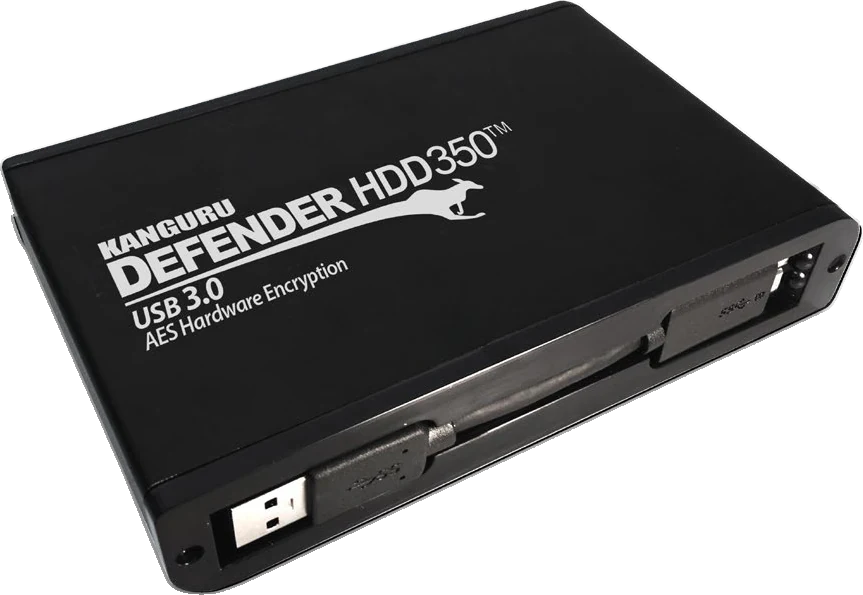
The Kanguru Defender HDD350 is a hardware-encrypted external hard drive, in 2TB or 5TB, for use as a secure backup drive. It encrypts everything stored on it with AES 256-bit encryption and opens only with a password. In a backup process it can hold an encrypted copy that your backup software writes, which is then unplugged and stored away from the main site. It is one component: it does not run or schedule backups, keep versions, or stop changes while it is connected. PRO TECHnology supplies Kanguru products across the UAE and the GCC.
- Capacities
- 2TB and 5TB
- Encryption
- AES 256-bit hardware, XTS mode
- Connection
- USB 3.2 Gen 1; not USB 2.0
- Rated speed
- 100MB/s read, 70MB/s write (Kanguru)
Key takeaways
- The HDD350 stores a backup copy; your backup software creates it. The drive does not run, schedule or verify backups.
- Its value in a rotation is an encrypted copy that is unplugged and stored elsewhere. While it is unlocked and connected, ransomware on that computer can change it like any other drive.
- It locks when unplugged and needs a login every session, so a rotation is a manual, recorded procedure, not an unattended job.
- Seven wrong passwords erase an unmanaged drive, and unless the drive is managed through KRMC, Kanguru documents no way to reset a forgotten password without erasing it. The password is part of your recovery plan.
- Kanguru rates it at 70MB/s write, so a full 1TB copy takes about four hours at best. Test restores, not just backup jobs.
Where the HDD350 fits in a backup process
A secure USB drive for backup is not a backup on its own. Five separate things protect a backup copy, and the drive supplies only the first:
| Part of the process | What it does | Does the HDD350 provide it? |
|---|---|---|
| Encryption | Keeps stored data unreadable without the password or key | Yes: AES 256-bit hardware encryption on the drive |
| Backup software | Creates, schedules and checks backup jobs, and keeps versions | No. Use your own backup software |
| Disconnection (an offline copy) | Keeps a copy out of reach of attacks through the network or a connected computer | Only once it is logged out and unplugged. Your procedure does that |
| Immutability | Stops a copy being changed or deleted during its retention period | No. While unlocked it is ordinary writable storage, and it has no write-protect switch |
| Recovery testing | Proves that the copy restores | No. A scheduled restore test does |
Official guidance covers most of this. CISA’s #StopRansomware Guide tells organisations to “maintain offline, encrypted backups of critical data” and to test them regularly. The UK NCSC advises that devices holding backups, such as external hard drives, should not be permanently connected, and its ransomware-resistant backup principles describe immutable (“write once, read many”) storage. NIST’s Cybersecurity Framework 2.0 lists backups that are “created, protected, maintained, and tested” as one outcome.
An encrypted drive that is unplugged after each job covers the offline and encrypted parts. The backup software, the retention rules and the restore tests are still yours to provide. Our backup and disaster recovery guide covers the wider plan: the 3-2-1 rule, recovery objectives and archive.
A rotation, step by step
Hypothetical example. A professional services firm in Abu Dhabi has about 1.2TB of data on its file server and keeps three Defender HDD350 5TB drives in rotation. Every Friday, the IT officer connects that week’s drive to the backup server, logs in, lets the backup software write a new copy, checks the job log, logs out and unplugs the drive.
The drive goes to a locked cabinet at a second office, and the older of the two drives stored there comes back for the following week. A custody log records each drive’s serial number, the dates and who carried it. Once a month, before a returning drive is overwritten, the officer restores a sample of files from it to a test machine and records the result.
At Kanguru’s rated 70MB/s write speed, a full 1.2TB copy (decimal terabytes, as Kanguru counts capacity) takes roughly four and three-quarter hours. That is arithmetic on Kanguru’s figure, not a measurement; incremental jobs that write only changes take less time.
Every organisation’s schedule and retention will differ. The steps themselves are common to most rotations:
- Choose the capacity. Size each drive for the backups it must hold: the full copy, any incremental copies kept with it, and growth over the drive’s service life. The HDD350 comes in 2TB and 5TB; Kanguru counts capacity in decimal units, and usable space is lower than the label.
- Check compatibility. Confirm the backup computer runs a supported system (Windows 11, Windows Server 2016 or newer, or macOS 11 or newer with Rosetta on Apple silicon; Kanguru no longer guarantees Windows 10, and there is no Linux support) and has a USB 3 port. Windows Server may need administrator rights to run Kanguru’s software. After login the drive appears as a removable disk with a drive letter, which can differ from one rotation drive, or one computer, to the next, so check how your backup software identifies each drive and test that it accepts all of them as targets. Kanguru publishes no list of compatible backup software. First-time setup sends an activation code by email, so set each drive up on a computer with internet access before it goes to an offline backup server.
- Unlock and run the backup. Connect the drive, log in with Kanguru Defender Manager and run the job. The drive re-locks whenever it loses power (NIST security policy), and Kanguru documents only an interactive login, so plan for someone to connect and unlock the drive for each run. A full copy can take several hours, and Kanguru advises against leaving a logged-in drive unattended, so run the job in a locked server room or while someone is present, and log out as soon as it finishes. Kanguru also advises switching off sleep mode on computers the drive is used with.
- Verify the job and test recovery. Check the backup software’s log or verification after every job, and restore real files on a schedule. The UAE Information Assurance Regulation (v1.1), which binds government entities and entities designated as critical, includes a control that backed-up information is “routinely tested for reliability”. Its non-binding guidance suggests restoring a random sample of backups once a quarter, or whenever new backup equipment is bought, which includes a new set of rotation drives.
- Disconnect and store. Click Logout, eject and unplug. Store the drive in a locked place away from the main site; NIST’s contingency planning guide (SP 800-34) recommends an offsite, environmentally controlled location.
- Record custody and rotate. Log the drive serial number, date, location and person each time it moves, and rotate on your policy’s schedule. The NCSC advises never having all backups connected at the same time.
Defender HDD350 specifications
The Defender HDD350 is Kanguru’s portable secure hard drive: a hardware-encrypted 2.5-inch drive powered over USB. Kanguru’s store still lists both capacities (Kanguru product page; June 2024 datasheet).
| Specification | Kanguru Defender HDD350 |
|---|---|
| Part numbers | KDH3B-350F-2T (2TB) and KDH3B-350F-5T (5TB), as listed in Kanguru’s store |
| Drive type | Portable 2.5-inch hard drive; 5,400rpm with 8MB cache, according to Kanguru’s datasheet |
| Encryption | AES 256-bit hardware encryption, XTS mode (FIPS 197 certified AES) |
| Certification | FIPS 140-2 Level 2 for the embedded encryption module, NIST certificate #4228 (module name “Defender HDD 350”). On NIST’s historical list since 21 September 2026 |
| Interface | SuperSpeed USB 3.0 (USB 3.2 Gen 1x1, 5Gbps). Not compatible with USB 2.0 |
| Connector and cables | USB 3 Micro-B on the drive. Kanguru’s product page lists a Micro-B to USB-A cable and a Micro-B to USB-C plus USB-A combo cable; its manual also lists a USB-A Y-cable. Confirm the box contents |
| Power | Powered by USB. If one port cannot power it, Kanguru’s manual says to use the Y-cable across two ports |
| Rated speed | 100MB/s read, 70MB/s write, with no test conditions given. Internal link SATA II, 3Gbps |
| Operating systems | Windows 11, Windows Server 2016 or newer, macOS 11 or newer (Rosetta required on Apple silicon). Kanguru still lists Windows 10 but no longer guarantees normal operation on it. No Linux |
| Software | Kanguru Defender Manager runs from a read-only partition on the drive. No installation or administrator rights on desktop Windows; Apple-silicon Macs need Apple’s Rosetta installed first; Windows Server may need administrator rights |
| Wrong passwords | Unmanaged drive: 7 attempts, then a factory reset that deletes all data. Managed through KRMC: the administrator sets 3 to 15 attempts; by default the drive is then disabled, or it can be set to format or time out |
| Options | KRMC remote management, and Bitdefender antivirus for Windows, each licensed separately |
| Housing and size | Aluminium housing, 14 x 8.6 x 2cm; Kanguru’s page also lists a thicker 2.7cm housing for a 4TB version, so confirm the size of the capacity you order. Product weight 290g, per Kanguru’s June 2024 datasheet (the product page’s 522g matches the shipping weight) |
| Environmental ratings | None published: Kanguru gives no shock, drop, water or temperature rating for this model |
| Warranty | 3 years (Kanguru) |
| TAA compliant | Yes |
Sources: Kanguru product page, June 2024 datasheet, user manual v1.0, knowledge base (February 2026) and NIST CMVP, checked 21 September 2026. Kanguru’s datasheets still say six wrong-password attempts; we follow the current knowledge base and manual, which say seven.
Backup risks: what the drive helps with, and what else you need
| Backup risk | What the HDD350 helps address | What else is required |
|---|---|---|
| A backup drive is lost or stolen in transit or storage | The copy stays encrypted while the drive is locked | A custody record and a second copy elsewhere; anyone holding an unmanaged drive can also erase it with seven wrong guesses |
| Ransomware spreads across the network | A drive that is unplugged is out of reach | Unplug after every job, never connect all rotation drives at once, and scan before restoring |
| Ransomware or a mistake while the drive is connected | Nothing: an unlocked drive is ordinary writable storage | Short connection windows, backup software that keeps versions, and an immutable copy elsewhere if you need one |
| Deletion or corruption copied into the backups | Nothing on its own | Versioned backups kept for a set retention period, and several drives in rotation |
| The drive fails or is damaged | Nothing: encryption does not recover a failed drive | More than one copy, on more than one medium, and careful handling |
| A forgotten password, or too many wrong guesses | On drives enrolled in KRMC beforehand, an administrator can set a new password, which runs when the drive next connects | On unmanaged drives, a sealed, access-controlled record of the password that authorised staff can retrieve; seven wrong guesses erase the drive |
| Fire or flood at the main site | A drive stored at another location is not exposed to the same fire or flood | A storage place far enough away and protected from heat and water |
| A backup that will not restore | Nothing on its own | Restore tests on a schedule |
The NCSC’s principles for ransomware-resistant backups add one warning that applies directly: if backups are encrypted, protect the keys, because destroying a key can be easier for an attacker than destroying the data. For the HDD350, the password plays that role: lose it, or let someone exhaust the wrong-password limit, and the backup is gone.
Passwords, recovery and remote management
An unmanaged HDD350 allows seven wrong passwords, then resets itself to factory settings and deletes everything on it; Kanguru says the data cannot be recovered (Kanguru knowledge base, February 2026). A forgotten password on an unmanaged drive also leaves only the Reset function, which deletes all data. For a backup drive, that means the backup is gone, so the password needs a documented, access-controlled place where authorised staff can find it.
On a drive managed through the Kanguru Remote Management Console (KRMC), licensed separately, an administrator sets the failed-attempt limit between 3 and 15, and by default the drive is then disabled instead of erased. If the drive was enrolled in KRMC before the password was lost, an administrator can set a new password with a Change User Password action, which keeps the files. The action needs the account’s administrative password and runs only when the drive next connects to a computer that can reach the console; a drive disabled after too many wrong attempts also needs an Enable Device action (KRMC manual). Kanguru’s self-service password reset does not list the HDD350, so do not plan on it without Kanguru’s confirmation. Three points matter for backups:
- KRMC cannot act on an unplugged drive. A disable, wipe or password command waits until the drive next connects to a computer that can reach the console.
- Offline use must be allowed. A managed drive will not unlock on a computer without internet access unless offline logins are allowed. If the backup server has no internet access, allow them before the drives are issued, choosing unlimited or a cap large enough for your rotation. Allowing offline use also means a disable command waits for as long as the drive stays offline, and offline logins are not recorded in the console.
- Remote wipe cuts both ways. A console that can delete a drive’s data can also delete a backup. Limit who holds KRMC administrator rights and protect those accounts.
KRMC does not offer file auditing on Kanguru’s Defender HDD and SSD models (Kanguru). Our KRMC guide explains the console in detail.
Handling a portable secure hard drive
The HDD350 is a mechanical hard drive, and the 2012 US-CERT paper Data Backup Options notes that external hard drives remain prone to physical damage. Kanguru publishes no shock, drop or temperature ratings for this model, so handle it conservatively:
- Carry it in a padded case, and do not move or knock it while it is running.
- Keep it out of parked cars and direct sun; Kanguru gives no operating-temperature range for it.
- Always log out and eject before unplugging. Kanguru warns that unplugging without unmounting can damage files.
- If a computer does not recognise the drive, it may not be getting enough power from one port. Kanguru’s manual says to use a Y-cable across two USB-A ports; the product page lists only two cables, so confirm the box contents when ordering.
- Do not leave a drive logged in and unattended, and switch off sleep mode on the backup computer.
- Label drives by rotation slot and serial number, not by what they contain.
- Replace rotation drives on a planned schedule rather than using them until they fail, and keep long-term archives on storage designed for it.
- When a drive is retired, confirm it is not the last copy of anything, then sanitise it; our secure data erasure guide covers how.
HDD350 or SSD350?
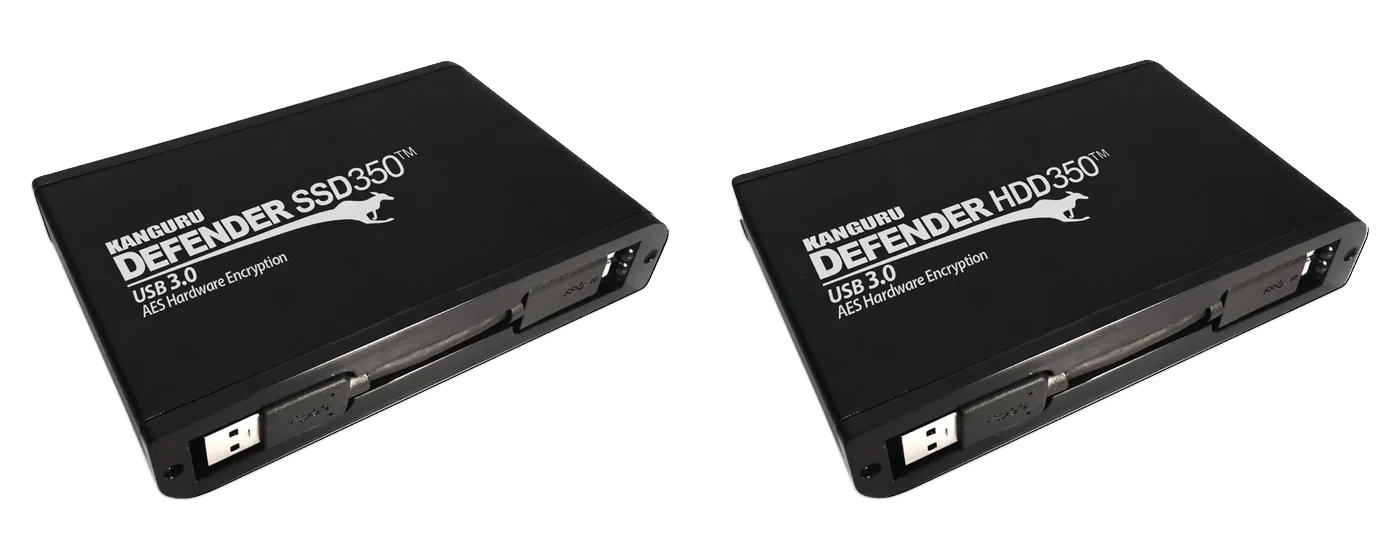
The two drives share the encryption module, the software and a similar aluminium housing. Choose the HDD350 when the drive holds backup copies that are written at regular intervals, then disconnected and stored, and 2TB or 5TB is enough. Choose the Defender SSD350 when files travel often and are worked on from the drive, when you want no moving parts, or when you need up to 8TB; Kanguru rates it faster, at 120MB/s read and 100MB/s write. Prices per terabyte vary by capacity and order, so ask us to quote both.
When the HDD350 is not the right choice
- Unattended scheduled backups straight to the drive. It needs a login every session. Scheduled jobs usually go to always-connected storage, with a separate offline copy made by this kind of rotation.
- A requirement for immutable or write-once copies. The drive does not provide it.
- Linux backup servers or USB 2.0-only hardware. Neither is supported.
- Backups larger than 5TB per copy, or tight backup windows. Check capacity and the rated 70MB/s write speed.
- Long-term archive. A rotation drive is a backup medium, not an archive; see the archive section of our backup guide.
- A tender that requires FIPS 140-3. This model’s module is FIPS 140-2 Level 2, now on NIST’s historical list; our FIPS guide explains what that means.
Checklist for buying secure backup drives
- Capacity. The backup set, the copies kept on each drive and growth; 2TB or 5TB.
- Number of drives. Enough for your rotation, so that one is always disconnected and stored away.
- Backup computer. Windows 11, Windows Server 2016 or newer (administrator rights may be needed) or macOS 11 or newer with Rosetta; a USB 3 port; no Linux; internet access for first-time setup.
- Backup software. Test that it accepts the drive as a target and verifies each job.
- Password custody. Who holds the password, where it is kept, and who may unlock drives.
- KRMC. Whether drives will be managed, which package, and the offline-login setting for backup computers.
- Storage location. Locked, away from the main site, and protected from heat and water.
- Custody log and restore tests. Who records movements, and how often restores are tested.
- Certification wording. If a tender names FIPS, check it accepts FIPS 140-2 Level 2 certificate #4228 on NIST’s historical list.
- Warranty. Kanguru states three years; agree how warranty claims are handled for regional purchases.
Buying the Defender HDD350 in the UAE and GCC
Kanguru’s online store sells only within the United States, and its EMEA partner directory lists PRO TECHnology in Dubai for the GCC states and Jordan; our Kanguru page has the details. PRO TECHnology supplies the drives and KRMC licences. To quote, we need the number of drives, the capacity, the backup computer and software, and whether you want KRMC. How the partnership started, and what local support includes, is in our 2021 partnership announcement.
Sources
Product details come from Kanguru’s product page, its June 2024 datasheet, the Defender HDD350 user manual v1.0, the quick-start guide and Kanguru’s knowledge base, and certification details from NIST, all checked on 21 September 2026. Backup practice cites CISA, NIST, the UK NCSC and the UAE Information Assurance Regulation. Timings marked as arithmetic are calculations on Kanguru’s rated speeds, not measurements, and the example marked hypothetical is an illustration, not a customer case.
- Kanguru: Defender HDD350 product page
- Kanguru: Defender HDD350 datasheet, June 2024 (PDF)
- Kanguru: Defender HDD350 user manual v1.0 (PDF hosted by iStorage, Kanguru’s parent group)
- Kanguru: Defender HDD/SSD quick-start guide v1.7 (PDF)
- Kanguru knowledge base: failed password attempts (updated February 2026)
- Kanguru knowledge base: Defender HDD350 and SSD350 update (updated February 2026)
- Kanguru: Defender comparison chart
- Kanguru: Remote Management Suite for Defender devices
- Kanguru: KRMC-Hosted user manual
- Kanguru: Self-Service Password Management
- NIST: security policy for certificate #4228 (PDF)
- Apple: using Intel-based apps on a Mac with Apple silicon (Rosetta)
- NIST CMVP: certificate #4228, Defender HDD 350
- CISA: #StopRansomware Guide (September 2023)
- NIST: Cybersecurity Framework 2.0 (February 2024, PDF)
- NIST SP 800-34 Rev. 1: Contingency Planning Guide (PDF)
- UK NCSC: Mitigating malware and ransomware attacks
- UK NCSC: Offline backups in an online world
- UK NCSC: Principles for ransomware-resistant on-premises backups (November 2024)
- US-CERT: Data Backup Options (2012, PDF)
- UAE Information Assurance Regulation v1.1 (TDRA, PDF)
- Kanguru: where to buy in Europe, the Middle East and Africa
- Kanguru: partnership with PRO TECHnology, 1 September 2021
Frequently asked questions
Does Defender HDD350 automatically back up my computer?
No. It is an encrypted storage drive. Your backup software creates, schedules and checks the backup; the HDD350 holds the copy. It also has to be unlocked with a password each time it is connected, so plan for someone to connect and unlock it for each run.
How is it different from an ordinary external hard drive?
Everything on it is encrypted by AES 256-bit hardware inside the drive, it cannot be used without its password, and it erases or disables itself after too many wrong guesses. Its encryption module holds FIPS 140-2 Level 2 certificate #4228, now on NIST’s historical list, and it can be managed centrally through Kanguru’s KRMC. Many ordinary external drives have no encryption of their own or rely on software such as BitLocker or FileVault; where they do encrypt in hardware, they usually lack a published FIPS 140 certificate and central management.
Can it form part of an offline backup rotation?
Yes, as the storage for the offline copy. A rotation needs more than the drive: backup software, a schedule, a secure place away from the main site, a custody record, a password recovery plan and regular restore tests. The copy is offline only when the drive is logged out and unplugged.
Does encryption protect a connected drive from ransomware?
No. Encryption protects the data from anyone who has the drive but not the password. Once the drive is unlocked and connected, ransomware on that computer can encrypt or delete the backup like any other drive. Protection comes from keeping the drive unplugged except during backups and restores, keeping several drives in rotation, and scanning before restoring.
What capacity should we choose for our backups?
Add up the full backup, any incremental copies kept on the same drive, and expected growth over the drive’s service life, then choose 2TB or 5TB with room to spare. Kanguru counts capacity in decimal units, and usable space is lower than the label. At Kanguru’s rated 70MB/s write speed, a full 1TB copy takes about four hours, so check the time as well as the space.
What happens if the drive is lost or the password is forgotten?
A lost drive stays encrypted while locked, but the copy on it is gone, so keep other copies. An unmanaged drive erases itself after seven wrong passwords, and a forgotten password leaves only a reset that deletes all data. If the drive was managed through KRMC before the password was forgotten, an administrator can set a new password without losing the files, once the drive next connects to a computer that can reach the console.
Can IT remotely disable a drive that is unplugged?
Not at that moment. KRMC commands, including disable and wipe, wait until the managed drive next connects to a computer that can reach the console. An unplugged drive is protected by its encryption and password in the meantime, and whether it can be opened offline depends on the KRMC offline-access setting.
Can it work with our operating system and backup software?
Kanguru lists Windows 11, Windows Server 2016 or newer (which may need administrator rights) and macOS 11 or newer with Rosetta on Apple silicon; it no longer guarantees Windows 10, and Linux is not supported. After login the drive appears as a removable disk, and Kanguru publishes no list of compatible backup software, so test your software with the drive before relying on it.
When should we choose HDD350 instead of SSD350?
Choose the HDD350 for backup copies that are written at regular intervals, disconnected and stored, when 2TB or 5TB is enough. Choose the SSD350 when files travel often and are worked on from the drive, or you need up to 8TB, no moving parts or more speed: Kanguru rates it at 100MB/s write against 70MB/s for the HDD350.
Who supplies Kanguru encrypted hard drives in the UAE and GCC?
PRO TECHnology in Dubai. Kanguru’s partner directory lists it for the six GCC states and Jordan, and Kanguru’s own online store sells only within the United States. PRO TECHnology is Kanguru’s exclusive distributor and partner for the Middle East. Call +971 4 343 5501 or email sales@protech.ae for a quotation.
Can a secure USB drive be used for backup, or only for carrying files?
Both, but pick the drive for the job. The Defender HDD350 suits backup copies: backup software writes the copy, the drive is disconnected and stored away, and restores are tested. The Defender SSD350 and the Defender flash drives suit carrying files between approved computers. Whichever you use, keep a second copy elsewhere: an unmanaged HDD350 erases itself after seven wrong passwords.
We are a small clinic or professional firm in the UAE: is one HDD350 enough as a secure backup drive?
No. A single drive is connected every time a backup runs, and if it is lost, fails or is erased you have no offline copy. A rotation needs at least two drives, so that one is always disconnected and stored away. It also needs backup software and regular restore tests. The hypothetical example on this page rotates three 5TB drives.
قرص Kanguru Defender HDD350 المشفّر لتدوير النسخ الاحتياطية غير المتصلة
قرص Kanguru Defender HDD350 قرص صلب محمول بسعة 2 أو 5 تيرابايت يشفّر كل ما يُخزَّن عليه داخل القرص نفسه بتشفير AES بمفتاح 256 بت، ولا يُفتح إلا بكلمة مرور. في خطة النسخ الاحتياطي يحفظ نسخة مشفّرة يكتبها برنامج النسخ الاحتياطي، ثم يُفصل ويُحفظ في موقع آمن بعيد عن الموقع الرئيسي. لكنه جزء واحد من العملية: لا يجري النسخ ولا يجدولها، ولا يمنع التعديل أو الحذف أثناء اتصاله، فبرامج الفدية قادرة على تشفير القرص حين يكون مفتوحًا ومتصلًا. يجب اختبار الاستعادة بانتظام وتسجيل حركة الأقراص. بعد سبع محاولات خاطئة لكلمة المرور يُمسح القرص غير المُدار، ولا يمكن إعادة تعيين كلمة المرور دون فقدان البيانات إلا إذا كان القرص مسجّلًا في منصة KRMC قبل نسيانها. تقدّر Kanguru سرعة الكتابة بـ 70 ميغابايت في الثانية. يُدرج دليل شركاء Kanguru شركة PRO TECHnology في دبي شريكًا لها في الإمارات والسعودية وقطر والكويت وعُمان والبحرين والأردن.
Plan the drives for your backup rotation
Tell us your backup size, how many drives you rotate and the computer and software that write the backups. We will check the configuration against Kanguru’s published specifications and send a quotation.