Android Device Management in the UAE: Running Company Phones, Tablets and Kiosks with Android Enterprise
Published · PRO TECHnology Enterprise IT
Android device management is how an IT team enrols, configures and secures company Android phones and tablets from one console. Google's framework for it is Android Enterprise: you pick a mode for each device (fully managed for work-only phones, a work profile where personal use is allowed, or a dedicated device locked to one app), enrol it by zero-touch, QR code or afw#setup, and deliver apps through managed Google Play. This guide covers company-owned devices; staff-owned phones have their own guide.
- Framework
- Android Enterprise, which Google lists as available in the UAE, Saudi Arabia, Qatar, Kuwait, Bahrain and Oman
- Modes
- Fully managed, work profile (company-owned or personal) and dedicated device
- Enrolment
- Zero-touch, QR code or afw#setup; Samsung devices can also use Knox Mobile Enrollment
- In FileWave
- Fully managed devices, staff-owned phones, zero-touch, kiosk policies, Lost Mode and wipe
Key takeaways
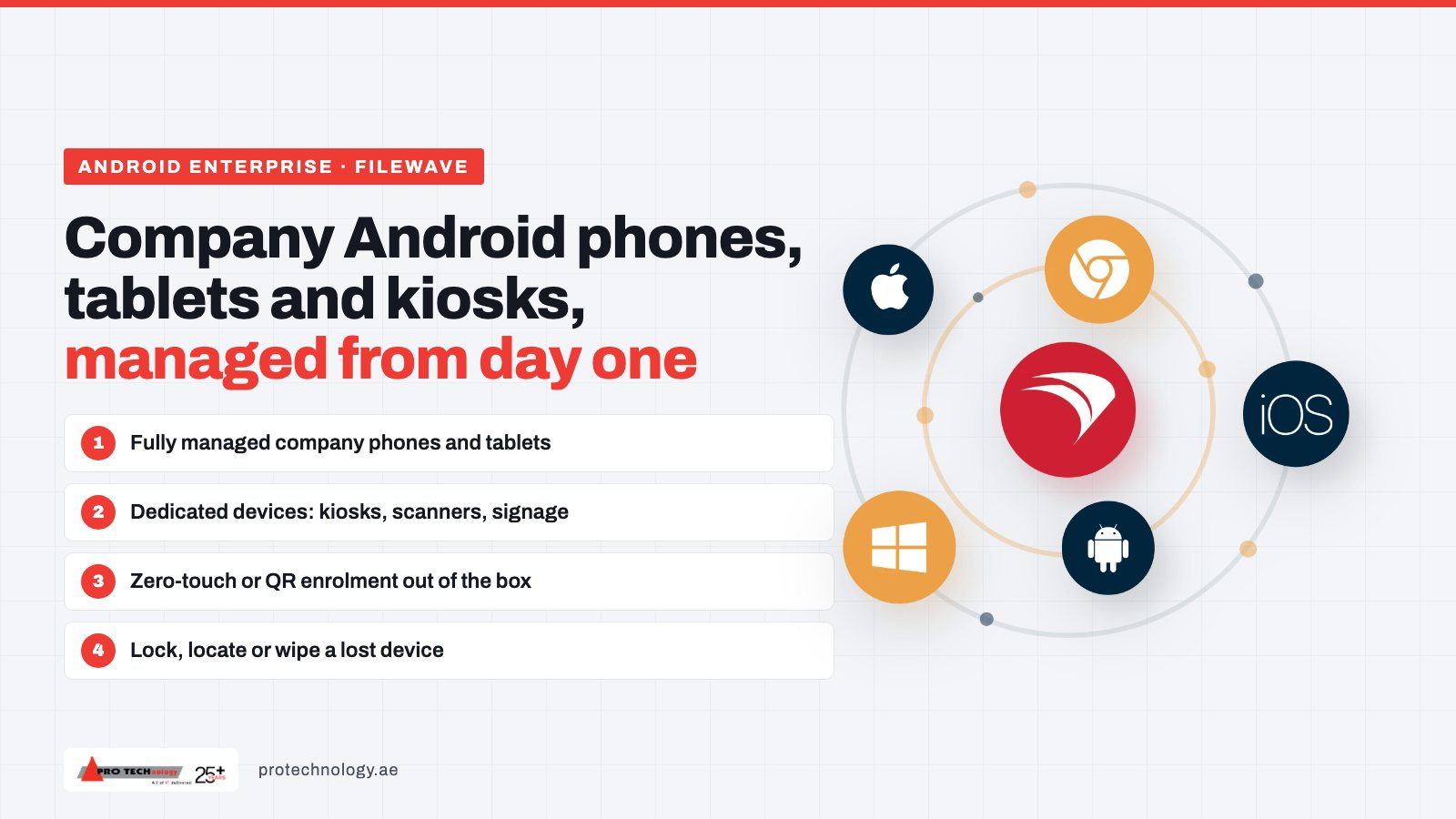
- Android Enterprise is Google's framework for managing Android devices. Pick a mode per device: fully managed, work profile, or dedicated device.
- Devices bought through an authorised zero-touch reseller enrol themselves at first boot; devices from a consumer shop use a QR code or afw#setup instead.
- Kiosks, scanners and signage run as dedicated devices, locked to one app or a small set of apps.
- Apps come through managed Google Play: staff install only what IT approves, and in-house apps published there are never public.
- FileWave documents fully managed devices, staff-owned phones, zero-touch enrolment, kiosk policies, Lost Mode and remote wipe for Android.
Which Android mode fits which company device?
Android Enterprise gives every managed device one of a small number of modes, and the mode decides what IT controls and what stays private. Choose it by who owns the device and what the device is for, before you choose an enrolment method (Google: Android Enterprise overview).
| Mode | Owner | Typical use | What IT controls | What IT does not see |
|---|---|---|---|---|
| Fully managed | Company | Work-only phones and tablets for office, sales and field staff | The whole device: apps, settings, passcode and updates. A wipe returns it to factory settings. | Nothing is personal on a work-only device, so keep personal use off it in your policy |
| Work profile on a company-owned device | Company | Phones where some personal use is allowed | The work profile, plus named personal apps it can block or remove, whether personal apps may use location, and the model, serial number and Android version. It can factory-reset the device. | Apps and data in the personal profile |
| Dedicated device | Company | Kiosks, check-in tablets, scanners, signage | A device locked to one app or a set of apps, with the home screen and settings closed off | Not applicable: there is no personal user |
| Work profile on a personal device | Employee | Staff's own phones | The work profile only. A wipe deletes the work profile, not the phone. | Personal apps, photos, messages and browsing |
Sources: Google's Android Enterprise overview, Google's Help page on company-owned work profiles, and the Android Management API device commands.
Two version points matter on older fleets. Android 11 made the work profile on a company-owned device a separate mode with its own controls (Android 11 enterprise changes). Google deprecated the old device administrator approach for business use in Android 9 and removed its policies in Android 10; moving a device off it needs a factory reset (Google: device admin deprecation).
Staff-owned phones are a different conversation about privacy and consent, covered in our guide to enrolling staff-owned phones.
How company Android devices get enrolled
Enrolment is the moment a device joins your management. Each route below ends in the same place; they differ in how much work happens at the desk (Google: provisioning methods).
| Route | How it works | Android version needed | Best for |
|---|---|---|---|
| Zero-touch | The reseller registers the devices to your zero-touch account. At first boot each device downloads its management settings with no action by IT. | Android 9 or later; 11 or later for a company-owned work profile | New devices bought in volume through one reseller |
| QR code | Tap the welcome screen six times, then scan a QR code shown in the management console. | Android 7.0 or later; 11 or later for a company-owned work profile | Devices already in stock, or a small batch |
| afw#setup | Type afw#setup where the setup screen asks for a Google account. | Android 6.0 or later for fully managed devices | When scanning a code is not practical |
| Samsung Knox Mobile Enrollment | Samsung's free service: the reseller uploads the devices, or a QR code adds devices bought elsewhere. Devices enrol again after a factory reset. | The latest five major Android versions | Samsung fleets; check that your management platform supports it |
Google's pages give slightly different minimum versions for zero-touch; this table uses the stricter figure. Samsung details are from Samsung's Knox Mobile Enrollment FAQ.
What zero-touch needs before you order
- Devices bought from an enterprise reseller or a Google partner, not from a consumer shop.
- A zero-touch account, created for you by that authorised reseller.
- A company Google account to sign in to the zero-touch portal; Google says not to use a personal Gmail account.
- A management platform that supports company-owned devices.
- A plan for resets: after a factory reset, a zero-touch device still shows its work set-up screen until you remove it from the portal.
Google notes that zero-touch may carry reseller fees in some countries (Android: zero-touch enrolment; Google Help: zero-touch for IT admins). Ask your UAE or Saudi supplier whether it is a zero-touch reseller before you place the order, because devices bought elsewhere cannot use it and must be enrolled by QR code or afw#setup.
Kiosks and single-purpose devices
Google calls these dedicated devices: company devices locked to a single app or a set of apps, formerly known as corporate-owned single-use (COSU) devices and treated as a subset of fully managed devices. Common uses in the UAE include hotel and clinic check-in tablets, retail ordering and price-check tablets, warehouse and delivery scanners, and digital signage (Google: dedicated devices).
- The app list. Decide which app opens on start and whether staff may switch to any other.
- Buttons and notifications. Decide whether the home button, notifications and the status bar stay available.
- Updates. Schedule app and system updates outside opening hours so a kiosk is not restarting in front of a customer.
- A way out for IT. Make sure a technician can leave kiosk mode from the console, not only at the device.
- Reset and recovery. A dedicated device enrolled by zero-touch rejoins management on its own after a reset, which saves a site visit.
In FileWave these settings sit in the Dedicated Device section of the Android policy: Custom Launcher puts the device into kiosk mode, Locked Task keeps it on a single app, and Keyguard controls the lock screen (FileWave: Android EMM policies and permissions). FileWave also has a feature called Kiosk, which is its self-service app catalogue for users, not Android kiosk mode; the two are easy to confuse in a tender.
Apps: managed Google Play
On a managed device, managed Google Play is the organisation's app store: staff can install only the apps IT has approved for them. IT approves an app once, then either installs it on devices or makes it available for staff to install themselves (Google: Android Enterprise overview).
In-house apps can be published as private apps. Google describes them as available only to your organisation and never made public, published from the management console (Google: Android Management API, apps). FileWave's Android notes list paid-app distribution as not supported, so plan around free and private apps (FileWave: Android EMM known issues).
Lost, stolen or handed back: lock, Lost Mode, wipe and reset protection
- Lock. Locks the screen at once while you work out what happened.
- Lost Mode. Locks the device, shows a message on screen, plays a sound and reports its location. Google lists it for fully managed devices on Android 11 and later and company-owned work profiles on Android 13 and later (Google Help: Lost Mode). FileWave's Lost Mode works on company-owned devices only, not on staff-owned phones (FileWave: Android Lost Mode).
- Wipe. On a company-owned device the wipe command returns the device to factory settings; on a personal phone it deletes only the work profile (Google: device commands).
- Enterprise factory reset protection. Decides which company Google accounts can set the device up again after a reset, so a stolen phone is useless to the thief. It has to be configured before the reset happens (Google Help: factory reset protection).
The first hour after a loss, and the breach reporting that may follow in the UAE and Saudi Arabia, are covered in our guide to lost and stolen company devices.
Running Android devices with FileWave
FileWave connects to Android Enterprise through a managed Google Play enterprise, using an activation file from FileWave Technical Support. Its documentation lists fully managed Android devices, personal devices (BYOD) and zero-touch enrolment as supported (FileWave: configure Android Enterprise).
- Enrolment. Fully managed devices enrol by the six-tap QR method on Android 7.0 or later, or by afw#setup (FileWave: Android enrollment). For zero-touch, you choose Android Device Policy in the zero-touch portal and paste FileWave's settings into it (FileWave: zero-touch).
- Kiosks. Custom Launcher, Locked Task and Keyguard policies, described above.
- Loss and leavers. Lost Mode on company-owned devices and a wipe command.
- Scale. Google applies a default limit of 500 enrolled devices to an enterprise connected through managed Google Play; FileWave says it can arrange a higher limit (FileWave: 500-device quota).
- One console. The same FileWave console manages Macs, Windows PCs, iPhones, iPads and Chromebooks, so a mixed fleet is not split across tools.
FileWave's documentation does not yet cover Samsung Knox Mobile Enrollment, NFC enrolment or a set-up procedure for company-owned work profiles. If your plan depends on one of these, ask us to confirm it with FileWave before you order. For what MDM and UEM mean across all platforms, see What is MDM?; to move Android devices from another platform, see switching MDM without wiping devices.
A rollout plan for an Android fleet in the UAE or Saudi Arabia
- List the devices by job. Work phones, shared tablets, kiosks and scanners each get a mode from the table above.
- Buy through a zero-touch reseller where you can. Ask the supplier to create your zero-touch account and register the devices against it.
- Connect the management platform to Android Enterprise. Use a company account owned by IT, not a person's Gmail.
- Approve apps and build one policy per mode. Include the Arabic and English keyboards and languages your staff use.
- Set reset protection and the lost-device steps before go-live. Decide who can lock, locate and wipe, and who is told.
- Pilot each mode on a few devices. Include at least one kiosk that runs a full working day.
- Roll out in waves by site or team. Keep the QR code route ready for devices that missed zero-touch.
Hypothetical example. A retail group in Dubai runs 120 staff phones and 40 ordering tablets. The phones become fully managed devices bought through a zero-touch reseller; the tablets become dedicated devices locked to the ordering app, with updates scheduled after closing. This illustrates the plan above and is not a client case.
Buying FileWave for Android in the UAE and GCC
PRO TECHnology is FileWave's distributor and partner for the Middle East and an authorised FileWave reseller in the GCC since 2009. We run demonstrations on your own devices, supply licences, plan the Android Enterprise connection and zero-touch set-up, train your administrators and support you locally from Dubai. See FileWave in the UAE and GCC or book a demo.
Sources
Google, Samsung and FileWave documentation was checked on 16 November 2026. Google's own pages differ slightly on minimum Android versions for zero-touch; this guide gives the stricter figure.
- Google: Android Enterprise overview
- Google: provisioning methods and versions
- Google Help: zero-touch enrolment for IT admins
- Google: dedicated devices
- Google Help: Android Enterprise availability by country
- Samsung: Knox Mobile Enrollment FAQ
- FileWave: configure Android Enterprise in FileWave
- FileWave: Android EMM policies and permissions
Frequently asked questions
What is Android device management?
It is the way an IT team enrols, configures and secures Android phones and tablets from one console, using Google's Android Enterprise framework: a mode per device, an enrolment route such as zero-touch or a QR code, and apps delivered through managed Google Play.
What is the difference between a fully managed device and a work profile?
A fully managed device is a company device used only for work, and IT controls all of it. A work profile keeps work apps and data in a separate space; IT manages that space and cannot see the personal apps and data on the rest of the phone.
Can we use zero-touch enrolment in the UAE and Saudi Arabia?
Google lists Android Enterprise as available in both countries. Zero-touch needs devices bought from an authorised enterprise reseller that sets up your zero-touch account, so ask your supplier before ordering; devices bought elsewhere can be enrolled by QR code or afw#setup.
How do we lock an Android tablet to one app for a kiosk?
Enrol it as a dedicated device and set a kiosk policy: a single app in locked task mode, or a custom launcher with a small set of apps, with the home screen, notifications and settings closed off. In FileWave these are the Locked Task, Custom Launcher and Keyguard policies.
Does FileWave manage Android devices?
Yes. FileWave documents fully managed Android devices, staff-owned phones with a work profile, zero-touch enrolment, kiosk policies, Lost Mode and remote wipe, in the same console as its Mac, Windows, iPhone, iPad and Chromebook management.
What happens if a managed Android phone is lost?
IT can lock it, put a company-owned device into Lost Mode to show a message, play a sound and report its location, or wipe it. Enterprise factory reset protection, set in advance, stops anyone outside the company setting the device up again after a reset.
Plan your Android rollout with us
Tell us how many Android devices you run, which brands, what each one is for and where you buy them. We will propose a mode per device, an enrolment route and a FileWave pilot, from Dubai.