
Wacom in the UAE: How to Choose a Pen Tablet, Pen Display or Signature Pad
Published · PRO TECHnology Enterprise IT
Wacom (Wacom Co., Ltd. of Japan) makes four main kinds of pen device: pen tablets, also called drawing tablets or graphics tablets, that you draw on while watching your monitor; pen displays you draw on directly; standalone Android drawing pads; and signature pads and displays for customer counters. They are used for digital art, graphic design, photo editing, animation, note-taking and teaching. Choose by where you want to look while you work, whether you need a computer attached, and how precise the pen must be.
PRO TECHnology, a Dubai technology company founded in 1998, supplies Wacom pen tablets and pen displays to companies, schools, universities and public-sector organisations in the UAE and across the GCC, and supports its customers from model selection to after-sales. This guide compares the current Wacom range using Wacom’s own specifications, explains which model suits which job, and covers compatibility, warranty and buying in the UAE.
- Manufacturer
- Wacom Co., Ltd., Japan, founded 1983
- Middle East coverage
- Wacom Europe GmbH, Düsseldorf. No UAE Wacom website or store
- Product types
- Pen tablets, pen displays, portable pads, styluses, signature solutions
- Included pens
- Battery-free EMR, 2,048 to 8,192 pressure levels on current creative models
- Wacom warranty, Middle East
- Two years on most current models, three on Cintiq Pro 17, 22 and 27; check your exact model
- Guide by
- PRO TECHnology, Dubai, a supplier of Wacom pen tablets and pen displays in the UAE and GCC
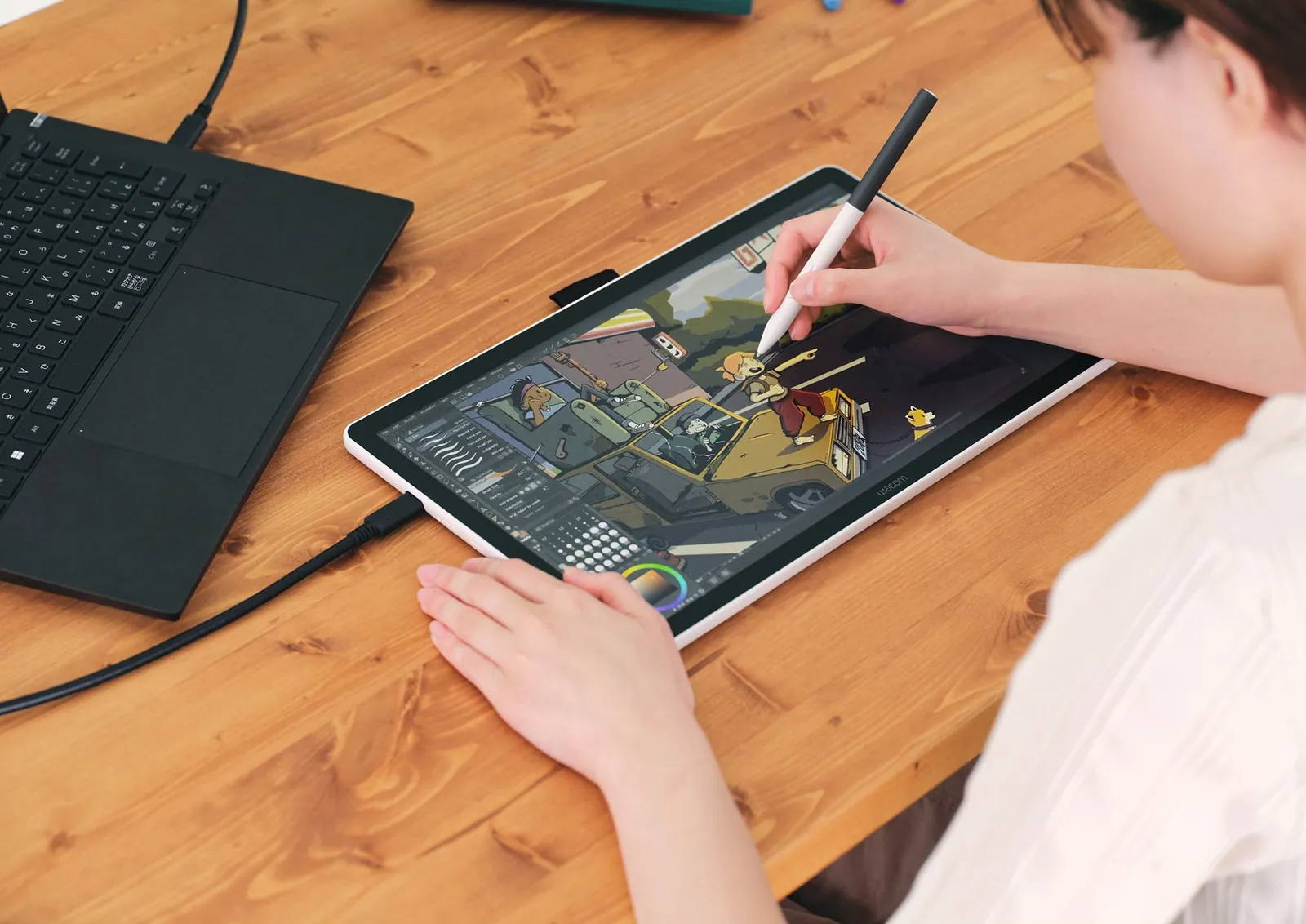
Key takeaways
- A pen tablet (One by Wacom, Wacom One S or M, Intuos, Intuos Pro), also called a drawing or graphics tablet, has no screen: you draw on the tablet and watch your monitor. Entry models such as the Intuos are the lowest-cost way to use a Wacom pen.
- A pen display (Wacom One 14, Movink 13, Cintiq, Cintiq Pro) puts the pen on the screen itself, so the line appears under the pen tip, as on paper.
- The MovinkPad 11 and MovinkPad Pro 14 are Android drawing pads that need no computer.
- The pen supplied with every current Wacom pen tablet, pen display and MovinkPad is battery-free. Wacom One pens sense 4,096 pressure levels and the Pro Pen 3 senses 8,192, both with 60 degrees of tilt.
- Single-cable pen displays such as the Wacom One 14, Movink 13 and Cintiq 16 need a USB-C port with DisplayPort Alt Mode or Thunderbolt 3 or later. Check your laptop before you buy.
- For banks, clinics and government counters, Wacom STU signature pads encrypt signature data with AES-256 and RSA-2048. Legal validity depends on UAE law (Federal Decree-Law No. 46 of 2021), the transaction and your whole signing process, not on the pad alone.
- Wacom’s limited warranty in the Middle East depends on the model: Wacom’s EMEA documentation lists two years for most current models and three for Cintiq Pro 17, 22 and 27. Check the terms for your exact model, and keep the receipt and serial number.
What does Wacom make?
Wacom Co., Ltd. is a Japanese company, founded in 1983 and headquartered in Kazo, Saitama, that makes pen tablets, pen displays and digital pen technology. It serves Europe, the Middle East and Africa, including the UAE, through Wacom Europe GmbH in Düsseldorf, Germany (About Wacom). Its pen technology also works inside other brands’ devices: in March 2026 Wacom said it powers the S Pen of Samsung’s Galaxy S26 Ultra (Wacom announcement).
Wacom’s own site sorts its products into pen tablets, pen displays, portable pads and styluses, the Bamboo Ink range for pen-enabled laptops. Wacom for Business adds signature pads, business pen displays and signing software. This guide covers the four groups most buyers compare:
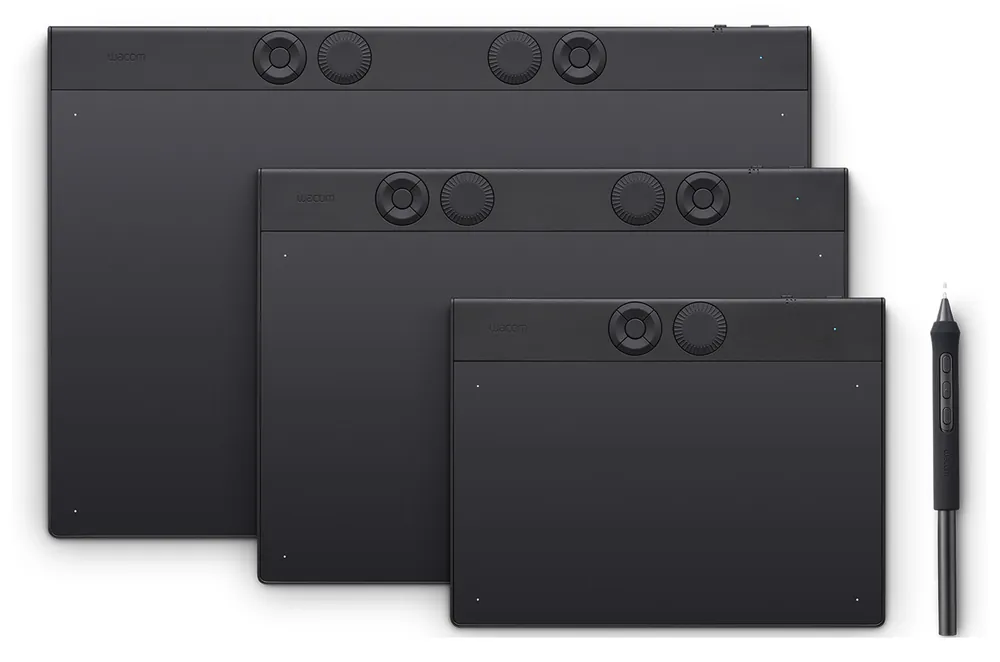
Pen tablets (drawing tablets or graphics tablets)
A flat, screenless tablet on your desk. You draw on the tablet and watch your monitor. Ranges: One by Wacom, Wacom One S and M, Wacom Intuos and Wacom Intuos Pro.
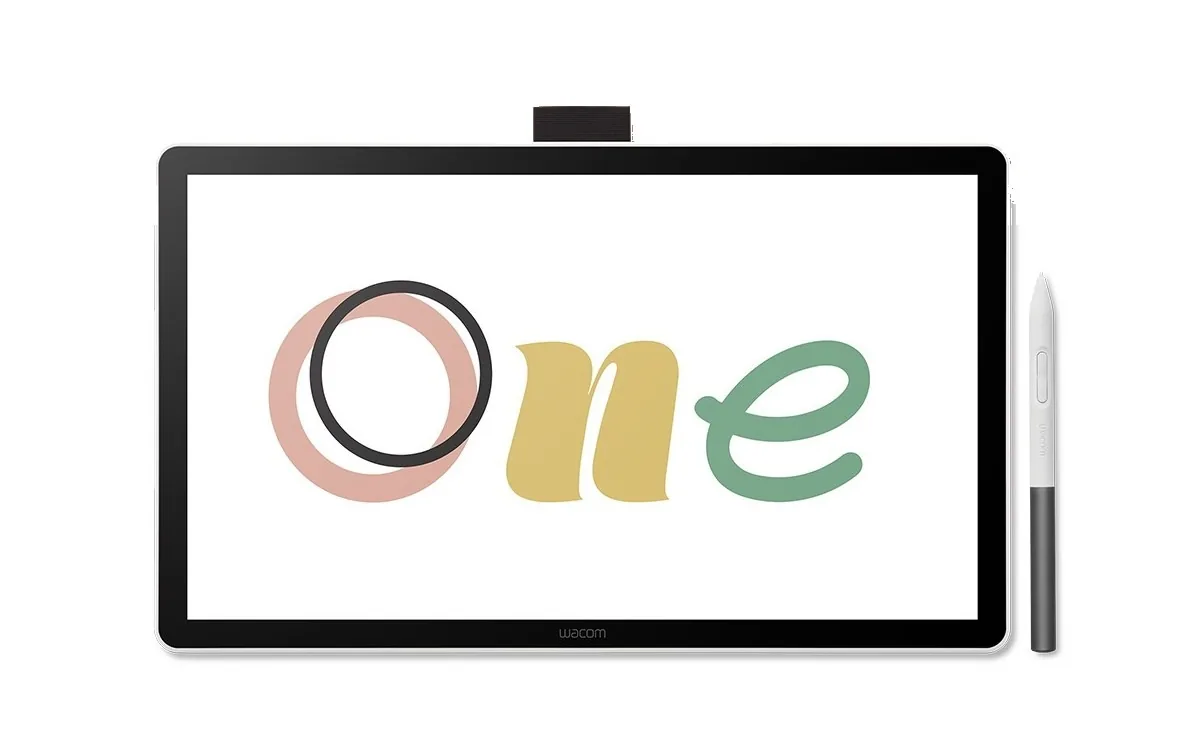
Pen displays
A screen you draw on directly, connected to a computer. Ranges: Wacom One, Wacom Movink, Wacom Cintiq and Wacom Cintiq Pro.
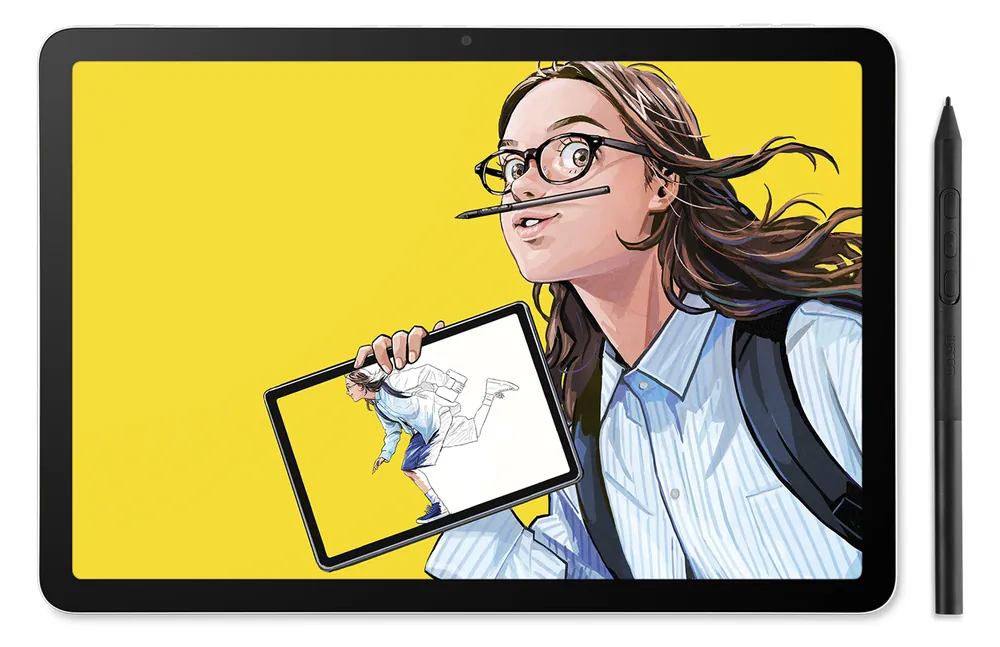
Portable pads
An Android tablet designed around the Wacom pen, with no computer needed. Ranges: Wacom MovinkPad 11 and MovinkPad Pro 14.
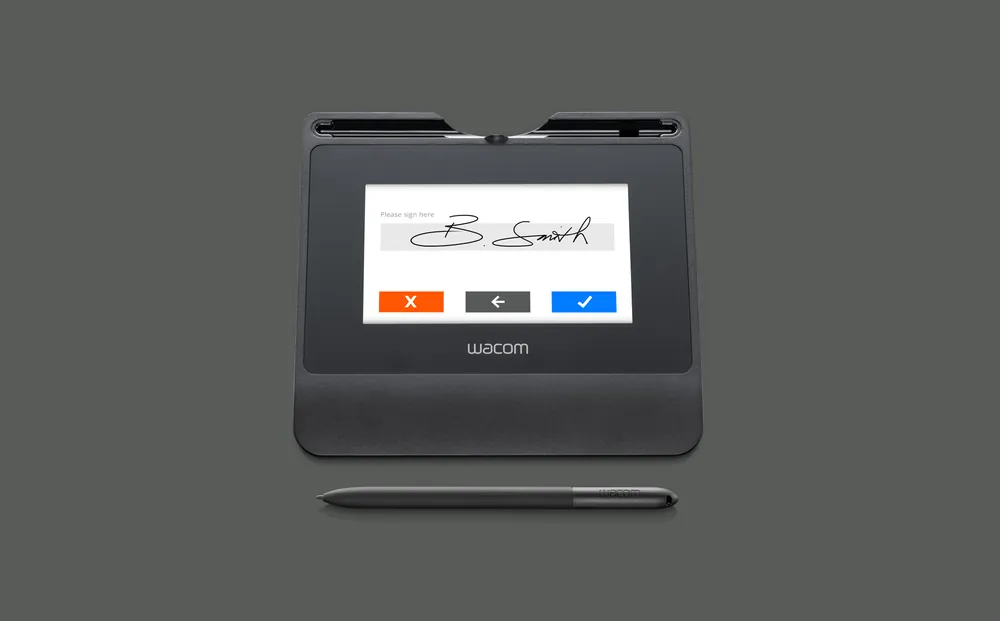
Signature solutions
Signature pads, business pen displays and software for capturing handwritten electronic signatures at counters and desks. Ranges: STU signature pads, DTU, DTK, DTH and DTC business pen displays, an Android signing tablet, sign pro PDF and the Wacom Ink SDK.
| Type | Where you look | Needs a computer? | Best for |
|---|---|---|---|
| Pen tablet | At your monitor | Yes, or a compatible Android device on some models | Starting out, photo retouching, tight desks and budgets |
| Pen display | At the pen tip | Yes, or a compatible Android device on some models | Illustration, design, annotation and teaching, anyone who wants pen-on-paper feel |
| Portable pad | At the pen tip | No | Sketching anywhere, students, artists who work away from a desk |
| Signature pad or display | At the pen tip | Yes, apart from Wacom’s Android signing tablet | Customer signatures and forms at bank, clinic, hotel and government counters |
Pen tablet or pen display: which do you need?
A pen tablet, also called a drawing tablet or graphics tablet, has no screen. It sits on the desk, and the cursor follows the pen on your existing monitor. Entry models such as the Intuos cost the least, a pen tablet takes little desk space, and it lets you keep looking straight ahead at your monitor. The trade-off is hand-eye coordination: your hand moves on the desk while your eyes stay on the monitor, and Wacom notes that it takes time to get used to.
A pen display is a screen with Wacom’s pen sensor built in, so the line appears under the pen tip. It feels closer to pen and paper. Wacom’s teacher guide says writing straight onto the screen makes a Wacom One easy to use from the start, and its beginner guide presents a pen display as the step up from an Intuos (Wacom: choosing a product as a teacher; Wacom: graphics tablets for beginners). A pen display needs more desk space, a suitable video connection and, on larger models, a stand.
Choose a pen tablet if
- you are on a tight budget or buying for a whole class
- you mainly retouch photos, edit masks or navigate software
- you already have a good monitor and limited desk space
- you travel with a laptop and want something light
Choose a pen display if
- you are new to digital drawing and want it to feel like paper
- you teach, annotate documents or present with live handwriting
- you draw detailed line work, comics or lettering
- you want touch gestures for zooming and rotating (Movink 13, Cintiq 24 touch, Cintiq Pro and the 2023 Wacom One 13 touch)
If you want pen-on-screen drawing without a computer at all, a portable pad such as the MovinkPad 11 is the third option. Wacom’s own beginner guide points first-time buyers to the Intuos, the MovinkPad 11 and the Wacom One 14 (Wacom: the best graphics tablets for beginners).
The current Wacom range, model by model
This table lists Wacom’s main current creative models in each family, plus the 2023 Wacom One 12 and 13 touch, which Wacom now keeps on a previous-generation page. Screen sizes are diagonal; pen tablets show the active drawing area.
| Model | Type | Screen or drawing area | Included pen | Touch | Connection | Systems Wacom lists |
|---|---|---|---|---|---|---|
| One by Wacom S / M (CTL-472, CTL-672) | Pen tablet | 152 x 95 mm / 216 x 135 mm | Battery-free pen, 2,048 levels | No | USB | Windows, macOS, ChromeOS, Android |
| Wacom One S / M (CTC4110WL, CTC6110WL) | Pen tablet | 152 x 95 mm / 216 x 135 mm | Wacom One Standard Pen, 4,096 levels | No | USB-C, Bluetooth | Windows, macOS, ChromeOS, Android |
| Wacom Intuos S / M (CTL-4100, CTL-4100WL, CTL-6100WL) | Pen tablet | 152 x 95 mm / 216 x 135 mm | Wacom Pen 4K, 4,096 levels | No | USB, Bluetooth on WL models | Windows, macOS, ChromeOS, Android |
| Wacom Intuos Pro S / M / L, 2025 (PTK470, PTK670, PTK870) | Pen tablet | 187 x 105 / 263 x 148 / 349 x 195 mm | Pro Pen 3, 8,192 levels | No | USB, Bluetooth, up to three devices | Windows, macOS |
| Wacom One 14, 2025 (DTC141) | Pen display | 14-inch Full HD, 98% sRGB | Wacom One Standard Pen, 4,096 levels | No | One USB-C (DisplayPort Alt Mode) | Windows, macOS, ChromeOS |
| Wacom One 12 / 13 touch, 2023 (DTC121, DTH134) | Pen display | 11.6-inch / 13.3-inch Full HD, 99% sRGB | Wacom One Standard Pen, 4,096 levels | 13 touch only | Two USB-C, or HDMI and USB-A with a 3-in-1 cable | Windows, macOS, ChromeOS, Android |
| Wacom Movink 13 (DTH135) | OLED pen display | 13.3-inch Full HD OLED, 100% DCI-P3 | Pro Pen 3 (slim), 8,192 levels | Yes | Two USB-C ports; runs on one USB-C cable (DisplayPort Alt Mode) | Windows, macOS, ChromeOS, Android |
| Wacom Cintiq 16, 2025 (DTK168) | Pen display | 16-inch 2560 x 1600, 99% DCI-P3 | Pro Pen 3 (slim), 8,192 levels | No | USB-C, mini HDMI | Windows, macOS, ChromeOS, Android |
| Wacom Cintiq 24 / 24 touch, 2025 (DTK246, DTH246) | Pen display | 23.8-inch 2560 x 1440, 100% sRGB | Pro Pen 3 (slim), 8,192 levels | 24 touch only | USB-C or mini HDMI, plus AC adapter | Windows, macOS, ChromeOS, Android |
| Wacom Cintiq Pro 17 / 22 / 27 | Pen display | 4K (3840 x 2160), up to 120 Hz, 10-bit colour | Pro Pen 3, 8,192 levels | Yes | USB-C, HDMI, mini DisplayPort | Windows, macOS |
| Wacom MovinkPad 11 (DTHA116C) | Portable pad | 11.45-inch 2200 x 1440, up to 90 Hz | Pro Pen 3 (slim), 8,192 levels | Yes | Standalone: Wi-Fi, Bluetooth, USB-C | Android 14 |
| Wacom MovinkPad Pro 14 (DTHA140) | Portable pad | 14-inch 2880 x 1800 OLED, up to 120 Hz | Pro Pen 3 (slim), 8,192 levels | Yes | Standalone: Wi-Fi, Bluetooth, USB-C | Android 15 |
Wacom One: the entry point
The Wacom One 14 (DTC141), launched in September 2025, is Wacom’s current entry-level pen display. It has a 14-inch Full HD screen covering 98% of sRGB, anti-glare and anti-fingerprint glass bonded to the panel to reduce parallax, and an active area of 309 x 174 mm. It weighs 750 g and connects with a single USB-C cable. The included Wacom One Standard Pen is battery-free, senses 4,096 pressure levels and 60 degrees of tilt, and has two programmable buttons. There is no touch input and no stand in the box; the Wacom Foldable Stand is an option (Wacom One 14 specifications).
The 2023 Wacom One 12 and Wacom One 13 touch have two USB-C ports, support Android devices and can connect over HDMI and USB-A with a 3-in-1 cable; the 13 touch adds 10-finger touch. The Wacom One S and M pen tablets use the same pen and add Bluetooth (Wacom One 2023 specifications; Wacom One pen tablets).
Wacom Intuos and Intuos Pro: pen tablets
Wacom Intuos is the long-running entry pen tablet: small or medium, four ExpressKeys, the battery-free Wacom Pen 4K with 4,096 pressure levels, and Bluetooth on the WL models. Wacom lists it as Works With Chromebook certified (Wacom Intuos; Chromebook certification).
Wacom Intuos Pro (2025) is Wacom’s professional pen tablet, in small (PTK470), medium (PTK670) and large (PTK870). It ships with the fully customisable Pro Pen 3 (8,192 pressure levels, 60 degrees of tilt), has mechanical dials and ExpressKeys along the top edge (one dial and five keys on the small, two dials and ten keys on medium and large), is 4 to 7 mm thick, and pairs with up to three devices, one by USB and two by Bluetooth. Unlike the 2017 model, it has no touch surface. UAE shops still list the older 2017 Intuos Pro (PTH models, Pro Pen 2), so check the model number when comparing prices (Wacom Intuos Pro).
Wacom Movink 13 and Cintiq (2025): pen displays for regular creative work
Wacom Movink 13 (DTH135) is an OLED pen display that weighs 420 g and is 4 mm at its thinnest. Its 13.3-inch Full HD OLED covers 100% of DCI-P3, with 10-finger touch and the Pro Pen 3 (Wacom Movink).
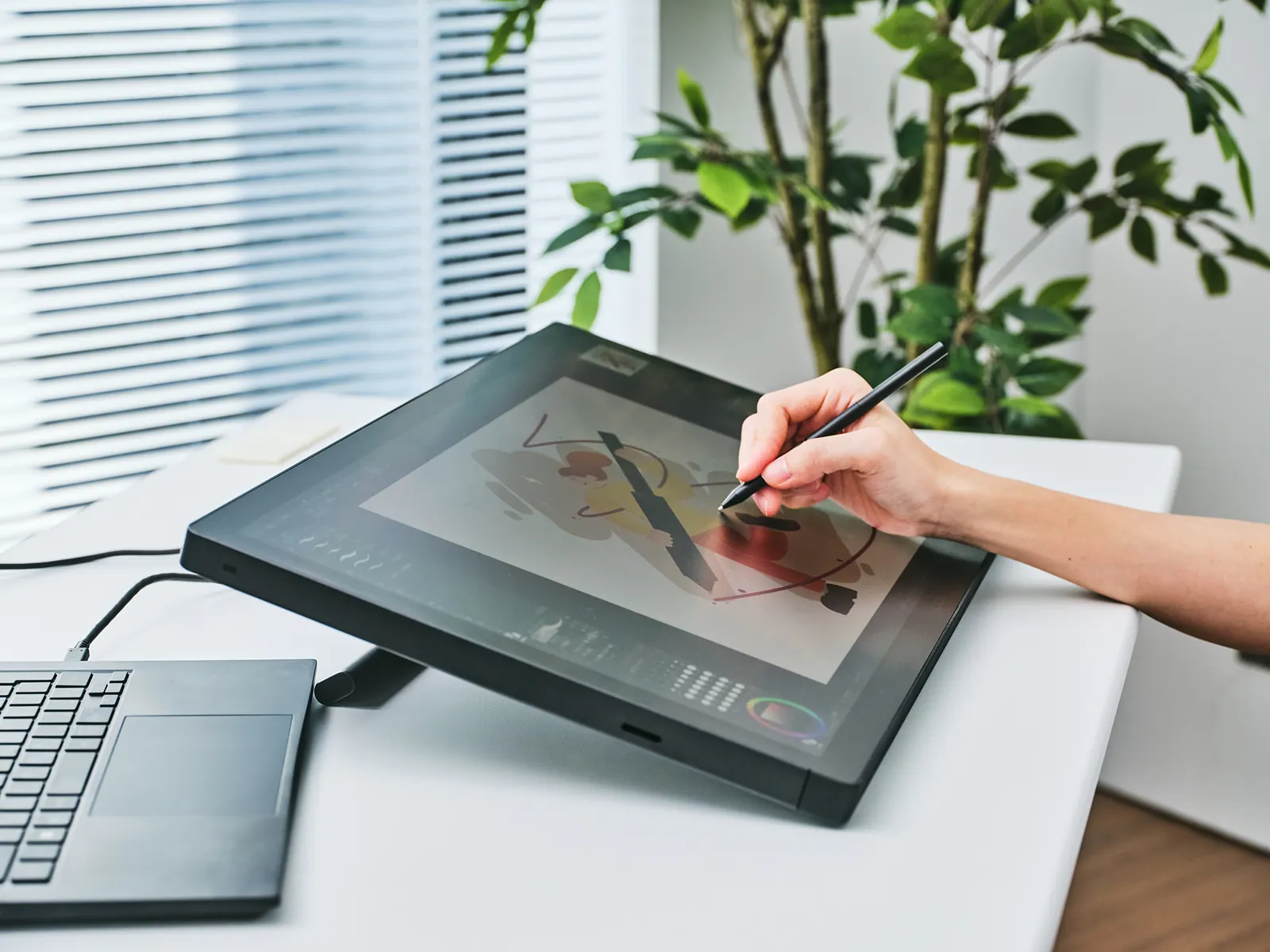
The Wacom Cintiq (2025) line sits between Wacom One and Cintiq Pro. The Cintiq 16 (DTK168) has a 16-inch 2560 x 1600 screen covering 99% of DCI-P3 and built-in legs that tilt it to 20 degrees. The Cintiq 24 (DTK246) and Cintiq 24 touch (DTH246) have 23.8-inch 2560 x 1440 screens covering 100% of sRGB and come with the Wacom Adjustable Stand; only the touch model adds 10-finger touch. All three ship with the slim Pro Pen 3. The Cintiq 16 can run on a single USB-C cable from a computer with DisplayPort Alt Mode and USB Power Delivery; the Cintiq 24 models also connect to their AC power adapter. Computers without video over USB-C use the mini HDMI port plus a USB-A connection, with those cables sold separately (Wacom Cintiq).
Wacom Cintiq Pro: colour-critical studio work
The Cintiq Pro 17, 22 and 27 have 4K screens at up to 120 Hz with 10-bit colour, 10-finger touch, eight ExpressKeys and the Pro Pen 3. Adobe RGB coverage rises with size, from 88% on the Pro 17 to 95% on the Pro 22 and 99% on the Pro 27, while all three cover 98 to 99% of DCI-P3 and are Pantone Validated. Wacom positions the 27 for product design, VFX, 3D and animation, print and photography (Wacom Cintiq Pro).
MovinkPad 11 and MovinkPad Pro 14: no computer needed
The MovinkPad 11 (DTHA116C) is an Android 14 drawing pad with an 11.45-inch 2200 x 1440 screen, 8 GB of memory, 128 GB of storage and a battery-free slim Pro Pen 3. Tapping and holding the pen on the screen in sleep mode opens the Wacom Canvas sketching app, and it comes with a two-year licence for CLIP STUDIO PAINT DEBUT (Wacom MovinkPad 11).
The MovinkPad Pro 14 (DTHA140) steps up to a 14-inch 2880 x 1800 OLED at up to 120 Hz, a Snapdragon 8s Gen 3 processor, 12 GB of memory, 256 GB of storage with a microSD slot, and up to 10.5 hours of battery life. Both pads offer an Instant Pen Display mode, still a beta feature, that lets them work as a pen display for a Windows 11 computer or a Mac on macOS 14, 15 or 26 (Windows on Arm computers and Intel Macs are not supported) (Wacom MovinkPad Pro 14).
Which Wacom is best for digital art, design, photo editing, animation, teaching or note-taking?
Match the device to the work, not the other way round. These are starting points; the right size also depends on your monitor and desk.
| If you are | Start with | Why |
|---|---|---|
| A beginner or hobbyist | Wacom Intuos, Wacom One 14 or MovinkPad 11 | Entry-level prices, battery-free pen, software licences or trials where Wacom offers them for your model and region |
| A student of art or design | Wacom One 14 or Intuos; Cintiq 16 for final-year and portfolio work | Wacom One 14 gives pen-on-screen feel at an entry price and Intuos is the low-cost option; step up when wider colour coverage matters |
| An illustrator or comic artist | Cintiq 16 or 24, Movink 13, or MovinkPad Pro 14 for work away from a desk | Pro Pen 3 with 8,192 levels and tilt; wide DCI-P3 colour on Cintiq 16, Movink 13 and MovinkPad Pro 14, 100% sRGB on Cintiq 24 |
| A photographer or retoucher | Intuos Pro (medium or large) | Pressure-controlled masking and dodging while you watch a calibrated monitor |
| A graphic or UI designer | Intuos Pro, or Cintiq 24 for layout work | Programmable dials and keys on Intuos Pro; a 23.8-inch screen on Cintiq 24, with shortcuts on the pen buttons or an optional ExpressKey Remote |
| An animator, 3D or VFX artist | Cintiq Pro 22 or 27 | 4K at 120 Hz, 10-bit colour, touch gestures for navigating scenes |
| A teacher or lecturer | Wacom One 14, or Intuos for tight budgets | Handwrite on slides and whiteboards in Teams or Zoom |
| An office user taking notes or signing and annotating PDFs | Wacom One 14 or Wacom One S | Handwritten notes in OneNote and other pen-enabled apps, and PDF mark-up without printing |
| A bank, clinic, hotel or government counter | STU-540 signature pad (or STU-430, subject to availability), or a business pen display | Encrypted signature capture, with a unique hardware ID on the STU pads and DTU-1141B, built for daily public use |
Video and photo teams usually need fast storage alongside the pen. Our guide to storage for video editing covers that side of the workstation.
Wacom for schools, universities and teachers in the UAE
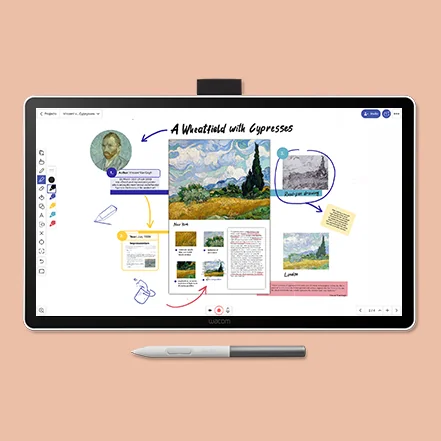
Wacom positions its pen tablets as an affordable teaching aid that doubles as a digital whiteboard. Teachers write equations, mark up texts and sketch diagrams by hand, and students see the work form in real time, in the room or remotely. Wacom says its pen tablets for teaching work with Microsoft Teams and Zoom, and highlights maths, biology and hybrid lessons where the same handwriting reaches students in class and at home (Wacom for education; Wacom eLearning).
For teachers, Wacom’s own advice (written in 2020 for the first Wacom One) is a trade-off: a Wacom One pen display for the convenience of writing on the screen, or an Intuos pen tablet as the low-cost option for annotating and demonstrations (Wacom: choosing a product as a teacher).
Planning a rollout across a school or campus
- Chromebooks. Wacom Intuos and One by Wacom are Works With Chromebook certified and need no driver on ChromeOS; the Wacom One range lists ChromeOS support. Detachable Chromebooks vary by vendor, so test one first (Wacom and Chromebook).
- Windows and Mac labs. Wacom’s current driver supports Windows 10 and 11, Windows 11 on Arm, and macOS 13 to 15 and macOS 26 (Wacom drivers). On managed devices, push the driver with your management platform instead of installing it machine by machine; our guide to remote software deployment explains how to pilot and verify a rollout.
- Pens and nibs. Nibs wear with use and are excluded from warranty. Budget for replacement nibs and a few spare pens per class.
- Charging. The pens supplied with Wacom tablets and displays never need charging, and pen displays take power through their cables, but Bluetooth pen tablets (the Intuos Bluetooth models, Wacom One S and M, and Intuos Pro) have built-in batteries to charge, and so do the laptops and tablets they connect to. LapCabby charging trolleys store, secure and charge class sets.
- Software. Bundled software offers change over time and depend on the model, and each device must be registered with a Wacom ID to claim them. Creative courses usually also need Adobe education licensing.
For device management across mixed Mac, Windows and Chromebook estates, see our FileWave UEM and MDM guide.
Wacom signature pads in the UAE: banks, clinics, hotels and government counters
Wacom for Business turns paper forms into signed digital documents at the point of service. Among the industries Wacom lists for its business products, the signing ones are banking and insurance, healthcare, government and the public sector, retail and hospitality: account opening and credit agreements, patient consent and registration, citizen services, hotel check-in and car rental pick-up (Wacom for Business industries).

Signature pads and business pen displays
| Device | Screen | What it is for |
|---|---|---|
| Wacom STU-540 | 5-inch colour LCD, 800 x 480 | Wacom’s most advanced signature pad: signatures, a customisable on-screen key pad or PIN pad, and promotional images between signings, at bank, hotel, shop and clinic counters |
| Wacom STU-430 | 4.5-inch monochrome LCD | Thin, low-profile signature pad with room for longer signatures and soft buttons; confirm availability, as Wacom also lists it for end of service in EMEA |
| Wacom DTU-1141B | 10.1-inch Full HD pen display | Reviewing and signing full documents with the customer, with encryption |
| 16-inch and 23.8-inch business pen displays | 2560 x 1600 and 2560 x 1440 | Full-page forms and paperless workflows at larger desks |
The STU pads place the pen sensor under the display rather than on the signing surface, so the surface does not wear through, and they encrypt signature data with AES-256 and RSA-2048. The STU-540 and STU-430 pens are cordless and battery-free and sense 1,024 pressure levels, and each pad carries a unique hardware ID so a signature can be linked to the device it was made on (Wacom signature pads; Wacom business pen displays). The STU-540 also supports Citrix virtual desktops, which matters in banks and hospitals that run thin clients. For public signing on its Pro Pen 3 devices, such as Cintiq and Cintiq Pro, Wacom sells the Pro Pen 3E, an enterprise version of the pen with an eraser and a loop for a tether (sold separately) (Wacom Pro Pen 3 variants).
Software: sign pro PDF and the Wacom Ink SDK
- sign pro PDF is Wacom’s app for signing, filling and annotating PDF documents by hand on Windows, with the signature encrypted as it is captured (sign pro PDF).
- Wacom Ink SDK for signature lets developers add signature capture to their own applications. It records the pen’s position, pressure, inclination and speed, which can later support signature verification, and stores signatures in ISO or Wacom FSS format with optional encryption. A basic version is free for Wacom devices on Windows; an enterprise licence extends it to web, mobile and third-party devices (Wacom Ink SDK for signature).
- Wacom Ink SDK for multi-display shows a document to the customer on a pen display while the employee keeps working on their own screen.
For documents signed remotely rather than at a counter, see our Dropbox Business page: Dropbox handles document sharing, and Dropbox Sign handles cloud-based signing.
Are Wacom signatures legally valid in the UAE?
The pad captures and protects the signature. Whether a signature is valid for a given transaction is a legal question under UAE law, now Federal Decree-Law No. 46 of 2021 on Electronic Transactions and Trust Services (UAE Government portal), and your legal team should confirm whether your type of transaction carries extra requirements. Where Wacom names a law behind its “legally binding” wording, it is European, such as the EU’s eIDAS regulation; none of the Wacom material we checked mentions UAE law. This is general information, not legal advice. Agree the signing process, record keeping and verification with your legal and compliance teams, then choose the hardware.
Will it work with my computer? Compatibility and set-up
| Product | Windows | macOS | ChromeOS | Android |
|---|---|---|---|---|
| Wacom One 14 | Yes | 13 or later | Yes | Not listed |
| Wacom One 12 / 13 touch, Wacom One S / M | Yes | Yes | Yes | Yes |
| Wacom Intuos | Yes | Yes | Yes (certified) | Yes, with an OTG adapter |
| Wacom Intuos Pro (2025) | Yes | 13 or later | Not listed | Not listed |
| Wacom Movink 13 | Yes | 12 or later | Yes | Yes |
| Wacom Cintiq (2025) | Yes | 13 or later | Yes | Yes |
| Wacom Cintiq Pro 17 / 22 / 27 | Yes | Yes | Not listed | Not listed |
Check your USB-C port before buying a pen display
The Wacom One 14, Movink 13 and Cintiq 16 can run on a single USB-C cable only if the computer’s USB-C port carries video, which means DisplayPort Alt Mode or Thunderbolt 3 or later. The port must also supply power: Wacom specifies 7.5 W of USB Power Delivery for the Wacom One 14, and USB Power Delivery for the Cintiq 16. The Cintiq 24 and 24 touch are not single-cable displays; they also connect to their AC power adapter. Some laptops have USB-C ports that carry data and power but not video, so check the computer’s specifications before buying (Wacom One 14; Wacom One 14 requirements; Wacom Cintiq).
Without video over USB-C, the Wacom One 14 and Movink 13 need the Wacom Converter Kit (sold separately), which connects through HDMI and USB-A. The Cintiq models connect through their mini HDMI port plus a USB-A connection instead, with those cables sold separately.
Android, iPad and Linux
Android support depends on the model. Wacom One pen tablets work with Android 8 or later over USB-C or Bluetooth. Intuos works over USB with an OTG adapter, and the Bluetooth Intuos connects wirelessly only on Android 14 or later (Wacom: pen tablets and Android). Using a pen display with an Android phone also needs a phone with a desktop mode.
Wacom says the Intuos does not work with an iPhone or iPad, and the product pages we checked do not list iPadOS for any current Wacom tablet or display (Wacom support). On Linux, Wacom devices are supported through the Linux kernel and the Linux Wacom Project, in which Wacom engineers take part (Wacom and Linux).
Wacom pens, nibs and accessories
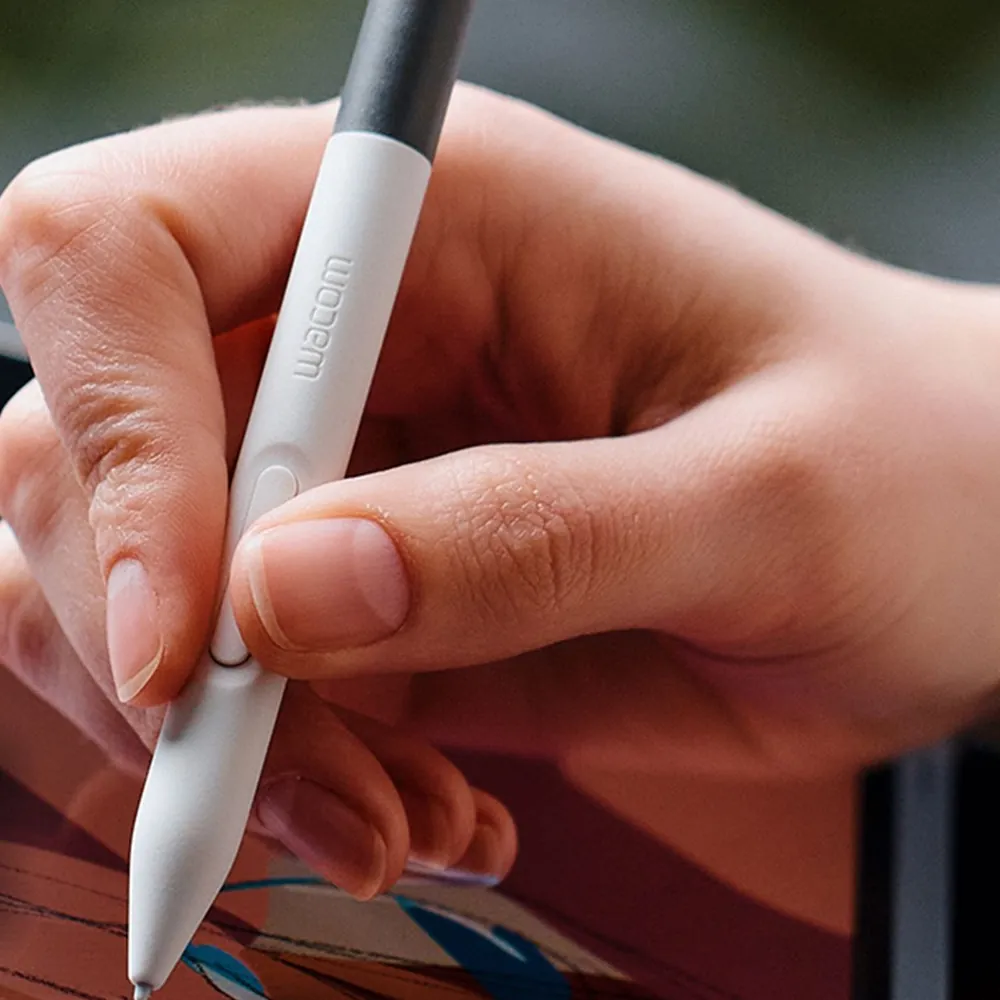
The pens that come with Wacom pen tablets, pen displays and MovinkPads use Wacom’s electromagnetic resonance (EMR) technology. The tablet’s sensor powers the pen through an electromagnetic field, so the pen has no battery and never needs charging (Wacom technologies). Wacom’s separate Bamboo Ink styluses for pen-enabled Windows laptops are different: the Bamboo Ink Plus has a rechargeable battery (Bamboo Ink Plus).
- Wacom One Standard Pen: 4,096 pressure levels and 60 degrees of tilt. It works across the Wacom One family and comes in seven colour combinations.
- Wacom Pro Pen 3: 8,192 pressure levels and 60 degrees of tilt. The standard version ships with Cintiq Pro and Intuos Pro and lets you change the grip, weight and button layout. A slim version ships with Cintiq (2025), Movink 13 and both MovinkPads; a customisation kit for it went on sale separately on the Wacom eStore in March 2026 (the eStore does not sell to the UAE, so ask your supplier).
- Wacom Art Pen 2: launched in May 2026, it adds 360-degree barrel rotation for calligraphy and flat brushes. It works with the MovinkPad Pro 14, Cintiq (2025) and Intuos Pro (2025), with Cintiq Pro support announced for later in 2026, and rotation is supported in Photoshop 2026, Illustrator 2026, CLIP STUDIO PAINT 4.1 or later (4.3 or later on Android) and Krita 5.2.14 or later.
- Third-party EMR pens: Wacom names LAMY, STAEDTLER and Dr. Grip EMR pens for the Wacom One 14, Movink 13, MovinkPad 11 and Intuos Pro (2025), useful if you prefer a familiar barrel.
Sources for the pens: Wacom Pro Pen 3 variants, Wacom Art Pen 2, Art Pen 2 announcement and Wacom One pen tablets.
Nibs are consumables that wear with use, like a pencil. Wacom advises replacing a nib before it wears to a sharp point or becomes too short, because a worn nib can damage the device (Wacom support: replacing nibs). Wacom offers standard, felt and elastomer nibs for the Wacom One pen, and standard, felt and rubber nibs for the Pro Pen 3. Useful accessories include the Wacom Foldable Stand for the Wacom One 14 and Movink 13, and the ExpressKey Remote for shortcuts on pen displays.
Warranty and where to buy Wacom in the UAE
Wacom does not run a UAE website or a UAE online store. Its region selector groups the UAE under “All Others” in Europe, the Middle East and Africa, served by the EMEA English site, and Wacom’s support site lists only the EU, the UK, Switzerland and Norway as places that can order from the Wacom eStore. Buyers elsewhere buy through resellers (Wacom websites; Where to buy Wacom in EMEA). Wacom’s own websites and eStore are on the wacom.com domain.
How long is the Wacom warranty in the Middle East?
It depends on the model. Wacom’s EMEA product pages and documentation give two years for current models including the Intuos, Intuos Pro (2025), Movink 13, Cintiq 16 and 24 (2025) and MovinkPad 11 (Wacom Intuos (EMEA); Wacom Movink (EMEA); Wacom Cintiq (EMEA); Wacom MovinkPad 11 (EMEA)); Wacom’s EMEA retail copy gives the same two years for the Intuos Pro (2025). Wacom’s support site gives three years for the Cintiq Pro 17, 22 and 27, with on-site exchange limited to most EU countries (Cintiq Pro warranty). For the Wacom One 14, Wacom’s factsheet states two years in the Middle East while its EMEA product page shows one year, so confirm the term for your unit on the quotation. Refurbished Wacom units carry one year (Wacom EMEA warranty).
To claim, Wacom asks for the model number, serial number and a copy of the sales receipt. Software and consumables such as nibs are not covered (How to claim a Wacom warranty repair). Buy from a supplier who issues a proper UAE tax invoice with the model and serial number, and register the device with a Wacom ID to claim any software offers available for your model and region.
How much does a Wacom cost in the UAE?
Entry pen tablets such as the Intuos and the Wacom One S and M cost least, and Cintiq Pro sits at the top. In between, the ranges overlap: at US launch prices, a large Intuos Pro (2025) pen tablet cost more than a Wacom One 14 pen display, so compare exact models. Exact AED prices vary by model, supplier and promotion, so we do not quote them here. For volume orders, ask for a quotation that states the exact model numbers, what is in the box and the warranty terms.
How PRO TECHnology supports Wacom buyers in the UAE and GCC
PRO TECHnology works with organisations in Dubai, Abu Dhabi, Sharjah and the other emirates, and with buyers elsewhere in the GCC, including Saudi Arabia. The manufacturer warranty is Wacom’s, under Wacom’s terms; our role is to help you choose, pilot, buy and make a claim.
- Model selection: matching tablets, displays and pens to the work, the computers you already have and your budget.
- Volume supply: class sets for schools and universities, and studio set-ups for agencies and in-house creative teams.
- Pilot before rollout: testing on your own laptops, Chromebooks and applications, including USB-C video support and driver deployment.
- After-sales: help with set-up questions, sourcing replacement pens and nibs, and guidance on raising a warranty claim with Wacom.
Wacom pen tablets and pen displays are handled by our Enterprise IT division, alongside device management, storage and classroom charging, so one team can plan the whole workstation.
Sources
Specifications come from Wacom’s own product pages and documentation, checked on 22 September 2026, and may change. Middle East warranty periods for current models come from Wacom’s EMEA product documentation and support site. Wacom product images are supplied by Wacom. Wacom, Wacom One, Intuos, Cintiq, Movink, MovinkPad and other Wacom product names are trademarks of Wacom Co., Ltd.; other product and company names are trademarks of their owners. This guide is written and published by PRO TECHnology, not by Wacom.
- Wacom One 14 product page and specifications
- Wacom One (2023) specifications
- Wacom One pen tablets
- Wacom Intuos
- Wacom Intuos Pro (2025)
- Wacom Movink
- Wacom Cintiq (2025)
- Wacom Cintiq Pro
- Wacom MovinkPad 11
- Wacom MovinkPad Pro 14
- Wacom: the differences between every type of Pro Pen 3
- Wacom Art Pen 2
- Wacom: Chromebook certified devices
- Wacom driver downloads
- Wacom pens and tablets for Linux
- Wacom Bridge and creative workflow software
- Wacom for education
- Wacom eLearning (EMEA)
- Wacom: choosing the right product as a teacher
- Wacom for Business: industries
- Wacom signature pads
- Wacom business pen displays
- Wacom sign pro PDF
- Wacom Ink SDK for signature
- UAE Government: Electronic Transactions and Trust Services law
- Wacom support: Cintiq Pro 17, 22 and 27 warranty
- Wacom support: how to claim a warranty repair
- Wacom support: where to buy Wacom products in EMEA
- Wacom EMEA warranty
- Wacom Bamboo Ink Plus
- Wacom technologies
- Wacom: the best graphics tablets for beginners
- Wacom support: pen tablets and Android
- Wacom support: Intuos with iPhone or iPad
- Wacom support: replacing worn nibs
- Wacom support: Wacom One 14 requirements
- Wacom: Art Pen 2 announcement (May 2026)
- Wacom: S Pen technology announcement (March 2026)
- Wacom global websites
- About Wacom
Frequently asked questions
Where can I buy Wacom in the UAE?
Wacom has no UAE office, website or online store. It covers the Middle East from Wacom Europe GmbH in Düsseldorf and sells through distributors and resellers, and several companies in the UAE sell Wacom products. PRO TECHnology, a Dubai technology company founded in 1998, is one of them: it supplies Wacom pen tablets and pen displays to organisations in the UAE and GCC, including volume orders for schools, universities and companies. Whoever you buy from, ask for a UAE tax invoice showing the model and serial number, and register the device with a Wacom ID.
Which Wacom is best for beginners?
Wacom’s beginner guide recommends the Wacom Intuos, the MovinkPad 11 and the Wacom One 14. Of the three, the Intuos costs least. The Wacom One 14 lets you draw on the screen itself, and the MovinkPad 11 needs no computer.
Should I buy a pen tablet or a pen display?
Buy a pen tablet if you want the lowest cost, mainly retouch photos or have little desk space. Buy a pen display if you want to draw or write directly on the screen, which Wacom says is easier to get used to than a pen tablet.
What size Wacom tablet should I get?
Match the size to your screen and the way you draw. A small tablet suits laptops, travel and short wrist strokes. A medium suits most desktop monitors. A large suits big or dual monitors and artists who draw from the elbow and shoulder, but it needs more desk space. Pen displays follow the same logic: a Wacom One 14 or Movink 13 for a desk or a bag, a Cintiq 24 or Cintiq Pro 27 for a studio.
What is the difference between Wacom Intuos and Intuos Pro?
Wacom Intuos is the entry pen tablet with the Wacom Pen 4K and 4,096 pressure levels. Intuos Pro (2025) is the professional model with the customisable Pro Pen 3 and 8,192 pressure levels, mechanical dials, more ExpressKeys, three sizes and connection to up to three devices.
What is the difference between Wacom Cintiq and Cintiq Pro?
Cintiq (2025) comes in 16-inch and 23.8-inch sizes with 2560 x 1600 and 2560 x 1440 screens. Cintiq Pro 17, 22 and 27 add 4K resolution at up to 120 Hz, 10-bit colour, 88 to 99% Adobe RGB coverage, Pantone validation and touch on every model, for colour-critical studio work.
Does the Wacom pen need charging?
No. The pens that come with Wacom pen tablets, pen displays and MovinkPads use electromagnetic resonance and draw their energy from the tablet, so they have no battery and never need charging. Bluetooth pen tablets have a rechargeable battery in the tablet, and Wacom’s separate Bamboo Ink Plus stylus for pen-enabled Windows laptops has a rechargeable battery.
Does Wacom work with a Chromebook?
Yes, for several models. Wacom Intuos and One by Wacom are Works With Chromebook certified and need no driver, and the Wacom One range, Movink 13 and Cintiq (2025) list ChromeOS support. Wacom does not list ChromeOS for Intuos Pro (2025) or Cintiq Pro. The MovinkPads run Android and do not need a Chromebook.
Does Wacom work with an Android phone or tablet?
Some models do. Wacom lists Android for the Wacom One S and M pen tablets, the 2023 Wacom One 12 and 13 touch, Movink 13 and Cintiq (2025), and Intuos works with Android through an OTG adapter. Wacom does not list Android for the Wacom One 14, Intuos Pro (2025) or Cintiq Pro. Using a pen display with a phone also needs a phone with a desktop mode.
Does Wacom work with an iPad?
Wacom says the Intuos does not work with an iPhone or iPad, and Wacom’s product pages do not list iPadOS for any current pen tablet or pen display. If you want to draw on a tablet without a computer, Wacom’s alternative is the Android-based MovinkPad 11 or MovinkPad Pro 14.
Can I use a Wacom without a computer?
Yes, with a MovinkPad. The MovinkPad 11 and MovinkPad Pro 14 are standalone Android drawing pads that come with a slim Wacom Pro Pen 3. Pen tablets and pen displays need a computer, although some models, such as Intuos, Movink 13 and Cintiq (2025), also list Android support.
Why will my laptop not run a Wacom One 14 on one USB-C cable?
The single-cable connection needs a USB-C port that carries video, through DisplayPort Alt Mode or Thunderbolt 3 or later, and supplies power. If your port does not carry video, you can connect through the computer’s HDMI and USB-A ports with the Wacom Converter Kit, sold separately.
What software comes free with a Wacom?
It depends on the model and changes over time, and you claim it by registering the device with a Wacom ID. On 22 September 2026, Wacom listed a two-year CLIP STUDIO PAINT PRO licence with the Intuos; trials of CLIP STUDIO PAINT PRO, Foxit PDF Editor, Magma, Skillshare and Concepts with the Wacom One 14; a two-year CLIP STUDIO PAINT DEBUT licence with the MovinkPad 11; and trials of Capture One, CLIP STUDIO PAINT EX and MASV with the Intuos Pro (2025).
How long is the Wacom warranty in the UAE?
It depends on the model. Wacom’s EMEA documentation lists two years on current models such as the Intuos, Intuos Pro (2025), Movink 13, Cintiq (2025) and MovinkPad 11, and Wacom’s support site gives three years on Cintiq Pro 17, 22 and 27. Wacom’s documents differ for the Wacom One 14, so check the warranty for your exact model on your quotation. Claims need the model number, serial number and sales receipt.
Which Wacom is best for teachers and online classes?
Wacom’s own teacher guide, written in 2020 for the first Wacom One, says a Wacom One pen display is easy to use from the start because you write straight onto the screen, and calls the Intuos pen tablet a great low-cost option. Wacom says its pen tablets for teaching work with Microsoft Teams and Zoom.
Is Wacom good for left-handed users?
Yes. Wacom lists right- or left-handed use for its Intuos pen tablets and Movink 13, and places the Intuos Pro dials and ExpressKeys along the top edge so either hand can reach them.
Is Wacom worth it compared with cheaper drawing tablets?
Compare specific models rather than brands: check the pen, the screen’s colour coverage, driver support for your operating system and applications, and the warranty and service available in the UAE. Wacom’s case rests on more than 40 years of pen technology, a published list of supported systems for each model and a manufacturer warranty that Wacom’s EMEA documentation sets at two years or more on most current models.
Which Wacom signature pad suits a bank, clinic or government counter?
The STU-540 is Wacom’s most advanced signature pad, with a 5-inch colour screen, a customisable key pad and Citrix support. The STU-430 is a thin monochrome pad, but Wacom also lists it for end of service in EMEA, so confirm availability. Both encrypt signature data with AES-256 and RSA-2048.
Are signatures captured on a Wacom pad legally valid in the UAE?
That depends on UAE law, the transaction and your whole signing process, not on the pad alone. At the time of writing, in September 2026, the main UAE law is Federal Decree-Law No. 46 of 2021 on Electronic Transactions and Trust Services. This is general information, not legal advice; confirm your signing process with your legal and compliance teams.
Can I use a LAMY or STAEDTLER pen on a Wacom?
On several models, yes. Wacom names LAMY, STAEDTLER and Dr. Grip EMR pens for the Wacom One 14, Movink 13, MovinkPad 11 and Intuos Pro (2025). For the 2023 Wacom One models, Wacom’s launch release limited STAEDTLER pens to the pen displays, so check before using one on a Wacom One S or M.
واكوم في الإمارات: كيف تختار تابلت الرسم أو شاشة الرسم أو جهاز التوقيع الإلكتروني المناسب
تصنع شركة واكوم (Wacom) اليابانية أربعة أنواع رئيسية من أجهزة القلم الرقمي: أجهزة تابلت الرسم، وهي ألواح رسم إلكترونية بلا شاشة تتصل بالكمبيوتر وترسم عليها بينما تنظر إلى شاشتك، مثل Wacom Intuos وIntuos Pro وWacom One S وWacom One M؛ وشاشات الرسم التي ترسم عليها مباشرة، مثل Wacom One 14 وMovink 13 وCintiq وCintiq Pro؛ وأجهزة الرسم اللوحية MovinkPad بنظام أندرويد التي لا تحتاج إلى كمبيوتر؛ وأجهزة التوقيع الإلكتروني مثل STU-540 لمكاتب خدمة العملاء في البنوك والعيادات والجهات الحكومية. ويتوقف الاختيار بينها على ثلاثة أمور: أين تريد أن تنظر أثناء العمل، وهل تحتاج إلى توصيل الجهاز بكمبيوتر، ومدى الدقة التي يتطلبها عملك من القلم.
قلم الرسم الرقمي المرفق مع جميع أجهزة واكوم الحالية، من تابلت الرسم وشاشات الرسم إلى أجهزة MovinkPad، يعمل دون بطارية ولا يحتاج إلى شحن. يستشعر قلم Wacom One ما يصل إلى 4096 مستوى من حساسية الضغط، ويستشعر قلم Wacom Pro Pen 3 ما يصل إلى 8192 مستوى، ويتعرف كلاهما على ميل القلم حتى 60 درجة. وقبل شراء شاشة رسم تعمل بكابل USB-C واحد، تأكد من أن منفذ USB-C في الكمبيوتر أو اللابتوب ينقل إشارة الفيديو عبر DisplayPort Alt Mode أو Thunderbolt 3 أو إصدار أحدث، وأنه يوفّر الطاقة عبر USB Power Delivery. وتختلف مدة ضمان واكوم المحدود في الشرق الأوسط بحسب الطراز: تذكر وثائق واكوم لمنطقة أوروبا والشرق الأوسط وأفريقيا سنتين لمعظم الطرازات الحالية، وثلاث سنوات لطرازات Cintiq Pro 17 و22 و27، لذا تحقق من شروط الضمان لطرازك، واحتفظ بفاتورة الشراء والرقم التسلسلي، فواكوم تطلبهما مع رقم الطراز عند المطالبة بالضمان.
ما أفضل جهاز رسم من واكوم للمبتدئين؟ يرشّح دليل واكوم للمبتدئين ثلاثة أجهزة: Wacom Intuos وهو الأقل تكلفة بينها، وWacom One 14 للرسم مباشرة على الشاشة، وMovinkPad 11 الذي يعمل دون كمبيوتر.
توفر بروتكنولوجي (PRO TECHnology)، وهي شركة تقنية مقرها دبي تأسست عام 1998، أجهزة تابلت الرسم وشاشات الرسم من واكوم للشركات والمدارس والجامعات والجهات الحكومية في دبي وأبوظبي والشارقة وسائر إمارات الدولة، وفي دول مجلس التعاون الخليجي الأخرى، وتدعم عملاءها بدءًا من اختيار الطراز المناسب وتجربته على أجهزتهم، مرورًا بالتوريد بكميات كبيرة، وصولًا إلى دعم ما بعد البيع والمساعدة في تقديم مطالبات الضمان إلى واكوم، إذ إن ضمان الشركة المصنّعة تقدمه واكوم وفق شروطها.
Planning a Wacom purchase for your team?
Tell us who will use the devices, what they create, the computers they use and how many you need. We will recommend models, check compatibility and quote.