
Wacom DTH142E in the UAE: the 14-inch Pen and Touch Display for Paperless Signing at the Counter
Published · PRO TECHnology Enterprise IT
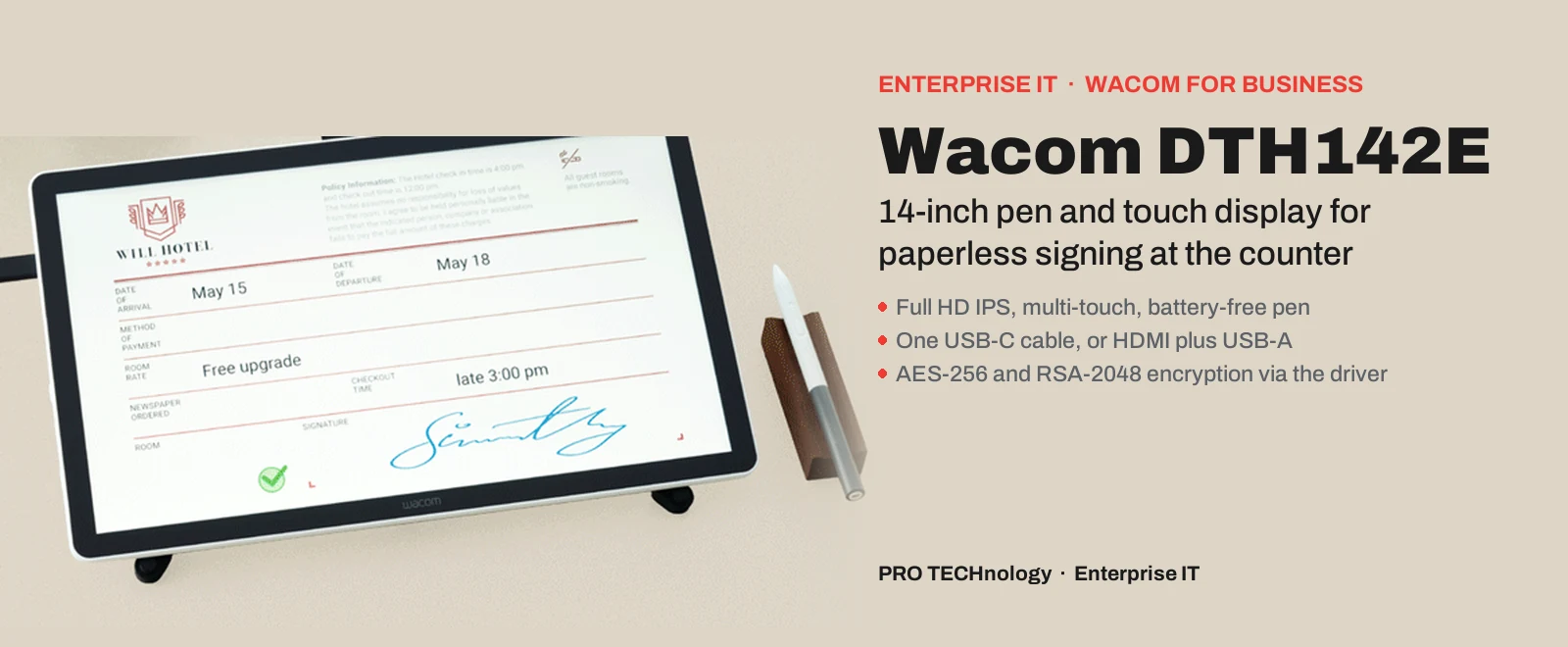
The Wacom DTH142E is a 14-inch Full HD pen and touch display that Wacom lists with its business pen displays for viewing, annotating and signing documents. It has an IPS screen, a battery-free pen with 4,096 pressure levels and multi-touch, and it runs from one USB-C cable or from HDMI plus USB-A. Wacom’s Middle East distribution introduced it to UAE partners in October 2026. Every source below was read on 12 October 2026.
- Screen
- 14-inch Full HD IPS, multi-touch, anti-glare anti-fingerprint glass
- Pen
- Battery-free Wacom EMR pen, 4,096 pressure levels, 2,540 lpi
- Connection
- One USB-C cable (DisplayPort Alt Mode), or HDMI plus USB-A
- Security
- AES 256 / RSA 2048 via the driver; Kensington NanoSaver lock slot
Key takeaways
- The DTH142E has a 14-inch 1920 x 1080 IPS screen, anti-glare and anti-fingerprint glass and a battery-free EMR pen with 4,096 pressure levels, per Wacom’s hardware overview of 9 September 2026.
- Touch separates it from the pen-only DTU-1141B and DTK168E. Wacom lists touch input; the product note from Wacom’s Middle East distributor describes ten-finger multi-touch.
- It runs from one USB-C cable on a PC with DisplayPort Alt Mode, or from HDMI plus USB-A with the AC adapter (USB Power Delivery 5 V 3 A, or 9 V 2.77 A from the adapter).
- Pen data is encrypted with AES 256 and RSA 2048 via the Wacom driver. The product note from Wacom’s Middle East distributor states there is no onboard storage; the signed file and audit trail live in the signing software.
- Wacom lists Windows 10 or later and macOS 13 or later; no Android, Linux or ChromeOS.
- The warranty is three years according to the product note from Wacom’s Middle East distributor, matching Wacom’s standard term on the DTU-1141B, DTH134 and DTK168E; confirm the term on your quotation.
- PRO TECHnology supplies the DTH142E in the UAE with cables and Kensington NanoSaver locks, checks host PC ports first and demonstrates it in Dubai or on site; signing software comes from Wacom or your vendor.
What the Wacom DTH142E is
The Wacom DTH142E is a 14-inch pen and touch display for viewing, annotating and signing documents on a Windows or macOS computer: a Full HD IPS screen, a battery-free Wacom EMR pen, multi-touch for the customer’s fingers, encryption of pen data via the Wacom driver and a Kensington NanoSaver lock slot. It is a flat slab, 11 mm thick and 780 g, that lies in front of the customer while staff keep the main monitor.
Wacom lists it on its business pen display page with the DTU-1141B, DTK168E and DTK/DTH246E under the heading “DTH142E Signature Display”. Wacom’s Middle East distribution introduced it to UAE partners in October 2026, and Wacom’s Windows driver 6.4.15 release notes of 6 October 2026 list it as supported; we found no Wacom launch announcement. The product note from Wacom’s Middle East distributor describes it as designed for paperless customer-facing work: digital signing, onboarding, consent forms and document approvals.
Touch is the point of difference: the 10.1-inch DTU-1141B and the 16-inch DTK168E take pen input only. On the DTH142E a customer scrolls a contract with a finger, zooms on a clause and signs with the pen. Wacom’s user guide describes “Touch & gestures, multi-finger swipes and taps”; a slide switch turns touch off when a form should accept only the pen.
Which counters a 14-inch pen and touch display suits
Wacom’s industries page names six sectors for its signature products: healthcare, financial services, retail and service, hospitality and tourism, the public sector and education. The product note from Wacom’s Middle East distributor narrows the DTH142E to banking, healthcare, hospitality, retail, insurance and government. Plain examples by sector:
- Banks and finance companies: account opening, card and loan agreements.
- Insurers: proposal forms and claims declarations.
- Clinics and hospitals: patient registration and consent to treatment.
- Hotels and car rental: registration cards and rental agreements.
- Retail and telecom: subscription contracts.
- Government and free-zone counters: applications and undertakings.
- Human resources: employee onboarding forms.
On 11 December 2021 Emirates News Agency reported Sheikh Hamdan bin Mohammed’s announcement that the Dubai Government was fully paperless, saving AED 1.3 billion and 14 million man-hours. Wacom quotes Alexander Renauer, Head of IT at the Erding Registry Office in Germany: “By using the interactive pen displays, we save about 224 kilograms of paper a year, not to mention space and money.”
What the customer sees. A4 is 210 x 297 mm; the active area is 309 x 174 mm. By our arithmetic from the active area, a whole A4 page fits at about 83 percent of printed size in portrait and about 59 percent in landscape, so staff zoom and the customer scrolls by touch.
The specification, and why each line matters at a desk
Each line comes from Wacom’s hardware overview (EMEA edition, 9 September 2026) or its specifications table.
| Item | DTH142E | Why it matters |
|---|---|---|
| Screen | 14.0-inch IPS, 1920 x 1080, 16:9; 178-degree viewing angles | A page of text at readable size from a chair or standing. |
| Brightness and contrast | 270 cd/m2; 1000:1; 16 ms | Office-monitor levels for an indoor counter. |
| Cover glass | Anti-glare and anti-fingerprint | Stays presentable between wipes. |
| Touch | Yes (Wacom); ten-finger multi-touch according to the product note from Wacom’s Middle East distributor; Touch On/Off slide | Customers scroll and zoom; the slide locks the device to pen only. |
| Pen | Battery-free EMR, Wacom One Standard Pen; 4,096 pressure levels; 2,540 lpi; tether | No charging or pairing; pressure data records how a signature was made. |
| Active area | 309 x 174 mm | Wider than an A4 sheet is tall; see the arithmetic above. |
| Power | USB Power Delivery DC 5 V 3 A, or AC adapter DC 9 V 2.77 A | 5 V 3 A is 15 W; one USB-C cable powers it if the host port delivers that. |
| Data and video | USB 2.0 over USB-C; DisplayPort Alt Mode or HDMI (mini HDMI port) | Two cabling routes, below. |
| Operating systems | Windows 10 or later; macOS 13 or later | No Android, Linux or ChromeOS listed. |
| Encryption | AES 256 / RSA 2048 (via driver) | The driver encrypts pen data, so it is part of the security design. |
| Lock, stand, mounting | Kensington NanoSaver; flat, no tilt stand; VESA: No | An arm or kiosk needs a holder made for the body. |
| Size, weight, box | 336 x 201 x 11 mm; 780 g; nibs, all three cables, AC adapter with US, EU and UK plug heads | Both cabling routes are covered from the box. |
Pen and touch display or signature pad: which does the counter need?
A signature pad captures the signature; a pen display shows the whole document and captures the signature on it. Wacom’s STU pads are covered in our Wacom buying guide, and Wacom’s Ink SDK for signature supports both. PRO TECHnology supplies Wacom pen displays such as the DTH142E; it does not sell STU pads or Wacom’s signing software. Ask of each counter: does the customer read the document on the device, or only sign?
- Wacom STU signature pad
- The customer signs and little else: a receipt, a delivery note, an acknowledgement. See the buying guide; PRO TECHnology does not supply it.
- Wacom DTH142E
- The customer reads, scrolls, ticks and signs on the device: account opening, consent to treatment, a registration card. Touch moves through the page; the pen signs it.
- Wacom DTK168E or DTK/DTH246E
- The display is also the working monitor: 16-inch 2560 x 1600, or 23.8-inch 2560 x 1440 on a 16 to 69 degree stand (DTH246E with touch). Heavier and VESA-mountable.
Branches often end up mixed: a pad at the cash desk, the DTH142E at the onboarding desk, a larger display in the advisory room.
The DTH142E against Wacom’s other business pen displays
From the hardware overview and the DTU-1141B, DTK168E and DTH246E datasheets.
| Item | DTU-1141B | DTH142E | DTK168E | DTK and DTH246E |
|---|---|---|---|---|
| Screen | 10.1-inch AHVA, 1920 x 1080 | 14.0-inch IPS, 1920 x 1080 | 16.0-inch IPS, 2560 x 1600 | 23.8-inch IPS, 2560 x 1440 |
| Touch | No | Yes | No | DTH246E yes; DTK246E no |
| Active area | 223.2 x 125.6 mm | 309 x 174 mm | 345 x 215 mm | 527 x 296 mm |
| Brightness, contrast, response | 200 cd/m2; 1000:1; 25 ms | 270 cd/m2; 1000:1; 16 ms | 290 cd/m2; 1400:1; 12 ms | 350 cd/m2; 1000:1; 12 ms |
| Pen | 1,024 levels; 2,540 lpi | 4,096 levels; 2,540 lpi | 8,192 levels; 5,080 lpi; Pro Pen 3E | 8,192 levels; 5,080 lpi; Pro Pen 3E |
| Video and data | One USB cable; DisplayLink driver | DisplayPort Alt Mode or HDMI; USB-C | DisplayPort Alt Mode or HDMI; USB-C or A | DisplayPort Alt Mode or HDMI; USB-C or A |
| Power | USB bus power 5 V | USB PD 5 V 3 A or adapter 9 V 2.77 A | USB PD 5 V 3 A or adapter 9 V 2.77 A | AC adapter 20 V 3.25 A |
| Stand, VESA, buttons | 15 degrees or flat; VESA 75 x 75; 4 ExpressKeys | Flat only; no VESA; none | 20 degrees or flat; VESA 75 x 75; none | 16 to 69 degrees; VESA 75 x 75; none |
| Operating systems | Windows 10/8.1/7; Mac OS X 10.11 or later | Windows 10 or later; macOS 13 or later | Windows 10, macOS 13 or later; Android 8.0 or above | Windows 10, macOS 13 or later; Android 8.0 or above |
| Lock slot | Kensington MicroSaver | Kensington NanoSaver | Kensington Security Slot | Kensington Security Slot |
| Size and weight | 283 x 210 x 11 mm; 800 g | 336 x 201 x 11 mm; 780 g | 384 x 259 x 15 mm; 2.0 kg | 568 x 340 x 21 mm; 4.8 to 5.9 kg by model and stand |
All four list AES 256 / RSA 2048 encryption via the driver. Only the DTU-1141B datasheet lists a unique hardware ID (UID) “to identify the exact unit used for any transaction”; do not assume one for the DTH142E.
When each fits: the DTU-1141B where a tilt stand, VESA and a per-unit hardware ID outweigh touch; the DTH142E where the customer reads the document on a flat, light device; the DTK168E where staff also annotate on a sharper panel; the DTK/DTH246E where the pen display is the desk’s main monitor.
Connecting the DTH142E: one USB-C cable, or HDMI plus USB-A
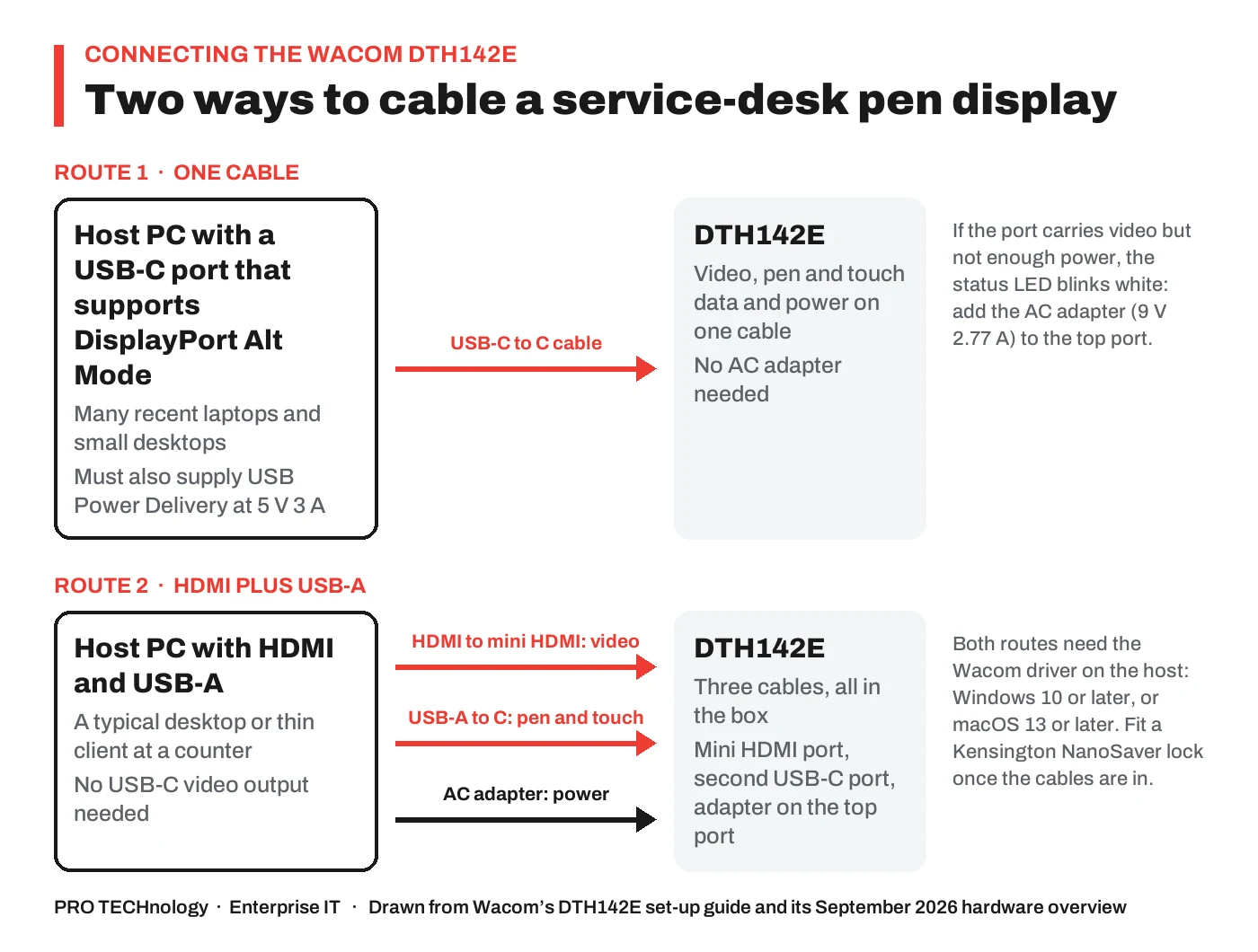
Wacom’s set-up page gives two routes; the host PC decides which. The ports sit on the left edge: a top USB-C port for the one-cable connection or the AC adapter, a middle USB-C port for the USB-A to C cable, and a mini HDMI port.
Route 1: one USB-C cable
- Check that the PC’s USB-C port supports video output (DisplayPort Alt Mode).
- Connect the USB-C to C cable to the top USB-C port and to that PC port; it carries video, pen and touch data and power.
- Press the power button. If the status LED blinks white, power is insufficient: connect the AC adapter to the same top port.
- Install the Wacom driver.
Route 2: HDMI plus USB-A
- Connect the USB-A to C cable to the middle USB-C port and to a USB-A port on the PC, for pen and touch data.
- Connect the mini HDMI to HDMI cable to the mini HDMI port and to the PC’s HDMI port, for video.
- Connect the AC adapter to the top USB-C port; Wacom says all three are required on a PC without a video-capable USB-C port.
- Press the power button, then install the Wacom driver.
Power is USB Power Delivery at DC 5 V 3 A, which is 15 W, or the AC adapter at DC 9 V 2.77 A. Wacom’s features page explains the status LED: bright white on power-up and while the pen writes, soft white at rest or while the pen hovers, flashing soft white in sleep, blinking white when power is insufficient. A long press of the power button turns the display off.
The Touch On/Off slide does what it says: slide it off where a form must accept the pen alone, or while cleaning the glass. There are no programmable buttons. Both routes need the Wacom driver, “required for full functionality”; for Macs, our macOS 27 upgrade checklist covers the driver version and the permissions it needs.
Security: what the display holds and what it does not
Wacom gives the DTH142E’s encryption as “AES 256 / RSA 2048 (via driver)”. The qualifier matters: the Wacom driver encrypts pen data between display and PC, so package, version and deploy it as a security component.
According to the product note from Wacom’s Middle East distributor, the DTH142E has no onboard storage. The host PC renders the document; pen and touch data travel back over USB. Nothing the customer reads or signs stays on the device.
Theft is addressed by the Kensington NanoSaver slot, which Wacom’s user guide describes as a way to secure the display to a specific location such as the desk. PRO TECHnology quotes NanoSaver locks with the displays; the DTU-1141B uses the older MicroSaver slot.
The host PC holds the data, so it needs full-disk encryption (our comparison of self-encrypting drives and BitLocker covers the choice), patching and controlled installs; FileWave can deploy the driver and the signing application across counter PCs and Macs. The audit trail, the signed file and any biometric data are created and stored by the signing software, not by the display.
The software that turns it into a signing station
Three layers of software make the DTH142E a signing station; PRO TECHnology supplies the hardware only.
The Wacom driver. Required for full functionality and the layer that provides the encryption. Windows driver 6.4.15 of 6 October 2026 lists the DTH142E. Package it for deployment.
Wacom sign pro PDF. Wacom describes sign pro PDF as a professional application for adding handwritten signatures and text to digital documents, as a standalone app or an API. Standard for Windows is a free download; Premium is the paid upgrade. It runs on Wacom and other pen-enabled Windows devices, with built-in encryption and the ISO signature format. Only Windows is named.
Wacom Ink SDK for signature. For an in-house application or a third-party platform, the Ink SDK for signature supports Wacom STU pads, Wacom pen displays and Windows, iOS and Android devices, with third-party hardware under the paid licence. Each signature records pen position, pressure, inclination and speed with a time stamp, in ISO or Wacom’s FSS format. Basic functionality is free with Wacom devices on Windows; the DTH142E has C++, .NET and Java options.
Biometric signature or image? Any PDF tool can flatten an ink drawing into the page as an image. A biometric signature captured through the SDK or a compatible platform keeps the pressure, speed and timing data a forensic examiner can compare. The display supports both; the application decides.
Thin clients. Wacom lists Citrix support for its business pen displays as a family benefit: Citrix 7.6.3 and newer in standard USB mode, and a VCP mode for Citrix 6.5. It is not stated per model, so confirm the client and version with Wacom before a thin-client rollout.
Electronic signatures in the UAE: a short orientation
This section is an orientation, not legal advice. The UAE Government portal describes Federal Decree-Law No. 46 of 2021 on Electronic Transactions and Trust Services as regulating the validity of electronic documents and strengthening the legal value of digital signatures. The Telecommunications and Digital Government Regulatory Authority (TDRA) issues licences to trust service providers, who carry a trust mark, and the Federal Authority for Identity, Citizenship, Customs and Port Security (ICP) issues the controls for trust services to the government sector.
A pen display captures the handwriting; the law concerns the process around it. Ask your legal team to map each document type to the right process: which can be signed on the display and stored by your own software, which need a trust service provider holding a TDRA licence, and which still need a wet signature.
A deployment checklist for IT
Nine steps, in the order we would do them.
- List the counters and each host PC’s ports (USB-C with DisplayPort Alt Mode, or HDMI and USB-A) and operating system.
- Decide which counters need touch and a full-page view (DTH142E), which need only a signature box (a pad) and which need a mounted or larger display.
- Choose the signing software and confirm with its vendor that it supports Wacom pen displays and the format you need, ISO or FSS.
- Ask legal to map document types to signature processes under the Electronic Transactions and Trust Services law.
- Order the displays with Kensington NanoSaver locks and confirm the warranty term on your quotation.
- Package the Wacom driver (Windows 6.4.15 or later) and the signing application for your management tool.
- Pilot one counter per site type with real documents: touch scrolling, the Touch On/Off slide, sleep and wake, the LED on power-up.
- Harden the host PC: full-disk encryption, patching, controlled installs, a defined location for signed files and audit data.
- Train staff on the sequence: open the document, hand over the display, the customer scrolls and signs, staff confirm. Record each unit’s location and lock key.
What PRO TECHnology does for DTH142E buyers in the UAE
PRO TECHnology supplies Wacom pen displays in the UAE from Dubai as part of its Enterprise IT work. For the DTH142E that means:
- Supply and quotation of the DTH142E with cables and Kensington NanoSaver locks.
- A pre-sales check of host PC ports and operating systems.
- A demonstration in Dubai or at your premises.
- Help packaging the Wacom driver for deployment.
- Warranty handling through Wacom’s regional channel for displays we supply.
- Advice on choosing between the DTH142E and the DTU-1141B, DTK168E or DTK/DTH246E.
We do not sell Wacom STU signature pads or Wacom signing software; for those, and the wider range, see our Wacom buying guide. Other guides are in the newsroom.
Sources
We read each source below on 12 October 2026. The three-year warranty term, the ten-finger touch count and the absence of onboard storage come from the product note Wacom’s Middle East distributor sent to partners in October 2026; Wacom’s public pages do not state them, so confirm the term on your quotation.
- Wacom: Business pen displays (en-gb)
- Wacom: Business pen display specifications
- Wacom: Windows driver 6.4.15 release notes (6 October 2026)
- Wacom: Hardware overview, EMEA (PDF, 9 September 2026)
- Wacom: DTU-1141B datasheet (PDF, March 2025)
- Wacom: DTK168E datasheet (PDF, October 2026)
- Wacom: DTH246E datasheet (PDF, May 2026)
- Wacom user guide: About the DTH142E
- Wacom user guide: DTH142E features and status LED
- Wacom user guide: Connecting the DTH142E
- Wacom: sign pro PDF (en-gb)
- Wacom Developer: Ink SDK for signature
- Wacom for Business: Industries (en-gb)
- Wacom: DTH134 pen display, warranty statement (en-de)
- UAE Government portal: Electronic Transactions and Trust Services Law
- Emirates News Agency: Dubai Government fully paperless (11 December 2021)
Frequently asked questions
What is the Wacom DTH142E used for?
The DTH142E is a 14-inch pen and touch display for a service counter: the customer reads, scrolls and signs a document on it while staff work on the main PC. Wacom lists it for e-document viewing, editing and signing; the product note from Wacom’s Middle East distributor names digital signing, onboarding, consent forms and document approvals.
Is the Wacom DTH142E a signature pad?
No. It is a pen and touch display whose 14-inch Full HD screen shows the whole document, not only the signature box. Wacom’s signature pads are the separate STU range, covered in our Wacom buying guide. PRO TECHnology supplies Wacom pen displays such as the DTH142E; it does not sell STU pads or Wacom signing software.
Does the DTH142E need a power adapter?
Not always. Wacom lists USB Power Delivery at DC 5 V 3 A, which is 15 W over the single USB-C cable, or the AC adapter at DC 9 V 2.77 A. One cable is enough if the host’s USB-C port supports DisplayPort Alt Mode and delivers that power; if the status LED blinks white, add the adapter, which the HDMI plus USB-A route always needs.
Does the Wacom DTH142E work on a Mac?
Yes. Wacom lists macOS 13 or later alongside Windows 10 or later, with the Wacom driver required for full functionality. The Mac needs a USB-C port with video output for the one-cable route, or HDMI plus USB-A for the three-cable route. For macOS 27, our upgrade checklist covers the driver version and permissions.
Can customers use their fingers on the DTH142E?
Yes. Wacom lists touch input, and the user guide describes touch and gestures, multi-finger swipes and taps. The product note from Wacom’s Middle East distributor describes ten-finger multi-touch. Signatures are made with the battery-free pen, and a Touch On/Off slide lets staff disable touch when a form should accept only the pen.
What software do we need to sign documents on the DTH142E?
Three layers: the Wacom driver, required for full functionality and the source of the encryption; a signing application, since Wacom lists the DTH142E as compatible with signature and eSign software and with sign pro PDF (Standard for Windows is free, Premium is paid); and, for bespoke platforms, the Wacom Ink SDK for signature. PRO TECHnology supplies the hardware only.
Does the DTH142E store signatures or documents?
According to the product note from Wacom’s Middle East distributor, the DTH142E has no onboard storage. The host PC renders the document; pen and touch data travel back over USB with AES 256 and RSA 2048 encryption via the Wacom driver. The signed file and audit trail live wherever your signing software saves them.
DTH142E or DTU-1141B: which should a bank branch choose?
The DTU-1141B is a 10.1-inch pen-only display on one USB cable with a DisplayLink driver, with four ExpressKeys, a 15-degree stand, VESA holes and a unique hardware ID per unit. The DTH142E adds touch, a 14-inch Full HD IPS screen and 4,096 pressure levels but has no stand, VESA holes or stated hardware ID. Choose by whether customers read documents on the device, or a fixed mount matters more.
What warranty does the DTH142E carry in the UAE?
Three years, according to the product note from Wacom’s Middle East distributor, matching the standard term Wacom publishes for the DTU-1141B, DTH134 and DTK168E, with a five-year extended term sold separately on some models. Wacom’s public DTH142E pages do not yet state it, so confirm the term on your quotation. PRO TECHnology handles claims through Wacom’s regional channel.
Can the DTH142E be mounted on an arm or in a kiosk?
Not with VESA hardware. Wacom lists the DTH142E as flat with no tilt stand and VESA mounting: No, unlike the DTU-1141B, DTK168E and DTK/DTH246E with their 75 x 75 mm holes. A kiosk or arm needs a holder built around the 336 x 201 x 11 mm body that leaves the ports and lock slot reachable; if a fixed mount is essential, consider the DTU-1141B or DTK168E.
Is a handwritten signature captured on the DTH142E recognised in the UAE?
This is an orientation, not legal advice. The UAE Government portal says Federal Decree-Law No. 46 of 2021 on Electronic Transactions and Trust Services regulates the validity of electronic documents and strengthens the legal value of digital signatures, with the TDRA issuing licences to trust service providers. The DTH142E captures the pen data; your legal team maps each document type to the right process.
How do we order the DTH142E for several branches?
Tell PRO TECHnology how many counters you have, what each host PC offers (USB-C with DisplayPort Alt Mode, or HDMI plus USB-A) and which signing software you use. We check compatibility, quote the displays with cables and Kensington NanoSaver locks, demonstrate in Dubai or at your premises and help package the Wacom driver.
Wacom DTH142E: شاشة قلم ولمس مقاس 14 بوصة للتوقيع بلا ورق على منضدة خدمة العملاء في الإمارات
شاشة Wacom DTH142E هي شاشة قلم ولمس مقاس 14 بوصة بدقة 1920 x 1080 ولوحة IPS، تُستخدم لعرض المستندات والتعليق عليها وتوقيعها على منضدة خدمة العملاء في البنوك وشركات التأمين والعيادات والمستشفيات والفنادق ومراكز الخدمة الحكومية. تأتي مع قلم Wacom EMR لا يحتاج إلى بطارية ويوفر 4,096 مستوى ضغط، وتدعم اللمس المتعدد بالأصابع، وتعمل مع Windows 10 أو أحدث وmacOS 13 أو أحدث. وتُدرجها Wacom ضمن شاشات الأعمال إلى جانب DTU-1141B وDTK168E وDTK/DTH246E، والفرق الأساسي أن DTH142E تجمع بين القلم واللمس بينما تعتمد DTU-1141B وDTK168E على القلم فقط.
هناك طريقتان للتوصيل. الأولى: كابل USB-C واحد إلى حاسوب يدعم منفذه DisplayPort Alt Mode، وينقل هذا الكابل الصورة وبيانات القلم واللمس والطاقة بقدرة 5 V 3 A. الثانية: كابل HDMI إلى mini HDMI للصورة، وكابل USB-A إلى C لبيانات القلم واللمس، ومحوّل التيار 9 V 2.77 A للطاقة. وفي الحالتين يلزم تثبيت برنامج تشغيل Wacom. أما الأمان، فيُشفَّر اتصال القلم بمعيار AES 256 وRSA 2048 عبر برنامج التشغيل، وتذكر مذكرة المنتج الصادرة عن موزّع Wacom في الشرق الأوسط أن الجهاز لا يحتوي على ذاكرة تخزين داخلية، كما يوجد منفذ قفل Kensington NanoSaver لتثبيت الشاشة بالمنضدة. وتفيد المذكرة نفسها بضمان مدته ثلاث سنوات، ويُستحسن تأكيد مدة الضمان في عرض السعر.
تورّد PRO TECHnology شاشة DTH142E في الإمارات مع الكابلات وأقفال Kensington NanoSaver، وتتحقق قبل الشراء من منافذ أجهزة الحاسوب وأنظمة التشغيل لديكم، وتقدّم عرضًا توضيحيًا في دبي أو في مقرّكم، وتساعد في تجهيز برنامج التشغيل للنشر على عدة أجهزة، وتتولى إجراءات الضمان عبر قناة Wacom الإقليمية. أما برامج التوقيع مثل Wacom sign pro PDF أو منصات التوقيع الأخرى فتُرخَّص من Wacom أو من مورّد البرمجيات لديكم، ولا تبيع PRO TECHnology لوحات التوقيع STU. تواصلوا معنا لتحديد التوافق وطلب عرض سعر.
Ask about the DTH142E for your counters
Tell us how many desks you have, what the host PCs offer (USB-C with DisplayPort Alt Mode, or HDMI and USB-A) and which signing software or forms platform you use. We confirm compatibility, quote the display with cables and locks, and arrange a demonstration in Dubai or on site.